
Terminal
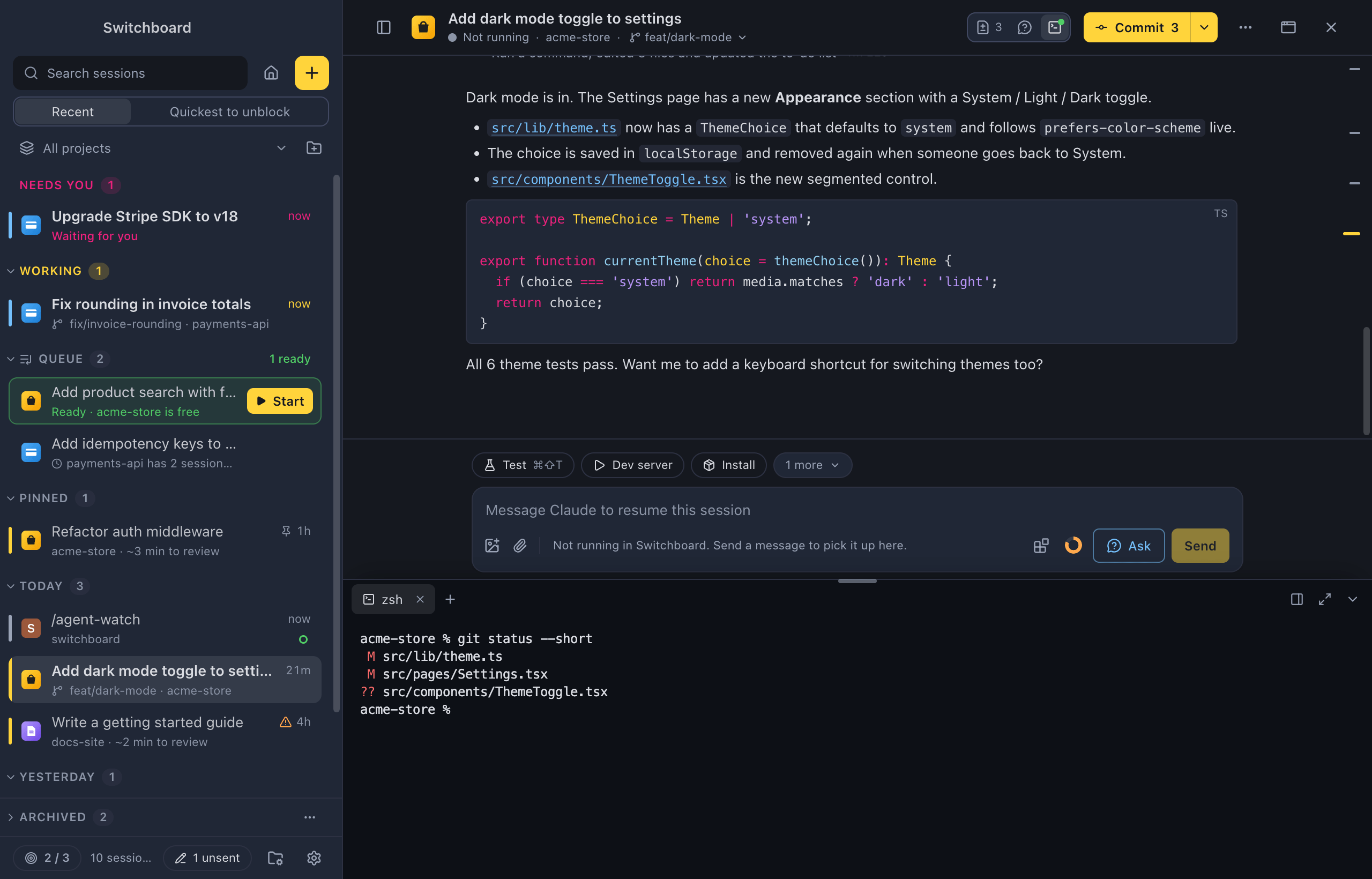
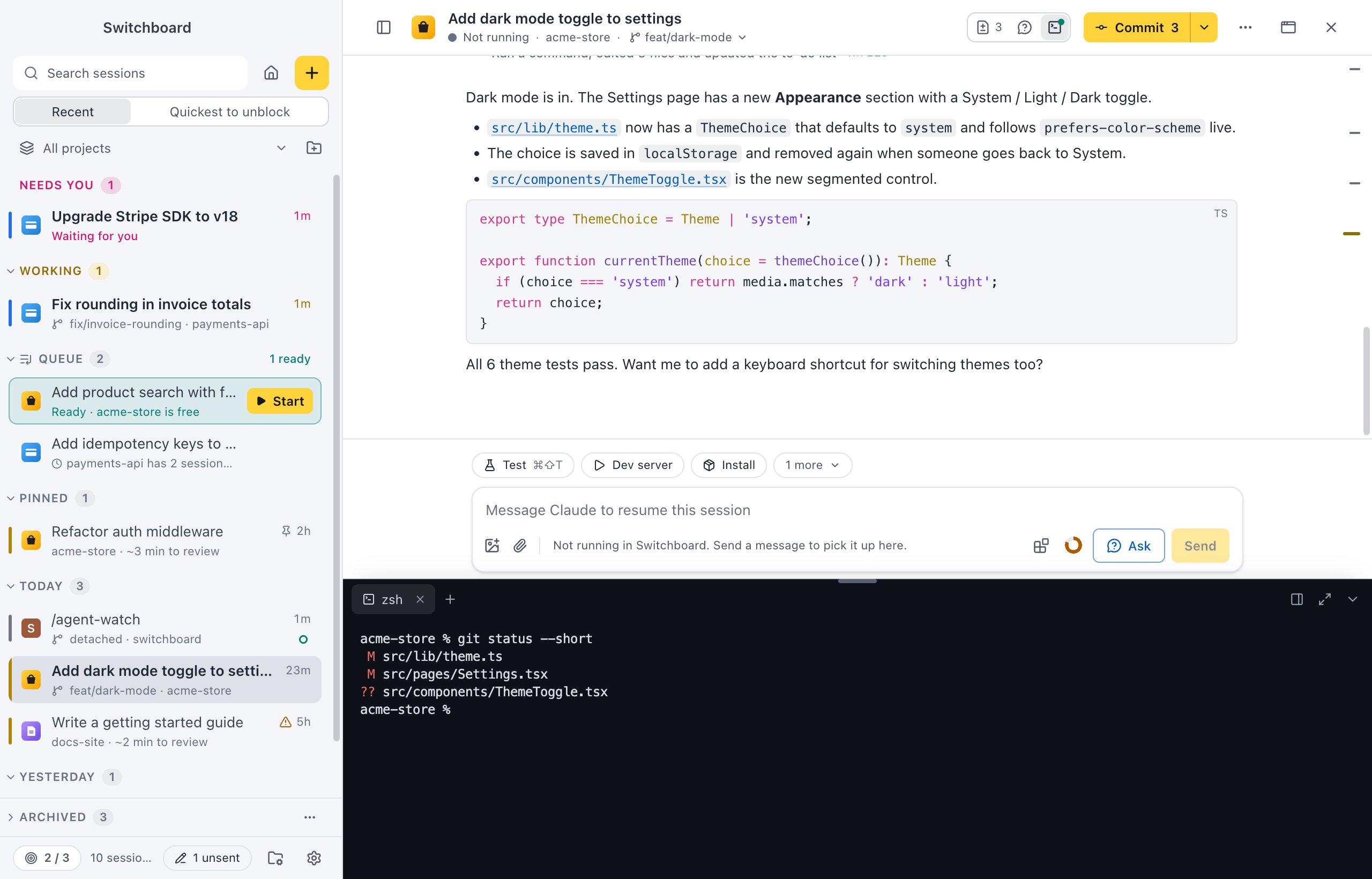
Every session has its own terminal panel. It opens a shell in the session’s folder (its worktree, when it has one), so you can run a command without leaving Switchboard. Project actions, git steps and code blocks from the conversation run there too.
Outside a session you have a terminal too: on Home, a project’s page, Projects, Usage, New session and Settings. See Outside a session.
Open it
Section titled “Open it”- Press Command, J or Control, BacktickControl, J or Control, Backtick to show or hide the terminal of the session on screen.
- Click Terminal in the session header, next to Changes. A dot on it means terminals are running in this session.
- Run Toggle terminal in the command palette (Command, KControl, K), or New terminal tab for another shell.
The first time you open it, the panel starts a shell.
Outside a session
Section titled “Outside a session”Press Command, J or Control, BacktickControl, J or Control, Backtick anywhere else in the app to open a terminal that isn’t tied to a session. It works on Home, a project’s page, Projects, Usage, New session and Settings.
- On a project’s page, a new tab starts in the project’s folder.
- In New session, it starts in the folder the new session would start in.
- Everywhere else, it starts in your home folder.
These views share one terminal panel, so its tabs stay with you when you go from Home to a project and back. Each tab is named after its folder; hover it to see the full path. When you open a session, the panel steps aside for the session’s own terminal, and it is back when you leave the session. Settings, even when you open it from a session, shows this shared terminal too.
Toggle terminal and New terminal tab in the command palette work here too. You can maximize, dock and resize this panel the same way as a session’s.
It is your login shell, so your PATH, nvm and aliases work as in your own terminal.
On Windows it is PowerShell: PowerShell 7 (pwsh) when it is installed, otherwise the Windows PowerShell every PC has. There is no setting to pick Command Prompt or Git Bash; type cmd in the panel to start Command Prompt inside it. Switchboard runs PowerShell with the execution policy set to Bypass for that window only, so npm, npx and pnpm scripts run (a policy your organisation sets still wins). Your PowerShell profile loads as usual.
The terminal uses the font of your own terminal when it finds one, so prompt symbols show: Ghostty's font, or the terminal font of VS Code or CursorWindows Terminal's font, or the terminal font of VS Code or Cursor. When that setting lists more than one font, such as 'Cascadia Code', monospace, it uses each in order.
How to use it
Section titled “How to use it”A session can have several terminals, each in its own tab: shells, project actions, git steps, and Claude Code itself.
- + next to the tabs opens a new shell tab.
- Click a tab to show it, or use Left Arrow or Right Arrow with a tab focused.
- × on a tab closes it.
A tab whose program has ended says it exited, with its exit code. Press Escape in it to close it. A yellow dot on a tab means an action is running there; a red one means what ran there failed. A finished tab shows its exit code next to its title.
Terminals keep running when you switch to another session or close the panel. Hiding the panel doesn’t stop anything.
Keys in the terminal
Section titled “Keys in the terminal”In the terminal, ⌃ and ⌥ keys belong to the shell, and ⌘ keys to Switchboard. Command, CControl, C, Command, VControl, V and Command, AControl, A copy, paste and select in the terminal.
On Windows, Ctrl keys belong to the shell, as in Windows Terminal: Control, RControl, R searches PowerShell’s history and Control, CControl, C stops a program. Switchboard’s own shortcuts take Ctrl+Shift there: open the command palette with Command, Shift, PControl, Shift, P, for example. A few keys stay Switchboard’s in the terminal too: Command, J or Control, BacktickControl, J or Control, Backtick to hide it, Control, TabControl, Tab to go to the next session, and Command, KControl, K to clear it.
- Copy: select text, then press Control, CControl, C. With nothing selected, Control, CControl, C stops the program as usual. Control, Shift, CControl, Shift, C always copies.
- Paste: Control, VControl, V or Control, Shift, VControl, Shift, V.
Clear the terminal
Section titled “Clear the terminal”Press Command, KControl, K in the terminal to clear it. Since that key clears the terminal there, open the command palette with Command, Shift, PControl, Shift, P while the terminal has the focus.
Maximize
Section titled “Maximize”Press Command, Shift, JControl, Shift, J, or click the maximize button, to let the terminal fill the session view (or, outside a session, the view you are on). Press it again, or Escape outside the shell (on the tabs or buttons), to restore it. Inside the shell, Escape belongs to the program that runs there.
Dock below or on the right
Section titled “Dock below or on the right”The panel docks below the conversation by default. Click the dock button to move it to the right, or back below. Dock terminal right and Dock terminal below in the command palette do the same. Switchboard remembers your choice.
On the right, the terminal shares the side with the Changes panel, the Ask panel and the Agents panel. With more than one of them open, tabs at the top switch between them, and Terminal is the last tab. Opening Changes, Ask or Agents brings that panel to the front and keeps the terminal on the right, behind it. Click the Terminal tab, the Terminal button in the header or press Command, J or Control, BacktickControl, J or Control, Backtick to bring it back to the front. Its shells keep running behind the other tabs. As a tab, the terminal has the same width as the other panels.
The terminal stays below while the right side isn’t free:
- when the Why is Claude asking? panel is open;
- when the session view is too narrow for the terminal and a usable conversation side by side. Widen the window to dock it on the right.
The dock button’s tooltip says which one applies.
Resize
Section titled “Resize”Drag the panel’s edge to make it taller or wider. With the edge focused, use Up Arrow or Down Arrow when it is docked below, or Left Arrow or Right Arrow when it is on the right.
Always dark
Section titled “Always dark”The terminal panel is always dark, in light mode too, on a background a little darker than the conversation. Its colours come from the theme.
Actions in the terminal
Section titled “Actions in the terminal”A project action that runs a command, and the git steps of the git button, open in their own tab. A strip above the terminal shows:
- the status: Running, Exited 0, or Failed with its exit code;
- the command;
- how long it has run;
- the folder it runs in;
- Restart, which stops it if needed and runs it again;
- Stop, while it runs.
Press Control, CControl, C in the terminal to stop a running action. Stop action and Restart action are in the command palette too.
On Windows, actions and git steps run in the same PowerShell as the shell tabs. A stopped action shows Failed with its exit code, usually 1 (130 on a Mac). Windows PowerShell 5.1 has no &&: the steps Switchboard runs itself chain their commands the way it understands, but in your own action commands write a; if ($?) { b }, or install PowerShell 7. See Troubleshooting.
Run a code block
Section titled “Run a code block”When Claude’s reply has a shell code block (bash, sh, zsh, shell, console and similar), hover it and click Run in terminal (the play button). On Windows the command runs in PowerShell, so a bash command that PowerShell doesn’t understand fails there. powershell and pwsh blocks have no play button. The command runs in the session’s terminal, in the same shell tab as earlier runs while that shell is open. For a console block, or lines that start with $ , only the command lines run, without the $.
Open the session in Claude Code
Section titled “Open the session in Claude Code”To use Claude Code’s own terminal interface on the session, with its status line, mods and every CLI feature, open the session header’s ⋯ menu and choose Open in → Claude Code. It opens in a tab of the terminal panel.
A session that is running in Switchboard can’t be open in two places. Switchboard then offers Stop it here and open, or Open a fork to open a copy of the conversation instead. A session that is open in another Claude Code window can only be opened as a fork.
Settings
Section titled “Settings”The terminal has no settings of its own. Its colours follow the theme: see Built-in themes and Settings.
Related
Section titled “Related”- Project actionsOne-click buttons for the commands and prompts you run over and over in a project.
- GitThe branch in a session's header, the git button with the next step for the branch, pull request checks, and finishing a worktree.
- Code and terminal coloursHow a theme colours code blocks, diffs and the terminal panel.
- Split viewTile sessions next to each other and above each other, drag them into place and resize them.