
Your first session
Give Claude a task in one of your projects, then get on with something else: Switchboard tells you when the session needs you and when it is done. A session is one conversation with Claude Code in a folder. You start one from New session: pick a project, write what Claude should work on, and press Start. Switchboard runs your own claude with your login and settings.
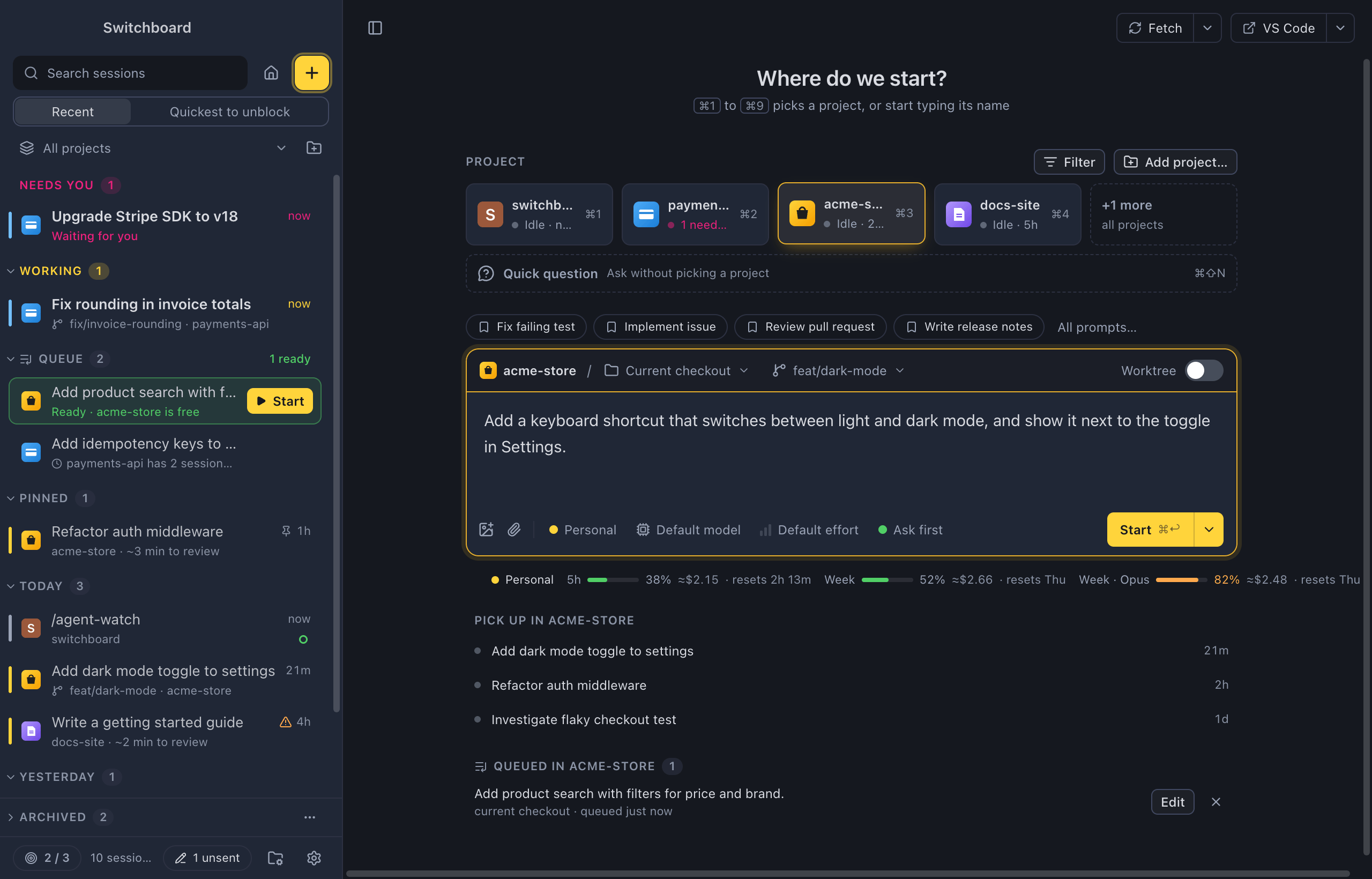
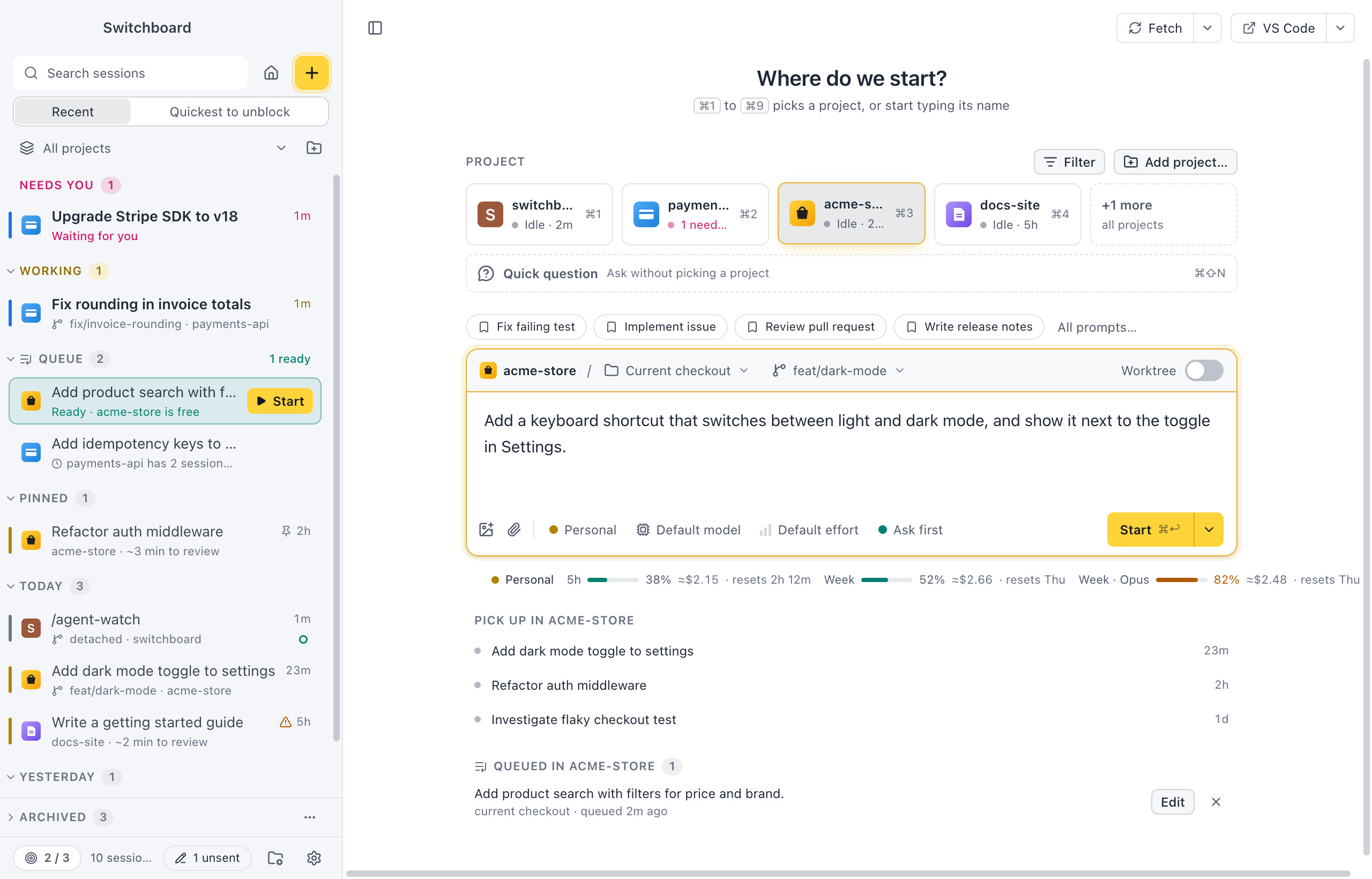
Open it
Section titled “Open it”- Press Command, NControl, N.
- Click the yellow + button at the top of the sidebar, or New session on Home.
- Choose New session… in the command palette (Command, KControl, K) to pick a project and write the prompt without leaving the keyboard.
Start a session
Section titled “Start a session”- Pick a project. New session asks Where do we start? and shows your projects as tiles. Click one, press Command, 1 to Command, 9Control, 1 to Control, 9 for a recent one, or type in Filter projects, or type a path to find another folder.
- Choose where it runs. Current checkout works in your folder as it is. New worktree gives the session its own isolated copy on a new branch. See Worktrees.
- Write the prompt in the box that says What should Claude work on? You can paste or drop images, type
/for commands and skills, and@to mention a file. - Check the chips under the message box: the Claude profile (with more than one), the model, the effort and the permission mode. Click one to change it for this session. See Models and options.
- Start. Press Command, ReturnControl, Enter or click Start. The ▾ next to it has Add to queue (Command, Shift, ReturnControl, Shift, Enter) and Start in a new worktree.
The session opens straight away and Claude starts working. To ask something without picking a project, use a quick question (Command, Shift, NControl, Shift, N).
What happens next
Section titled “What happens next”While Claude works, the session sits under Working in the sidebar with a yellow rail and a spinner, and you see each step in the conversation as it happens. You don’t have to watch: open another session, or switch to another app.
- When Claude needs a decision, a permission, an answer to a question or a plan to review, the session moves to Needs you with a pink rail and a pulsing dot. Answer it in the card in the conversation. See Permissions and questions.
- When Claude finishes, the session moves out of Working. If you weren’t looking at it, it shows as finished and unread, in blue, until you open it.
- If something goes wrong, the session shows a red !.
| State | What it means |
|---|---|
| Needs you | Claude waits for a permission, a question or a plan |
| Working | Claude is working on it |
| Finished, unread | It finished and you haven’t read it yet |
| Failed | The last run stopped with an error |
All the states are on Session states.
Notifications and the badge
Section titled “Notifications and the badge”Switchboard sends a macOSWindows notification when a session needs you (“Claude wants to use Bash”, “Claude has a question”), when Claude finishes, and when a run fails. Click the notification to open the session. You don’t get one for the session you are looking at. To turn them off, or to hear a sound as well, see Notifications.
The Dock icon shows a badge with the number of sessions waiting for you, and bounces once when a session starts waiting while Switchboard is in the background.
Windows has no badge count. While sessions wait for you, a pink dot sits on Switchboard’s taskbar button (hover it to read how many). When a session starts waiting while Switchboard is in the background, the taskbar button flashes until you switch to the window.
Keep going
Section titled “Keep going”- Type in the message box under the conversation to send Claude the next message. See Working in a session.
- Open Changes (Command, Shift, DControl, Shift, D) to review what Claude changed. See Changes.
When this works, go on to Things to try next: a dozen features that are easy to miss, such as asking about a session without interrupting it.
Settings
Section titled “Settings”Projects can have their own defaults for new sessions (model, effort, permission mode, worktree and branch) on the project’s Settings tab. Turn on a focus limit in Settings, Focus if you want Switchboard to say when you have enough sessions going.
Related
Section titled “Related”- Things to try nextA dozen features that are easy to miss after your first session, each with the page that covers it.
- Session statesWhat the colours, rails and dots on a session mean.
- WorktreesStart a session in an isolated copy of the repository on a branch of its own, like claude --worktree.
- Catch-upA short briefing over a session when it finishes, so you can decide what to do next in a few seconds.