
New session
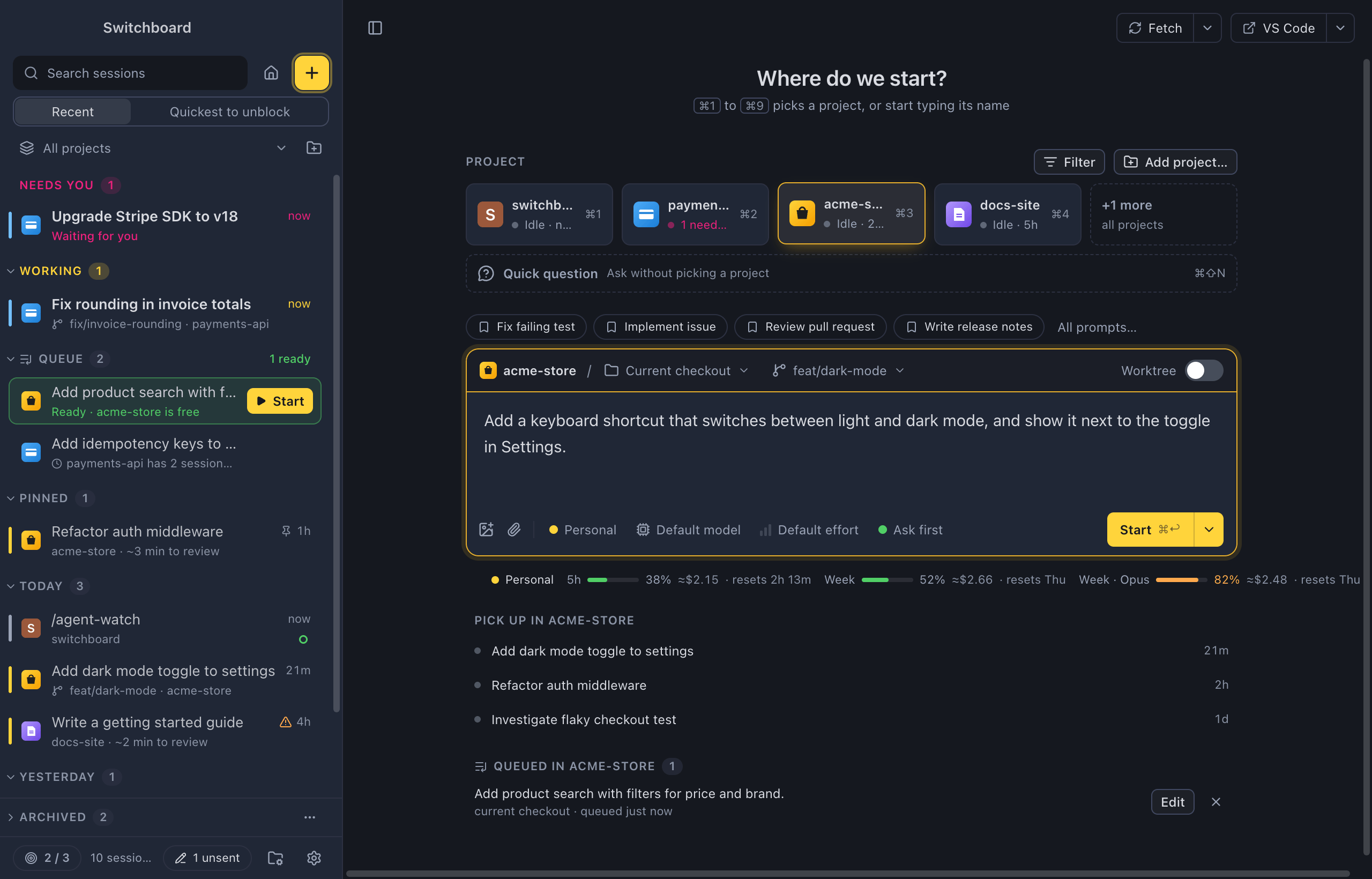
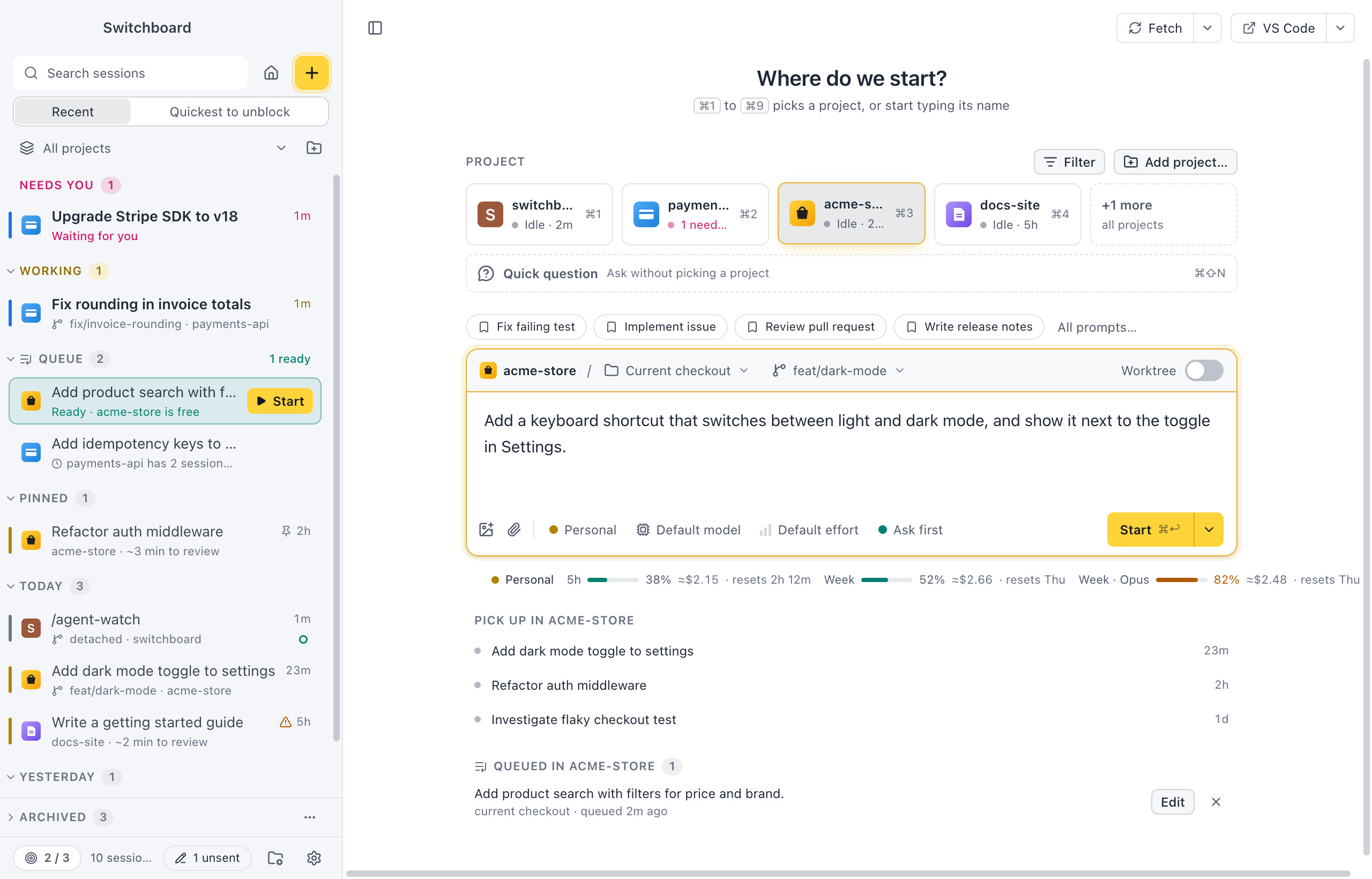
New session is where every Claude Code session starts. You pick a project, choose whether Claude works on your checkout or in a new worktree, write the first prompt and press Start.
Open it
Section titled “Open it”- Press Command, NControl, N.
- Click the yellow + button at the top of the sidebar.
- In the command palette, run New session… to do it all from the keyboard (see Start from the palette), or New session in <project> for the project you have open.
- On a project’s page, Command, NControl, N and its New session button start in that project.
When you left a prompt unsent in New session, the + button carries a small pen and opens New session on that prompt’s project. See Unsent messages.
Pick a project
Section titled “Pick a project”The view opens with the heading Where do we start? and your first four projects as tiles. Each tile shows the project’s icon, its name and what is going on there: 1 needs you, 2 working, or how long it has been idle.
- Press Command, 1 to Command, 9Control, 1 to Control, 9 to pick a tile by its number. This works wherever focus is, also while you type the prompt.
- Filter, at the right of the Project heading, opens all projects with a filter field. With more than four projects, the fifth tile, +N more, does the same. Type a few letters of a name; the field shows how many match, such as “2 of 9”. Typing a letter while a tile has focus opens the list filtered by it. ReturnEnter picks the highlighted project, the arrow keys move.
- Quick question, under the tiles, starts without a project. See Quick questions.
The order of the tiles follows Project order in Settings → Projects: Recent (the ones you used last first) or Your order. New session remembers the last project you picked and opens on it next time. A project you filtered the sidebar to is picked first.
Add a folder
Section titled “Add a folder”Adding a folder takes one step. The folder becomes a project and is picked right away. A folder that already is a project is only picked.
- Add project…, at the right of the Project heading, opens the same Add project dialog as Projects: the folders you have used Claude Code in, and Choose folder… for any other. The project you add is picked here, and you stay in New session. With the list open, the button sits next to the filter field. In the command palette, Add project… does the same while New session is open.
- Type a path in the filter field: one that starts with ~/ or /~\ or a drive, such as C:\. The field turns into a path field and lists the folders in it, with the branch of the ones that are git repositories. The rest of the first folder shows faintly after what you typed: TabTab takes it, and TabTab on a whole folder name goes into it. ReturnEnter on a folder (its row says Add and start here) adds it and picks it. Hidden folders show when you type a dot.
- When a name matches none of your projects, the list shows the folders Claude Code already has sessions for that aren’t projects yet. ReturnEnter adds the highlighted one. The last row, Choose a folder…, opens the folder dialog.
- Drag a folder from FinderFile Explorer onto the projects and drop it. Files, or several items at once, are not added.
Without any projects yet, one wide tile, Add project…, opens the same dialog. You can also start typing a path there.
Clone from GitHub
Section titled “Clone from GitHub”With Clone from GitHub on in Settings › Projects, Clone from GitHub… sits next to Add project…. It replaces the tiles with a form: paste a repository’s URL, check the folder it goes in, and press ReturnEnter to clone. A GitHub URL pasted in the filter field offers Clone owner/name too. Type the prompt while it clones: Start waits for the clone, then starts the session in it. Pick a project instead goes back to the tiles.
When you pick a folder that isn’t one of your projects yet, a checkbox under the message box, Add <folder> to your projects, adds it when the session starts. Leave it ticked to find the folder in New session next time.
Under the message box, Pick up in <project> lists the project’s recent sessions with their state, so you can continue one instead of starting another. Queued in <project> lists the prompts you queued there.
Choose where Claude works
Section titled “Choose where Claude works”The strip on top of the message box says where the session runs. It shows the project, then where the edits land, then the branch. Hover it for a plain sentence, such as “Edits land directly in your working copy on main”.
- Current checkout (the default): Claude edits your working copy.
- New worktree: Claude gets an isolated copy of the repository on a branch of its own. Flip the Worktree switch at the right of the strip, or pick it in the menu. See Worktrees.
Work on another branch
Section titled “Work on another branch”On the current checkout, the branch button lists your local branches, with a search field. Pick one to check it out before the session starts. The current branch is marked current, with ↓3 when its upstream has commits you don’t have.
Switching uses git’s own checkout: uncommitted changes that don’t conflict come along, and git refuses when they would be overwritten. Nothing is stashed or thrown away.
A branch that is checked out in another worktree (such as one Claude Code made in .claude/worktrees) is listed but can’t be picked: git won’t check out a branch twice. It says Checked out in another worktree. When a branch kept from before is one of them, Start says so; Start in a new worktree and Add to queue still work.
A folder that isn’t a git repository shows no git, and Claude edits the folder directly.
Update from remote
Section titled “Update from remote”Your copy may be behind the remote. The button at the top right of New session offers the next step: Fetch to see whether the upstream moved on, or Pull ↓2 when it did. Its ▾ menu has both. After a pull it says “Pulled 2 commits”, after a fetch with nothing new “Up to date”. In the command palette, Update from remote runs the same step.
Next to it, the Open in button opens the project in your editor, terminal or FinderFile Explorer.
Write the prompt
Section titled “Write the prompt”The message box works the same as in a session:
- Return or Command, ReturnEnter or Control, Enter starts, Shift, ReturnShift, Enter adds a new line.
- Type Slash for commands and skills, At to mention a file.
- Paste, drop or attach images, and add files as context with Command, Shift, AControl, Shift, A, from the project or from anywhere on your computer with Choose in FinderFile Explorer…. A long paste goes in a Pasted card.
- Up Arrow at the start of your text brings back the first prompts of your earlier sessions in this project.
The box takes the colour of the picked project, with a faint ring around it.
Under the message box sit the chips for the Claude profile (with more than one profile), the model, the effort and the permission mode. They show only the value, such as “Opus 4.5”, “Medium” or “Auto”. See Model, effort and mode. On the right of that line you see your plan usage for the profile the session uses.
Prompts you write here and don’t start are kept per project, also after you quit. Pick the project again and the prompt comes back, with a banner that says so and a Discard button.
Start a session
Section titled “Start a session”Start is a split button. The main part starts the session (Command, ReturnControl, Enter). The ▾ next to it holds the other ways to start:
| Choice | Shortcut | What it does |
|---|---|---|
| Start session | Command, ReturnControl, Enter | Starts the session with the choices on screen. |
| Add to queue | Command, Shift, ReturnControl, Shift, Enter | Keeps the prompt, project and choices in the queue to start later. |
| Start in a new worktree | Starts this one session in a new worktree, leaving the route and the project’s default as they are. Shown in a git repository while the route is the current checkout. |
When something stops Start, its tooltip says why: “Type a message first”, “Choose a folder first”, or the focus limit.
The session opens as soon as it starts. Claude Code was already warmed up in the folder while you typed, so the first reply comes quickly.
Project defaults
Section titled “Project defaults”New session starts from the project’s defaults: model, effort, permission mode, current checkout or worktree, what a worktree branches from, and a branch. Fields the project leaves unset use the defaults of the session’s Claude profile, then the choices you made last in New session.
Change something for one session, and it applies to that session only. To keep it, open the Where menu (the route button in the strip) and choose Save as project default, or run Save as project default in the command palette. A line under the message box confirms it (“Saved as acme-store’s defaults”). The menu item says Saved when the choices on screen already are the defaults.
You can also edit the defaults on the project’s Settings tab.
Pick a profile for one session
Section titled “Pick a profile for one session”With more than one Claude profile, the first chip under the message box shows the profile the session runs on. It starts on the project’s profile, or the default one, marked “(project)” or “(default)” in the menu. Pick another for this session only. The usage on the right follows the profile you pick.
Run on another computer
Section titled “Run on another computer”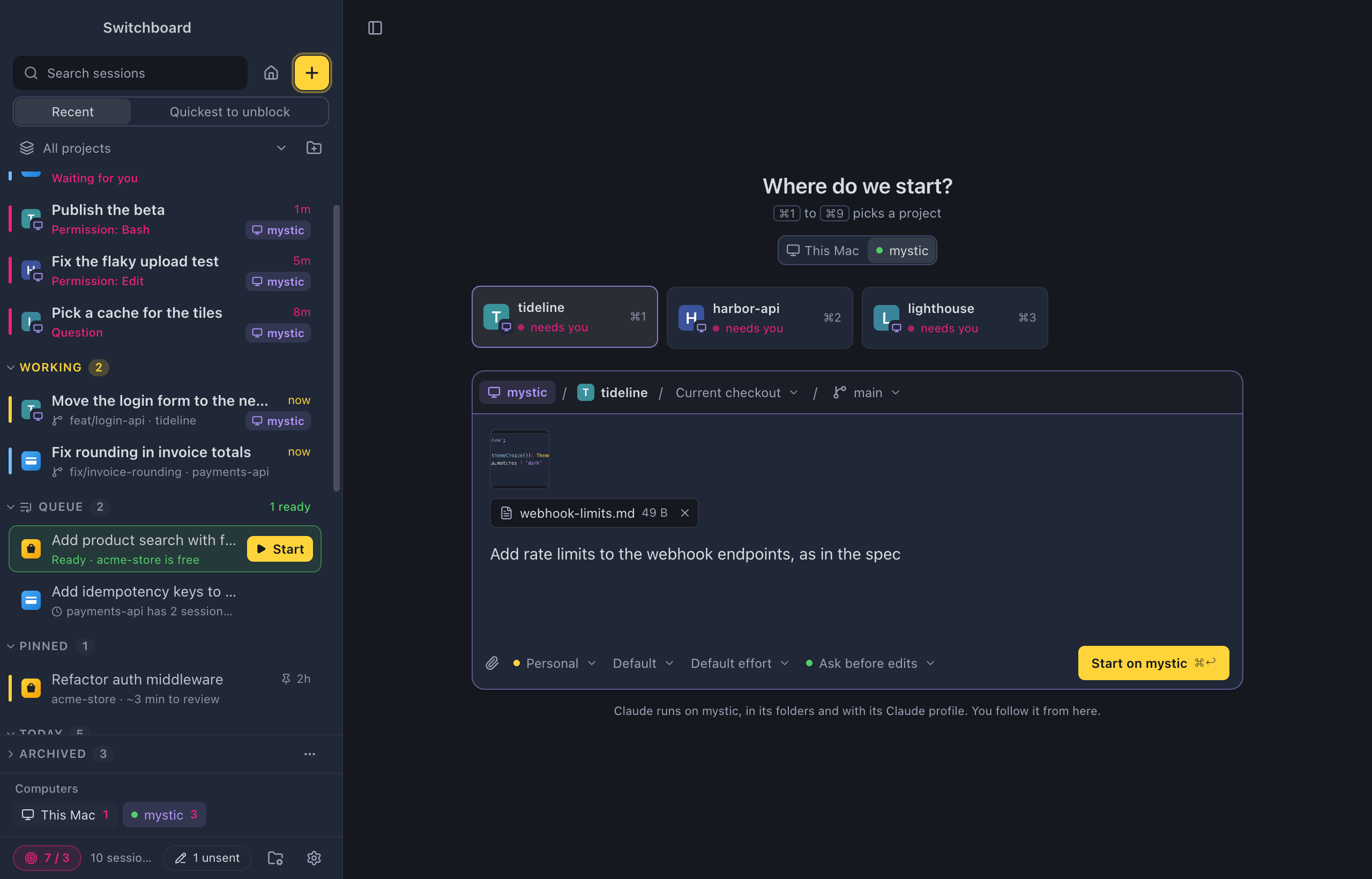
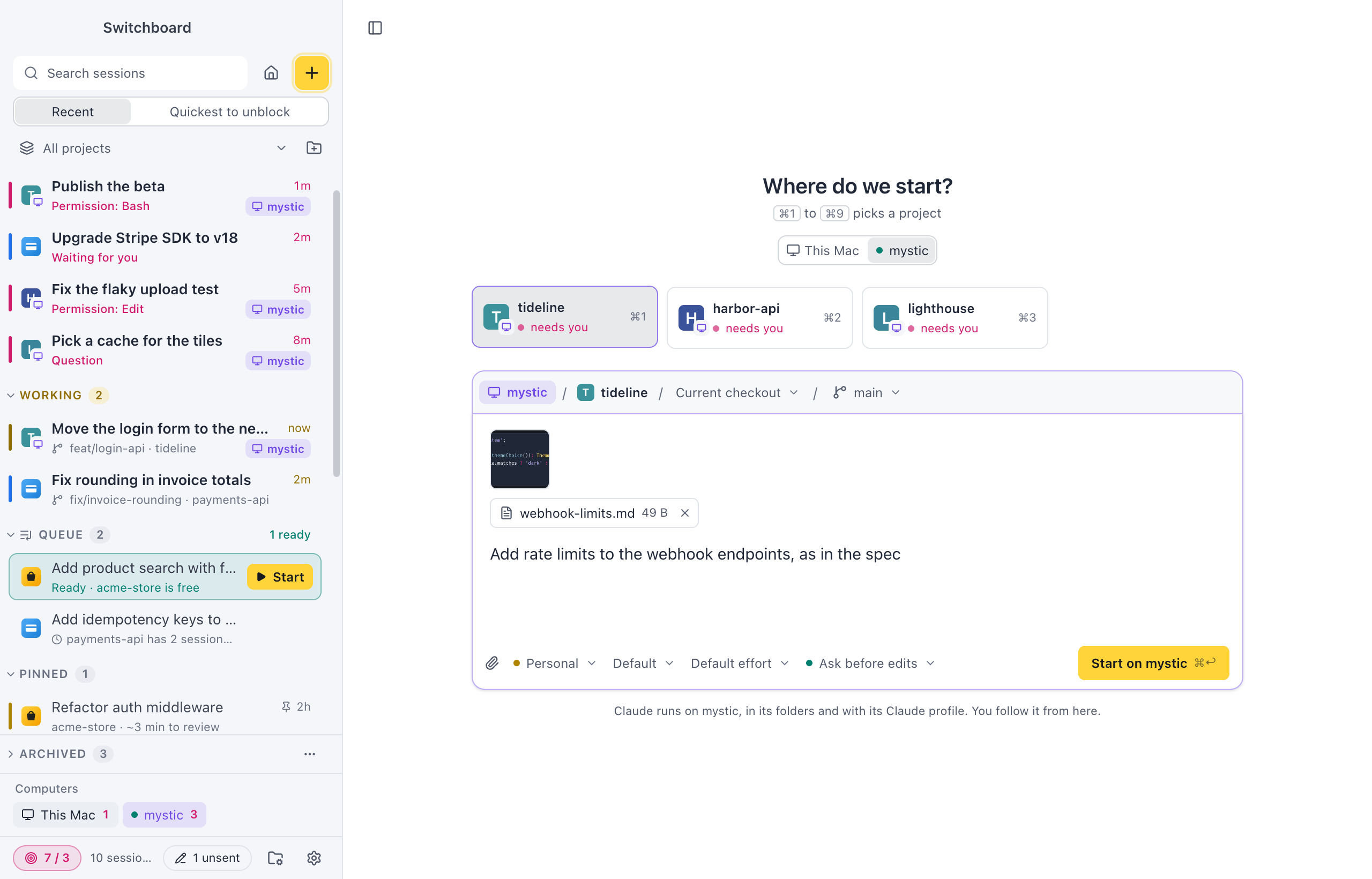
With another computer paired, Run on sits under the heading: This MacThis PC and each paired computer, with a green dot when it is connected. Pick a computer and Claude runs there, in its folders and with one of its Claude profiles. You follow the session from here.
- The tiles are that computer’s projects, each with a small monitor badge. Command, 1 to Command, 9Control, 1 to Control, 9 still picks one, and +6 more on mystic shows the rest. Folders on another computer can’t be picked from here, so there is no Other folder or Add project….
- The strip above the message box starts with the computer’s name, then the project. Where (the current checkout or a new worktree) and the chips under the message box show when the other computer’s Switchboard offers them. An older version only takes the project and the prompt.
- On the current checkout, the strip ends with the branch checked out on that computer. Click it to pick another local branch, with a search field, as in Work on another branch: it is checked out there before the session starts. A branch checked out in another worktree can’t be picked. This needs this version of Switchboard on the other computer.
- The chips start from the project’s defaults on that computer. With more than one Claude profile there, the first chip is the profile: the project’s own, else that computer’s default, marked “(project)” or “(default)” in the menu. Pick another for this session only, and the other chips show that profile’s defaults where the project sets none. With Auto model on there, the model list starts with Auto. The effort chip only shows for a model that takes an effort.
- Start on mystic (Command, ReturnControl, Enter) starts the session there and opens it here.
- Attach images and files with the paperclip button, or paste or drop them on the message box, as for a session there. They go to the other computer with the prompt. Quick question, Add to queue and the focus limit are for this computer only.
- With Clone from GitHub on here, Clone from GitHub… clones on that computer, into its own Clone into folder, and starts the session there.
An offline computer stays in the switch, greyed out, with when it was last seen. Run on remembers your last choice for the + button in the sidebar. Command, NControl, N always starts on this computer. New session on mystic… in the command palette opens New session with that computer picked.
At the focus limit
Section titled “At the focus limit”With the focus limit on and reached, a note above the message box lists the sessions that count, each with Open, and Change limit opens Settings. Its Add to queue keeps the idea for later.
- Nudge: Start asks first, and the note also has Start anyway.
- Strict: Start waits until you finish, read or archive a session. Add to queue stays in Start’s menu.
Start from the palette
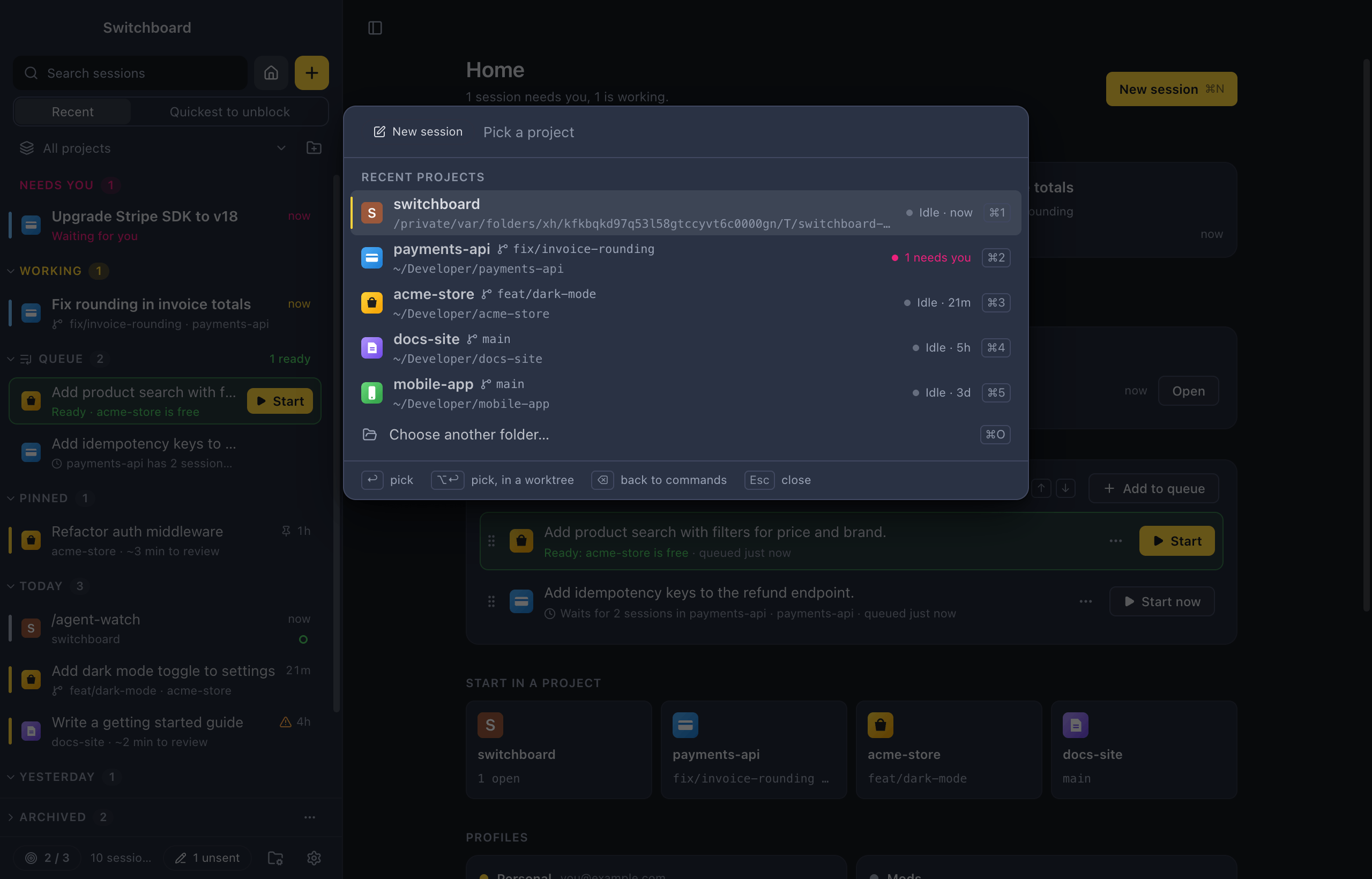
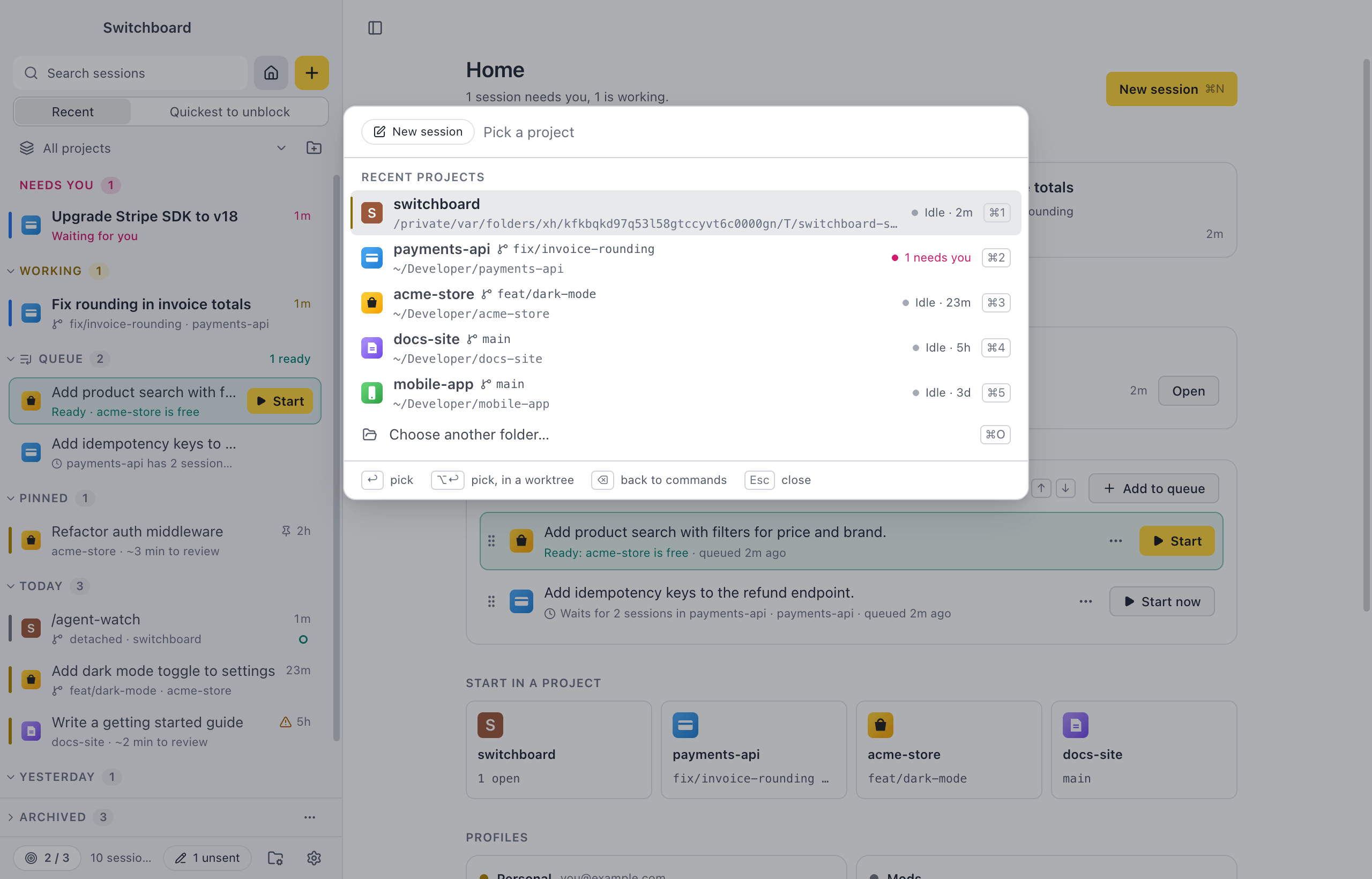
Section titled “Start from the palette”The command palette can start a session without leaving the keyboard.
- Press Command, KControl, K and choose New session…, or type
+in the palette. - Pick a project: type a few letters, or press Command, 1 to Command, 9Control, 1 to Control, 9. Option, ReturnAlt, Enter picks it in a new worktree, and Command, OControl, O chooses another folder.
- Write the prompt in the small New session form. It has the route, the branch and the same chips.
- Press Command, ReturnControl, Enter to start, or Command, Shift, ReturnControl, Shift, Enter to add it to the queue.
Command, EControl, E moves the prompt and choices to the full New session view. Escape closes the palette and keeps what you typed as the project’s unsent prompt. See Command palette.
Start from a link
Section titled “Start from a link”A switchboard://new-session link opens New session with a project and a prompt filled in. You read the prompt and press Start yourself, unless the link says autostart=1. A line under the message box says the prompt came from a link, with Clear. See Links.
Settings
Section titled “Settings”- Settings → General: Switchboard can open on New session.
- Settings → Projects: Project order sets how the tiles are ordered, and Clone from GitHub turns on cloning a repository from New session.
- Settings → Claude profiles: the profiles you can pick from.
- Settings → Focus: the focus limit.
- A project’s Settings tab: its defaults and profile.
Related
Section titled “Related”- WorktreesStart a session in an isolated copy of the repository on a branch of its own, like claude --worktree.
- Saved promptsNewSave a prompt with blanks, pick it with / or in New session, fill in the blanks and send.
- Project settingsThe Claude profile and the choices new sessions in a project start with, and its name and icon in Switchboard.
- Session statesWhat the colours, rails and dots on a session mean.