
Permissions and questions
When Claude wants to run a command or edit a file, has a question for you, or has a plan ready, it waits for you. Switchboard shows a card above the message box with everything you need to decide, and marks the session Needs you everywhere until you answer.
Where to find it
Section titled “Where to find it”A session that needs you shows up in several places at once:
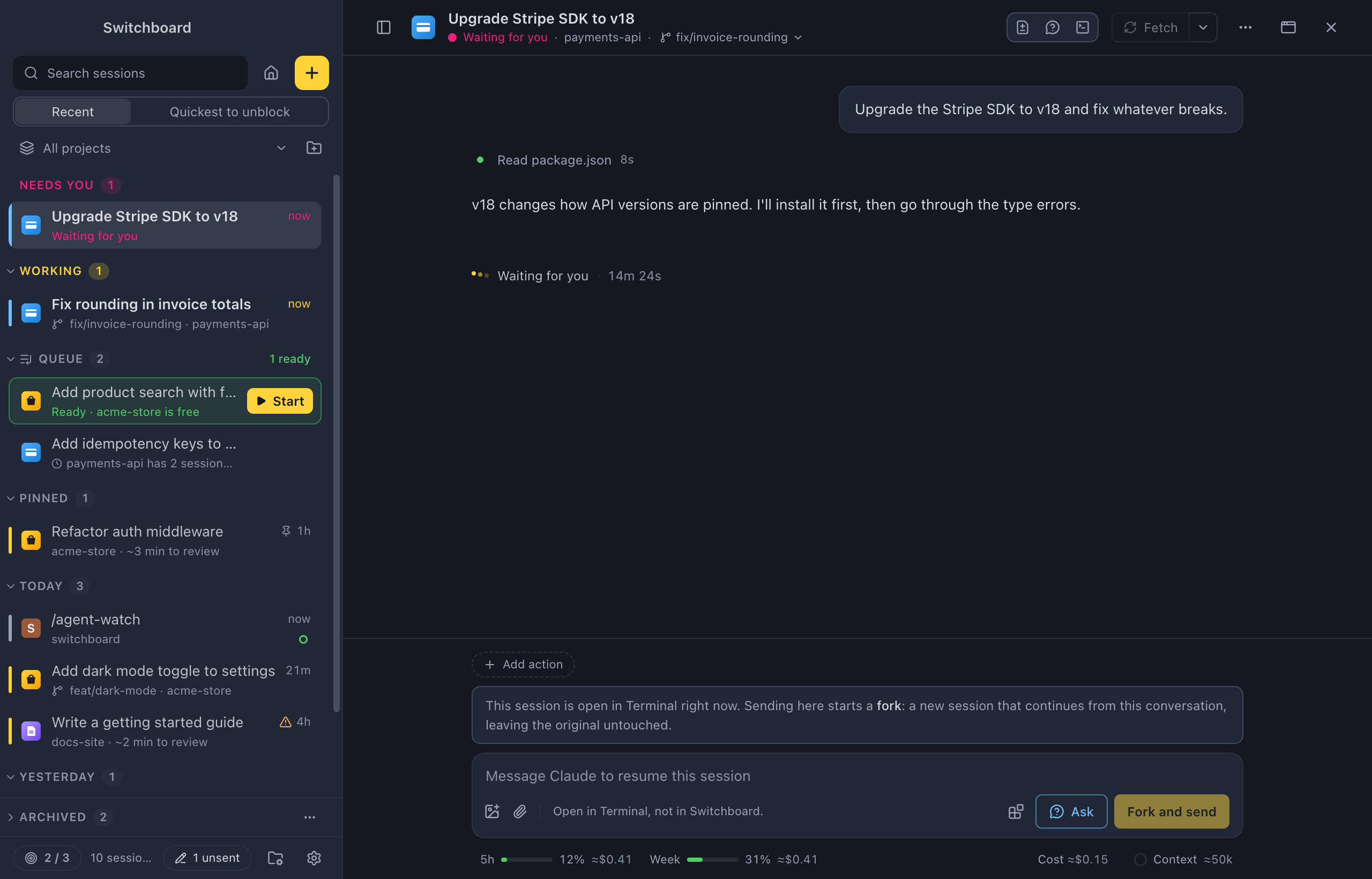
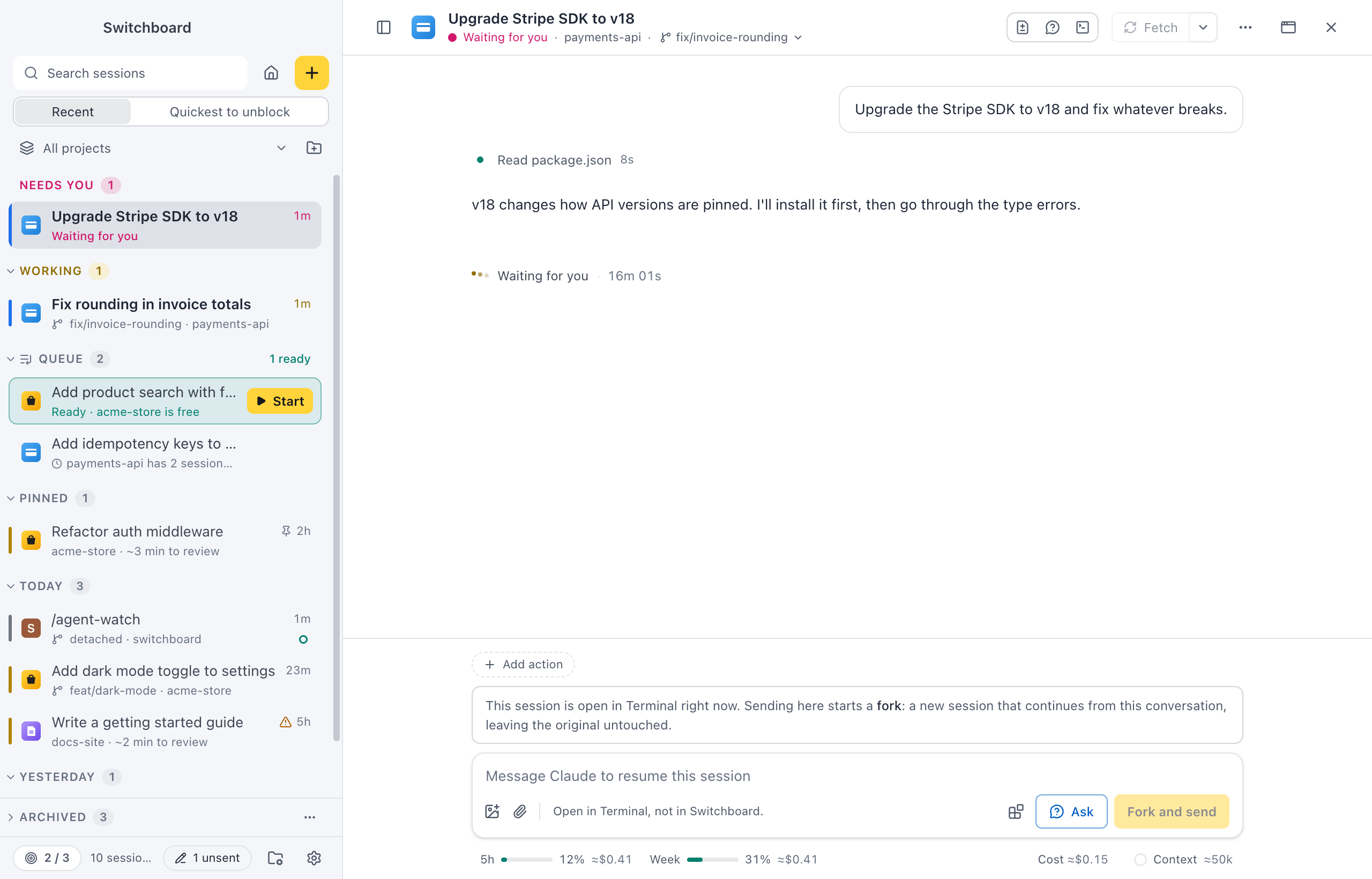
- The sidebar puts it in the Needs you group at the top, with a pink rail and a pulsing dot. Home lists it first too.
- A notification and the Dock badgea dot on the taskbar button tell you, also while Switchboard is in the background. In the background, the Dock icon bouncesthe taskbar button also flashes until you switch to Switchboard. The notification says what Claude wants: “Claude wants to use Bash”, “Claude has a question” or “Claude has a plan for you”. Click it to open the session.
- Press Command, Shift, UControl, Shift, U to go to the next session that needs you, or run Go to next session that needs you in the command palette. It goes to sessions that wait for you first, then finished ones you haven’t read, the quickest to review first (see Catch-up).
- With the session open, Go to the permission or Go to the question in the palette scrolls to the card.
The card itself has a pink frame. After a minute it says how long it has been waiting (“Waiting 2m”). A card from a subagent says “From a subagent”.
Permissions
Section titled “Permissions”The card says what Claude wants to do, such as “Claude wants to run a command”, and shows the command or the file. Show details shows everything Claude sent with the request.
| Button | Key | What it does |
|---|---|---|
| Allow | Command, Return or Control, ReturnControl, Enter or Control, Enter | Allows this once. Claude asks again next time. |
| Always allow … | Allows this and adds a rule, so Claude doesn’t ask again for the same thing, such as “Always allow Bash(npm test:*) in this project”. Shown when Claude Code offers a rule. | |
| Deny | Escape | Says no. |
To say no and tell Claude what to do instead, type in the field under the buttons (“Or tell Claude what to do instead…”) and press ReturnEnter. Claude gets your text with the denial.
Questions
Section titled “Questions”When Claude has a question (“Claude has a question for you”), the card lists the answers it suggests, each with a number.
- Press a number key (1 to 9) to pick an answer, or click it. With several questions, the one you are answering has an accent line and “1 of 2” before it, and a question you have answered fades back and says Answered (point at it to read it again). Picking an answer to a single-choice question moves on to the next open question and scrolls it into view. A multi-select, and the field for your own answer, wait for ReturnEnter or Next question. Changing an earlier answer doesn’t jump ahead.
- ReturnEnter moves on to the next question, and on the last one sends your answers.
- Type your own answer in the field under the choices (“Or type your own answer”).
- Some questions take more than one answer: tick each, and add something else if you want.
- Answer (Command, Return or Control, ReturnControl, Enter or Control, Enter) sends your answers once every question has one.
- Skip (Escape) skips the question.
In Plan mode, Claude reads and plans without making changes. When it’s done, the card shows the plan (“Claude has a plan. Ready to start?”):
| Button | Key | What it does |
|---|---|---|
| Approve and accept edits | Command, Return or Control, ReturnControl, Enter or Control, Enter | Starts, and switches the session to Accept edits, so file edits apply without asking. |
| Approve, ask before edits | Starts, and asks before each file edit. | |
| Keep planning | Escape | Claude goes on planning. Type what to change in the field under the buttons first, and press ReturnEnter to send it. |
Why is Claude asking?
Section titled “Why is Claude asking?”Every card has a Why? button at the top. It opens a panel beside the conversation, Why Claude asks, that helps you decide:
- Why Claude needs it: how the request fits what you asked, from what Claude did so far. It says so when it doesn’t seem to fit.
- What it does: what happens if you say yes. For a command, what each part does and whether it only reads or changes something, such as files, git, packages or the network.
- What Claude said: Claude’s own last words before it asked.
- Your ask and So far: the prompt that started this piece of work, and what Claude did since.
The panel only explains: you still answer in the card. It closes when you answer, with Why? again, or with Escape (the next Escape says no). You can also run Why is Claude asking? from the command palette.
Haiku writes Why Claude needs it and What it does when Write catch-up summaries with Haiku is on in Settings › Conversation. It sees your prompt, Claude’s last words, the list of tool calls and the request itself: a command, a file’s path, a plan or the questions, never what an edit writes. Off, the panel shows the rest without a model. The tokens count toward the session’s plan, and show in Usage as Catch-up summaries.
Answer from the keyboard
Section titled “Answer from the keyboard”The keys belong to the first card of the session you are looking at. With two sessions side by side, only the active pane’s card answers.
- Command, Return or Control, ReturnControl, Enter or Control, Enter allows, sends your answers, or approves a plan.
- Escape denies, skips, or keeps planning. While a card is waiting, Escape in the message box answers the card instead of stopping Claude.
- 1 to 9 picks an answer to a question.
Some keys are left alone where they would do the wrong thing: number keys typed in the message box are text, Command, ReturnControl, Enter in the “tell Claude what to do instead” field doesn’t allow what you are explaining a no for, and Escape in your own answer doesn’t skip the question. A card that appears while you type doesn’t take your focus, so an ReturnEnter meant for your message never approves something you didn’t read.
Permission modes
Section titled “Permission modes”The permission mode decides how often Claude asks. Change it with the mode chip under the message box, or press Shift, TabShift, Tab in the message box to cycle through Ask before edits, Accept edits and Plan mode. In the command palette, Change permission mode… lists every mode.
| Mode | When Claude asks |
|---|---|
| Ask before edits | Before every edit and command |
| Accept edits | File edits apply; commands still ask |
| Plan mode | Claude reads and plans, and shows you the plan |
| Auto mode | Only when it matters |
A new mode also applies to the requests that are already waiting. Switch to Accept edits or Auto mode while cards are up, and the ones the new mode allows close. Claude then makes those calls again, and they run without asking. A question from Claude and a plan to approve stay until you answer them.
See Model, effort and mode for the chips.
Sessions from the terminal
Section titled “Sessions from the terminal”With Show sessions from other apps on in Settings → Sidebar, Claude Code sessions running in your terminal show up in the sidebar too. When one waits for a permission, it moves to Needs you and a notification says “Claude is waiting for you in Terminal”. Answer it in the terminal where it runs: Switchboard doesn’t drive that process.
If you send a message to a session that is open in another app, Switchboard starts a fork instead: a new session that continues from the conversation, leaving the original untouched.
Answer from VS Code
Section titled “Answer from VS Code”With the VS Code companion installed, the prompts of sessions in your VS Code workspace show up as notifications there too, so you don’t have to switch apps:
- A permission offers Allow, the Always allow rule when there is one, Deny… (with an optional note for Claude) and Show in Switchboard.
- A question offers Answer…, with a pick list per question and your own answer as the last choice, and Skip.
- A plan offers Read the plan, which opens it in a preview, then Approve and accept edits, Approve, ask before edits or Keep planning….
Dismissing a notification leaves the prompt waiting in Switchboard. The command Switchboard: Answer Prompts shows the waiting ones again. When you already answered in Switchboard, VS Code says “That was already answered in Switchboard.” The status bar says Switchboard: 1 needs you when a session in the workspace waits for you.
Settings
Section titled “Settings”- Settings → Sidebar: Show sessions from other apps lists terminal sessions and notifies you when one waits.
- Settings → VS Code: the companion that lets you answer from VS Code.
- A project’s Settings tab: the permission mode new sessions start in.
Related
Section titled “Related”- Model, effort and modeThe chips under the message box that set the profile, model, effort and permission mode of a session.
- Notifications and soundsTurn notifications and sounds on or off, each on its own, and pick a sound for each moment.
- Remote on your phoneFollow your sessions from your phone, answer Claude when it needs you, and send prompts, wherever you are.
- VS Code companionSend what you're looking at in VS Code to a Switchboard session, and answer its prompts from VS Code.