
Split view
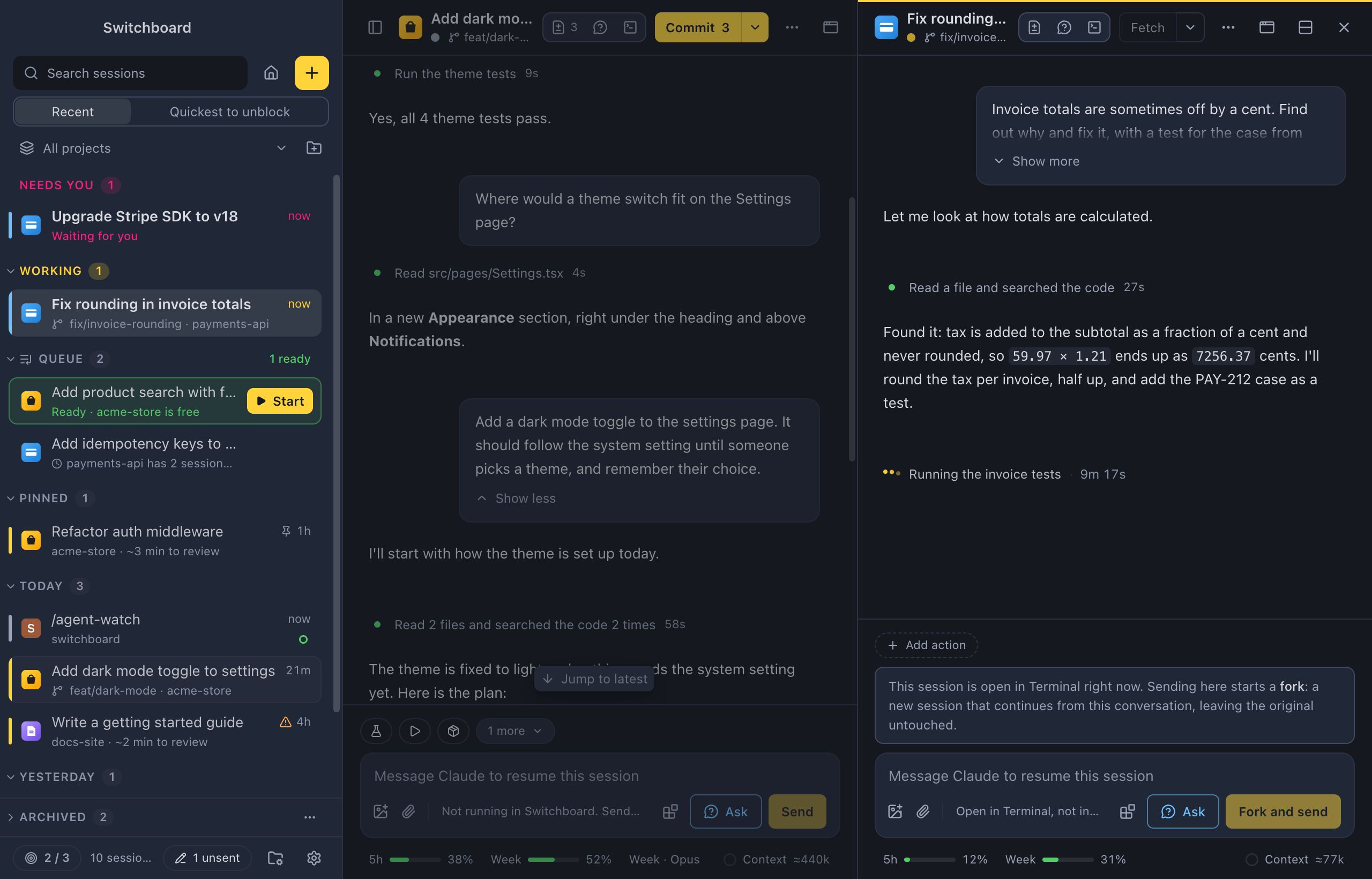
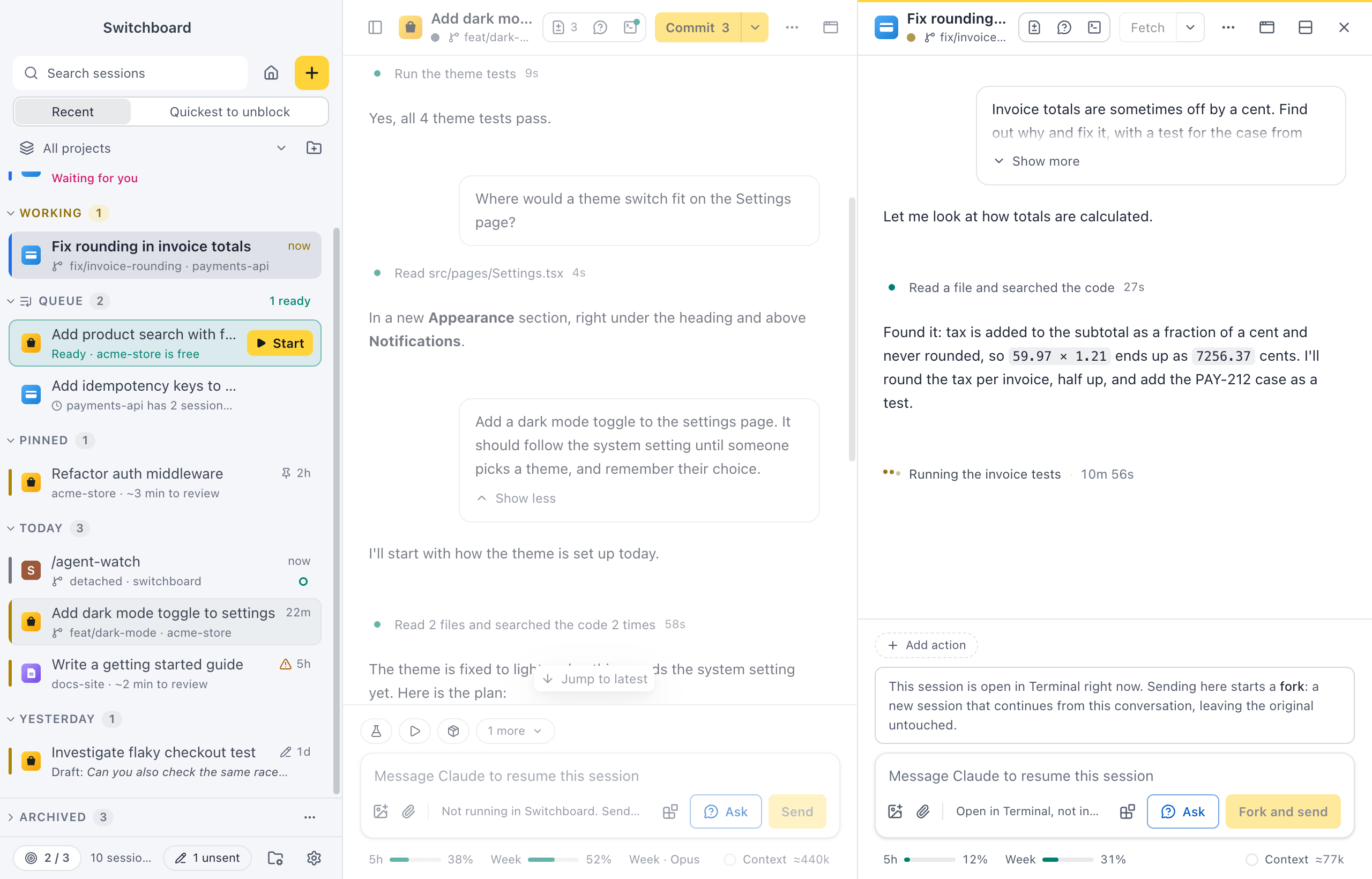
Split view tiles your sessions like a tiling window manager. Open as many as fit, side by side, one above the other, or mixed, so you can follow one while you work in another, or compare what several sessions did. Each pane is a full session view, with its own message box, Changes and terminal.
Open a pane
Section titled “Open a pane”With a session open, open another one next to it:
- Option, clickAlt, click a session in the sidebar.
- Right-click a session in the sidebar and choose Open beside.
- In Command, PControl, P, pick a session with Option, ReturnAlt, Enter.
- Drag a session from the sidebar onto a pane (see below).
This works the same for sessions on another computer: they open in panes next to yours.
The new session splits the active pane. A pane that is at least as wide as it is tall gets the new session on its right; a taller pane gets it below. If that doesn’t fit, the other way is tried.
Every pane needs at least 340 pixels each way, so the number of panes depends on the size of the window. When there is no room for another pane, Switchboard says so and opens nothing. Make the window larger, or close a pane first.
How to use it
Section titled “How to use it”- The active pane has a yellow line along the top of its header; the others are a little faded (you can turn that off, see Settings). On a session on another computer, the yellow line sits over its violet one. Click in a pane to make it active. Keyboard shortcuts, such as Command, JControl, J or Command, FControl, F, work on the active pane.
- Picking a session in the sidebar opens it in the active pane. If it is already open in another pane, that pane becomes active instead.
- In the sidebar, sessions in the other panes have a light outline, and the active one the usual selection.
- Only the pane in the top left corner has the sidebar button in its header.
- Side panels stay with their session. Changes, Agents, Commands and mod panels open per pane, and each session keeps its own panels, and which one is in front, when you click another pane.
- In a narrow pane, headers and bars get more compact: the message box chips show fewer words, project actions show only their icon, and the git button shows its icon and count instead of the word (Commit, Push…).
Drag panes into place
Section titled “Drag panes into place”Drag a pane by its title in the header (the project and session name, which shows a hand when you point at it), or a session from the sidebar (the list or the narrow rail), into the panes. Anywhere over them is a place to drop, and a frame shows the region the tile will take before you let go.
- A window edge. A band along each edge of the panes (a faint dashed strip while you drag) docks the tile across the whole length of that edge: a column the full height on the left or right, a row the full width on the top or bottom. It beats the edge of whichever pane lies under it. With a layout of one pane next to two stacked ones, dragging the lower one to the right edge gives three equal columns. When the layout already runs that way, the tile joins it; otherwise the whole layout becomes one cell and the tile the other.
- A pane’s edge (left, right, top or bottom) docks the tile on that side of that pane. In a row of panes it becomes another pane in the row, not a nested split.
- A pane’s middle swaps the two panes. A session from the sidebar that is not open yet takes the place of the pane’s session there; the session it replaced stays in the sidebar.
A session that is already open is never opened twice: dragging its row in the sidebar moves its tile, exactly like dragging that tile’s header to the same place.
Release to drop, or press Escape to cancel. The buttons in the header keep working as usual. If the result would not fit in the window, the frame turns red and says so, and releasing changes nothing.
Sizes follow the same rule as VS Code. If the panes beside each other were all the same size, they are all the same size again once one is added or taken away. Otherwise a new pane takes half of the pane it docks beside, and a pane that leaves gives its space to the pane next to it.
Nothing reloads when you rearrange panes: the message you were typing, the scroll position and Find stay where you left them.
Resize and turn
Section titled “Resize and turn”- A divider sits between every two neighbouring panes. Drag it to resize them. It snaps to equal sizes, and no pane gets smaller than its minimum.
- Click a divider, or tab to it, and use the arrow keys (left and right for side by side, up and down for stacked). HOME and END go as far as the minimum sizes allow.
- Double-click a divider to make the panes around it equal.
- Command, Shift, OControl, Shift, O turns the panes the active pane sits in the other way: side by side become stacked, and back. The header has a button for it too (hidden in a narrow pane), and the command palette has Stack panes and Show panes side by side. If the turned panes would not fit, nothing changes.
- Command, Shift, XControl, Shift, X swaps the active pane with the next one.
Move between panes
Section titled “Move between panes”- Command, Option, Left ArrowControl, Alt, Left Arrow, Command, Option, Right ArrowControl, Alt, Right Arrow, Command, Option, Up ArrowControl, Alt, Up Arrow and Command, Option, Down ArrowControl, Alt, Down Arrow go to the pane next door.
- Focus next pane in the command palette goes through them in reading order.
When the window is too small
Section titled “When the window is too small”If you make the window smaller than the panes need, Switchboard shows only the active pane, with a note above it. The other panes stay open, and they all come back, as you had them, when the window is large enough again. Press one of the keys above to show another pane in the meantime.
Close a pane
Section titled “Close a pane”- The × in a pane’s header (Close this pane), Command, Option, WControl, Alt, W or the command palette closes that pane. The panes next to it take its space.
- Command, BackslashControl, Backslash closes every pane but the active one.
Closing a pane only closes the view: a session that is working keeps running. Archiving or deleting a session that is open in a pane closes that pane too.
Settings
Section titled “Settings”In Settings › Conversation, under Split view, turn off Fade inactive panes to show the other panes as clearly as the active one. The active pane keeps its line along the top.
The panes are not saved: after a restart Switchboard opens the session you had open last.
Related
Section titled “Related”- Sessions in their own windowNewOpen a session in a window of its own, next to the main window or on another screen.
- Claude profilesUse more than one Claude account in Switchboard, such as a personal plan and a work one.
- ChangesThe Changes panel shows a session's git diff, and lets you stage, unstage and revert files.
- Run several sessions at onceStart a few tasks side by side without them editing the same files, and always know which one needs you next.