
Settings
Settings is where you choose how Switchboard looks and behaves: what it opens on, its theme, the sidebar, notifications and sounds, your Claude profiles, usage, memory, backups and updates. Changes apply at once; there is nothing to save.
Open it
Section titled “Open it”- Press Command, CommaControl, Comma.
- Click the gear at the bottom of the sidebar (also there when the sidebar is a narrow rail).
- Choose Switchboard → Settings…File → Settings… in the menu bar. On Windows the menu bar shows when you press Alt.
- Run Settings in the command palette (Command, K or Command, Shift, PControl, K or Control, Shift, P). While Settings is open, the palette offers Settings: <section> for each other section, such as Settings: Theme.
Settings fills the main area, with its sections in a list on the left. The app’s sidebar stays next to it, so you still see what needs you. The version you run is at the bottom of the section list; click it for its release notes.
To close Settings, press Escape or click the × at the top right. You go back to the view you came from, as you left it. Escape doesn’t close Settings while a menu, a dropdown or a field you are typing in has it.
Search
Section titled “Search”Type in Search settings at the top of the section list, or press Command, FControl, F to get there. The page shows every setting that matches, from all sections, grouped by section, with your words marked. The section list says how many each section has. Search also knows other words for a setting: dark mode finds Appearance, trash finds Delete archived sessions.
Click a result, or pick one with Up Arrow or Down Arrow and press ReturnEnter. Its section opens at that setting, which lights up briefly, with the keyboard on it. Escape empties the field; in an empty field it closes Settings.
General
Section titled “General”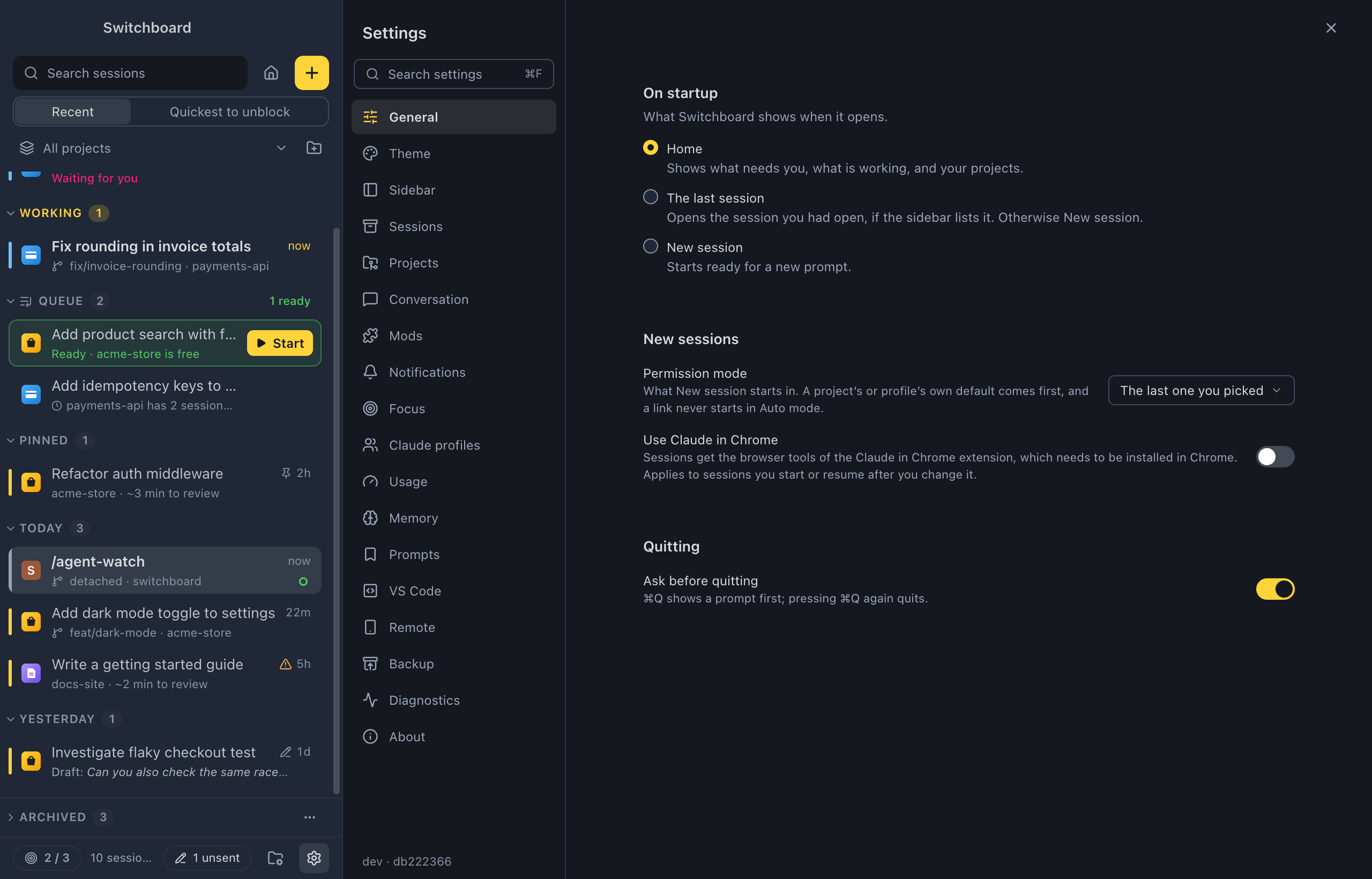
On startup
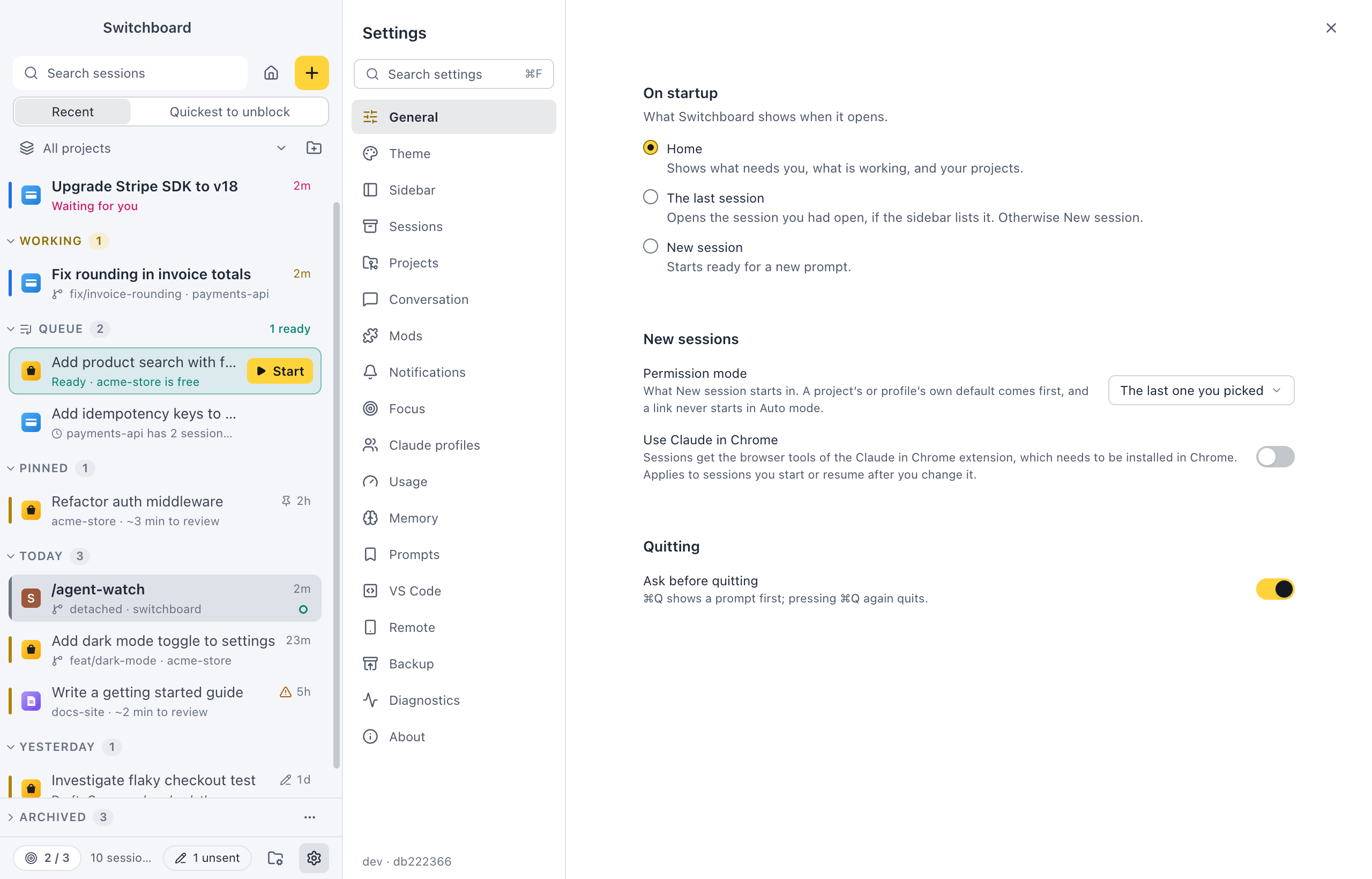
Section titled “On startup”What Switchboard shows when it opens:
- Home (the default): what needs you, what is working, and your projects. See Home.
- The last session: the session you had open, if the sidebar lists it. Otherwise New session.
- New session: ready for a new prompt.
New sessions
Section titled “New sessions”Permission mode sets the mode a new session starts in, in New session and in the command palette’s New session step:
- The last one you picked (the default): the mode you chose for the last new session.
- Ask before edits, Accept edits, Plan mode or Auto mode: always that one. Picking another mode for one session doesn’t change it.
A project’s own default mode comes first (its Settings tab), then its Claude profile’s. A session started by a link never starts in Auto mode, and quick questions keep their own mode. See Model, effort and mode.
Use Claude in Chrome (off by default) gives sessions the browser tools of the Claude in Chrome extension, so Claude can open pages, click and read them in your own Chrome. It needs the extension installed in Chrome. Claude Code’s own Enabled by default for Claude in Chrome only works in a terminal, so turn it on here for Switchboard’s sessions. It applies to sessions you start or resume after you change it: a session that is running keeps what it started with until you stop and resume it.
Quitting
Section titled “Quitting”Ask before quitting (on by default): Command, QControl, Q shows a prompt first, and pressing it again quits. Turn it off to quit with one press. On Windows, closing the window quits Switchboard, so it asks then too (but not while Windows shuts down or signs you out). With Warn when quitting on under Large context, quitting with a large session open asks even with Ask before quitting off.
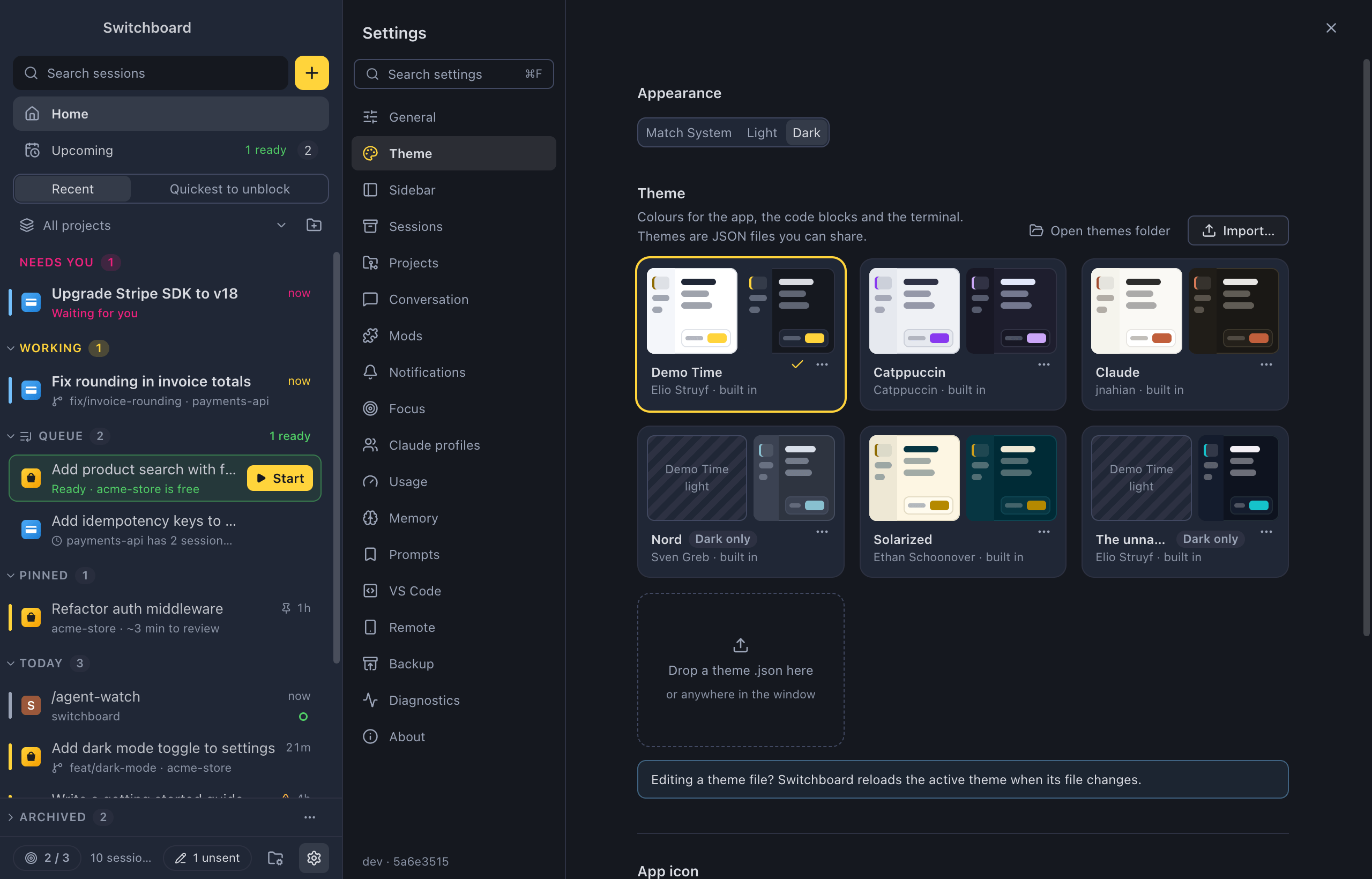
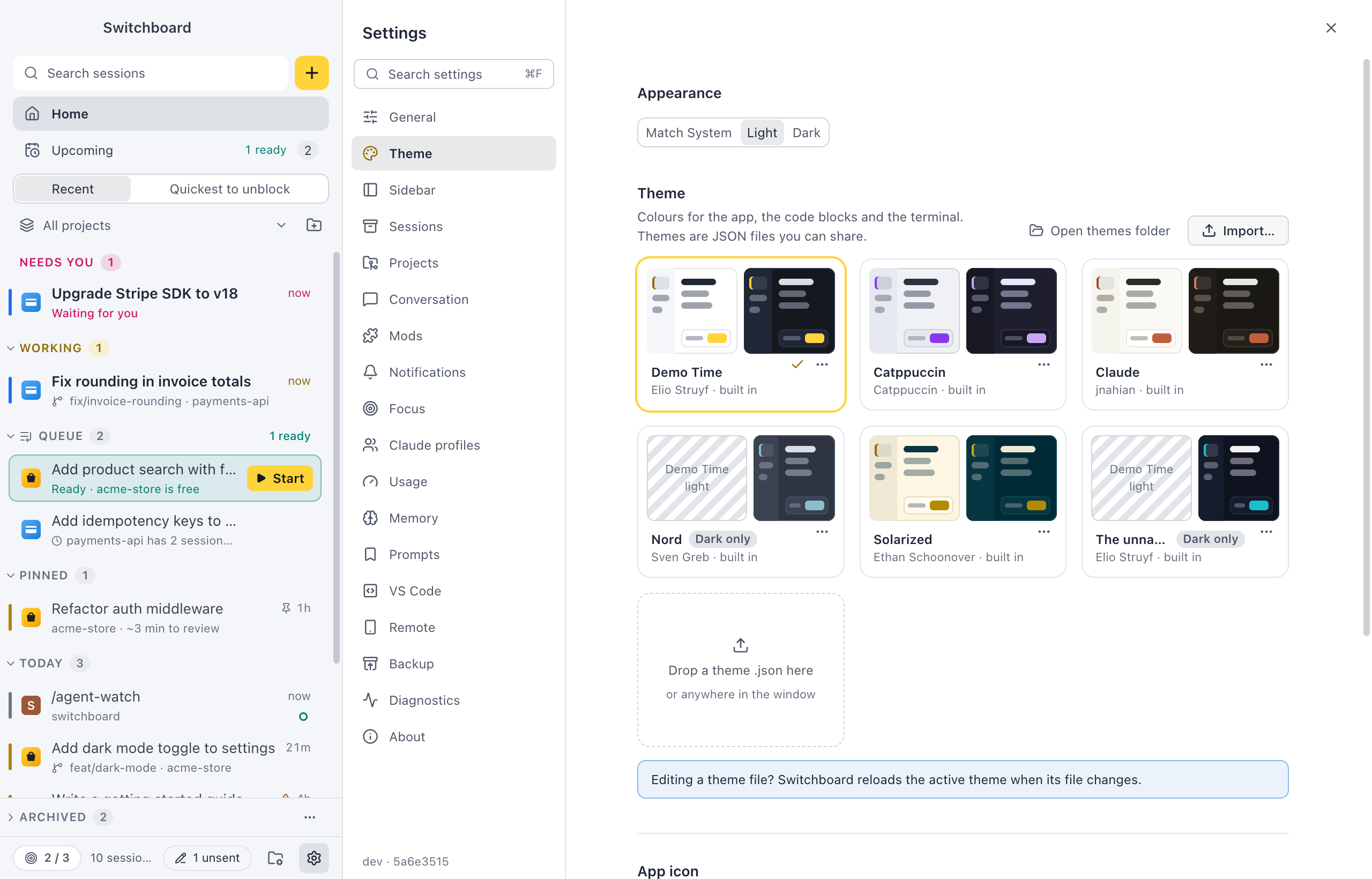
- Appearance: Match System (the default, follows macOSWindows), Light or Dark.
- Theme: a card for each theme. Click one to use it. Each card’s ⋯ menu has Export… and Duplicate, plus Show file and Remove for themes you imported.
- Open themes folder shows where imported themes are kept, and Import… (or the Drop a theme .json here card) adds a theme file.
See Built-in themes, Custom themes and Code and terminal colours.
App icon
Section titled “App icon”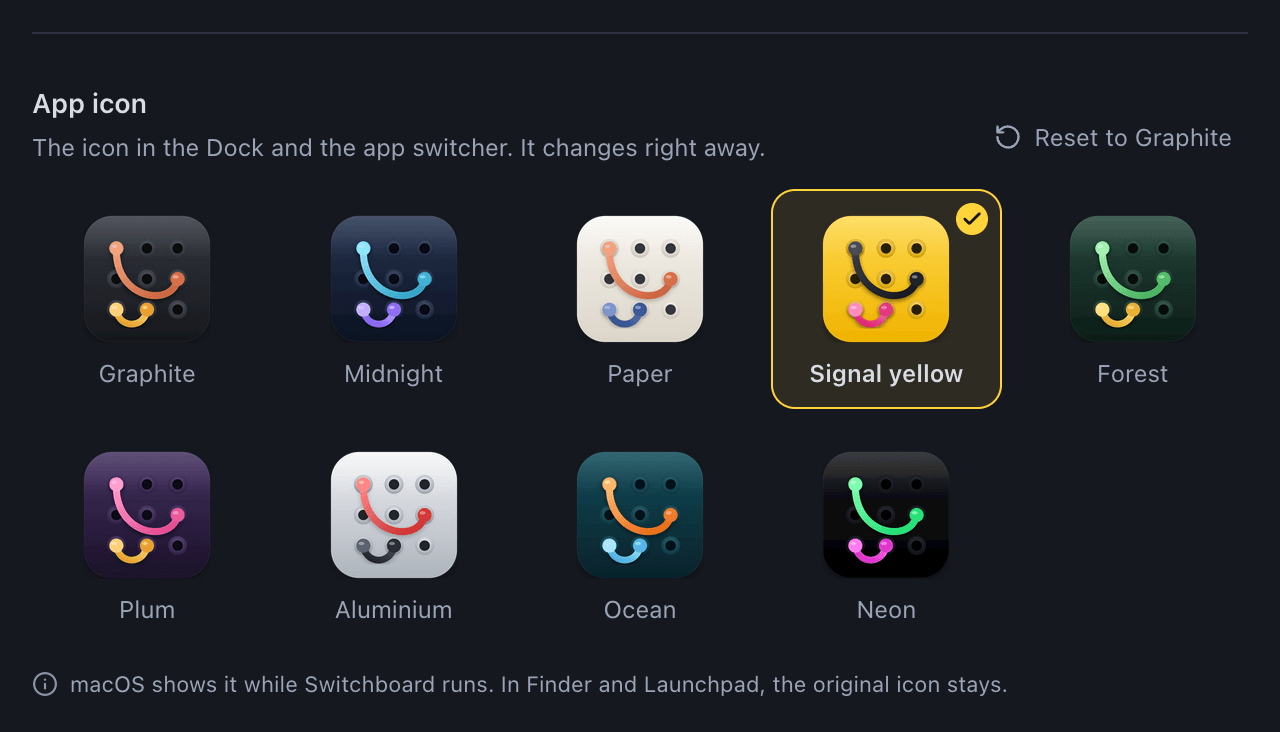
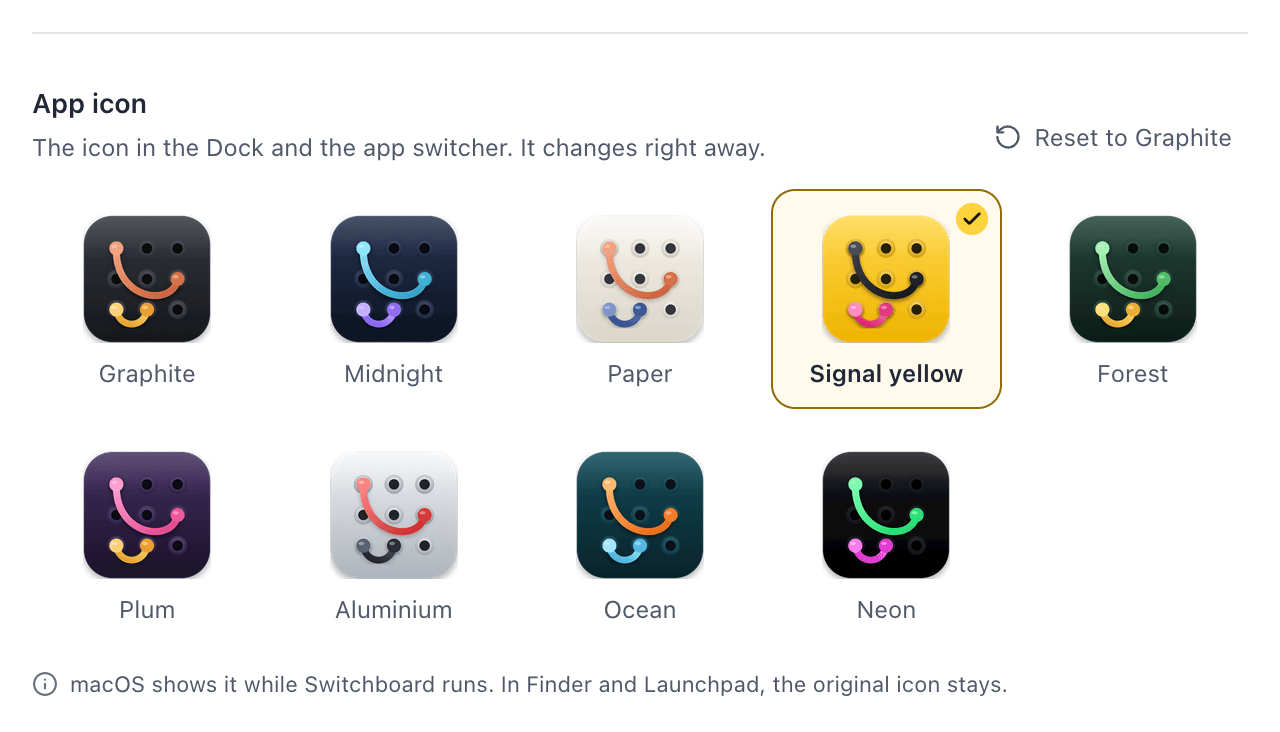
Pick one of nine colourways of the Switchboard icon: Graphite (the default), Midnight, Paper, Signal yellow, Forest, Plum, Aluminium, Ocean or Neon. The shape stays the same, only the colours change. Click a tile, or move between them with the arrow keys, and the icon changes right away. There is no restart. Reset to Graphite goes back to the original.
The icon shows in the Dock and the app switcher. macOS shows it while Switchboard runs, so Finder and Launchpad keep the original icon, and so do notifications.
The icon shows on Switchboard’s windows, in the taskbar and on notifications. Pinned shortcuts and the Start menu keep the original icon.
Switchboard doesn’t change the app’s own files or your shortcuts for this, so it applies the icon again each time it opens.
Use it on your phone too (on by default) shows once Remote is set up. The remote app then takes the same icon, for its browser tab and for Add to Home Screen. A phone keeps the icon an app had when you added it to the Home Screen: to see the new one there, remove Switchboard Remote from the Home Screen and add it again. Off, the remote app keeps Graphite.
Sidebar
Section titled “Sidebar”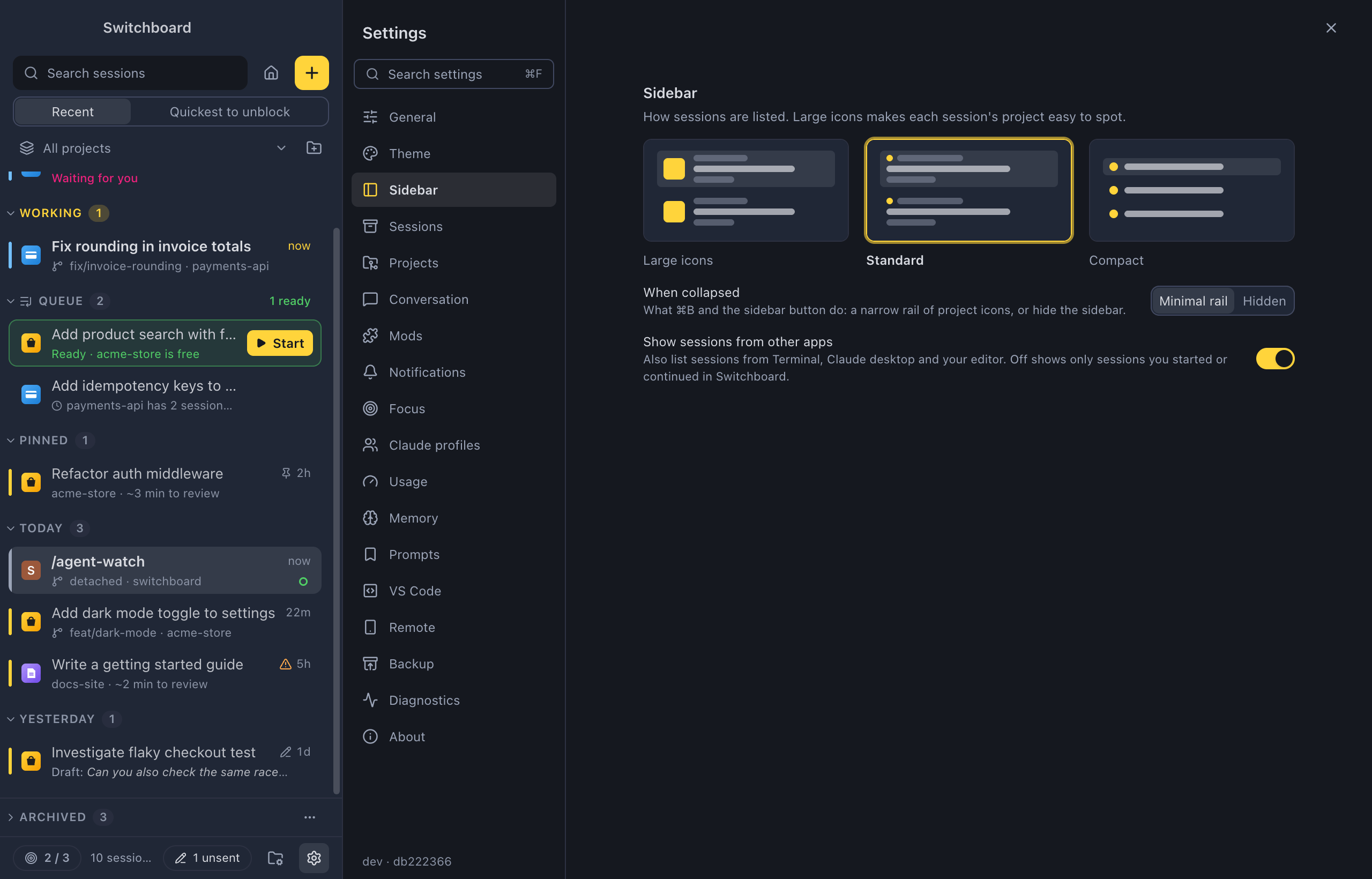
-
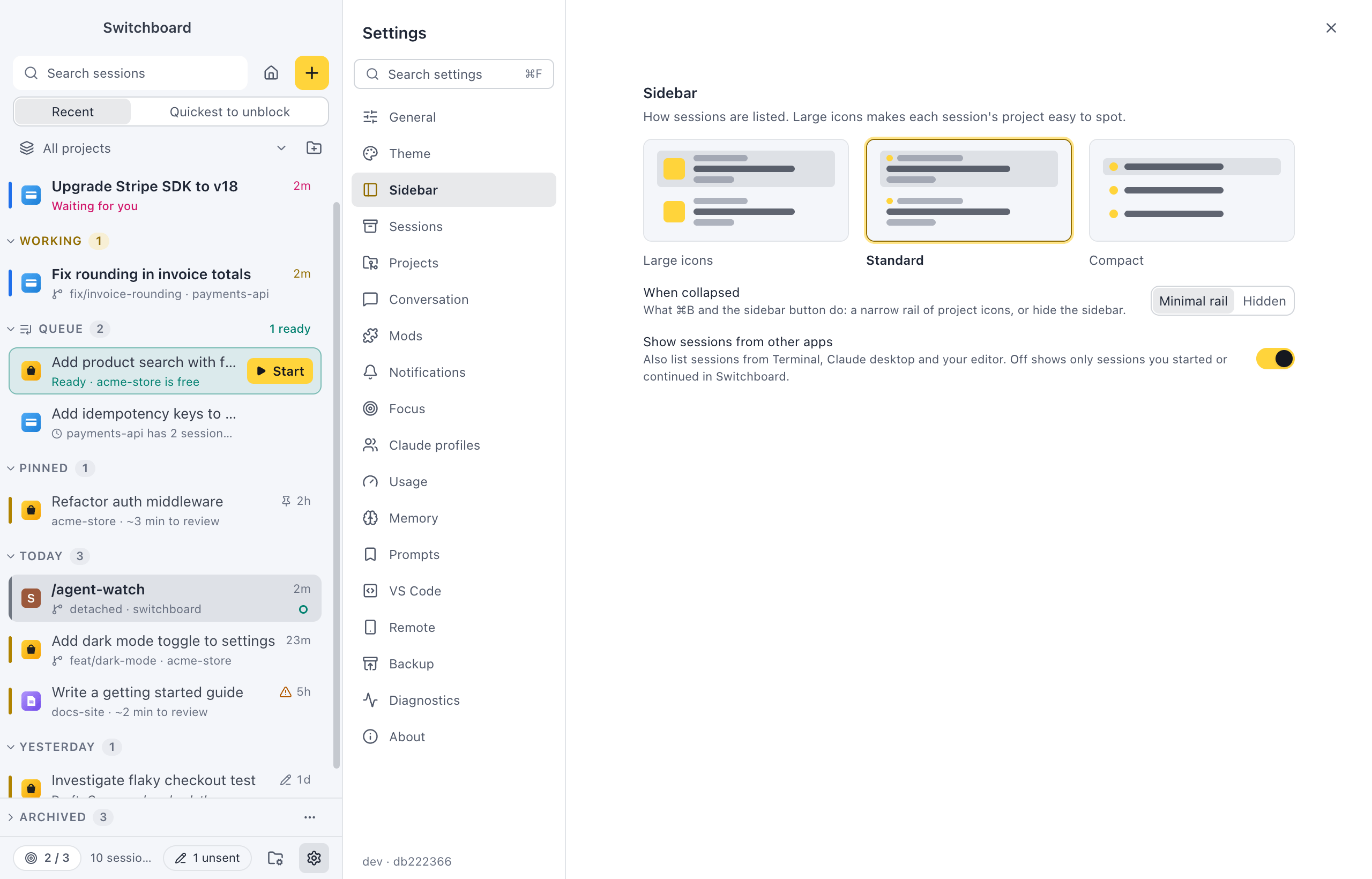
Sidebar style: how sessions are listed.
- Large icons: a big project icon on each row, so each session’s project is easy to spot.
- Standard (the default).
- Compact: one line per session.
The command palette has Sidebar: Large icons, Sidebar: Standard and Sidebar: Compact too.
-
When collapsed: what Command, BControl, B and the sidebar button do. Minimal rail (the default) shrinks the sidebar to a narrow rail of project icons; Hidden hides it.
-
Show sessions from other apps (off by default): also list sessions from your terminal, Claude desktop and your editor. Off shows only sessions you started or continued in Switchboard.
See Sidebar.
Sessions
Section titled “Sessions”- Archive finished sessions after: the days without activity before a finished session moves to Archived (3 by default).
- Delete archived sessions (off by default): move sessions to the TrashRecycle Bin once they have been archived for the days you set. Pinned and working sessions, and ones with a queued prompt or an unsent message, are kept.
- A note says when Claude Code deletes old transcripts by itself, per Claude profile, with Change… to set it.
- All sessions: every session in one table, to filter, select, unarchive or move to the TrashRecycle Bin.
See Sessions for the details.
Projects
Section titled “Projects”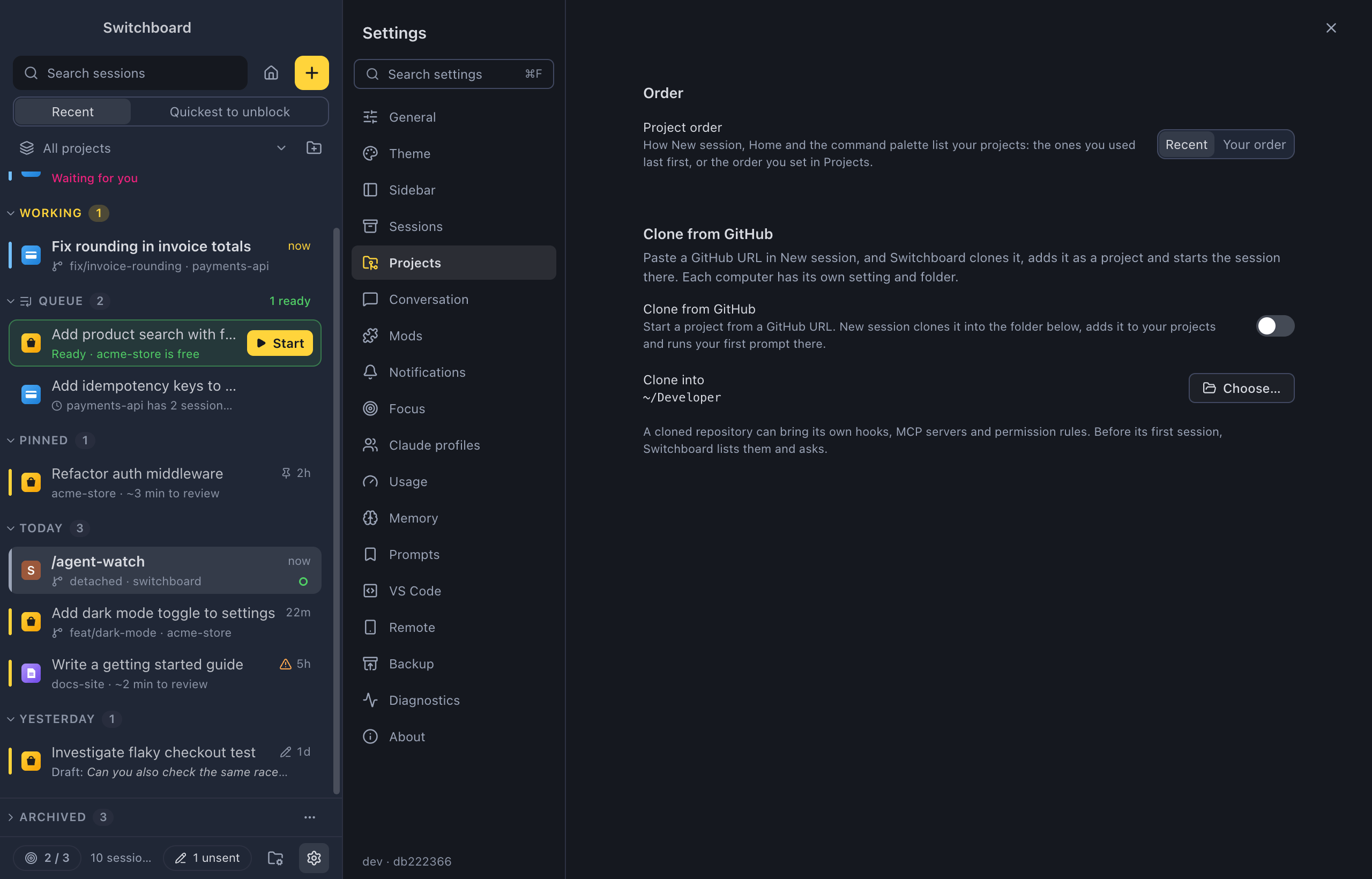
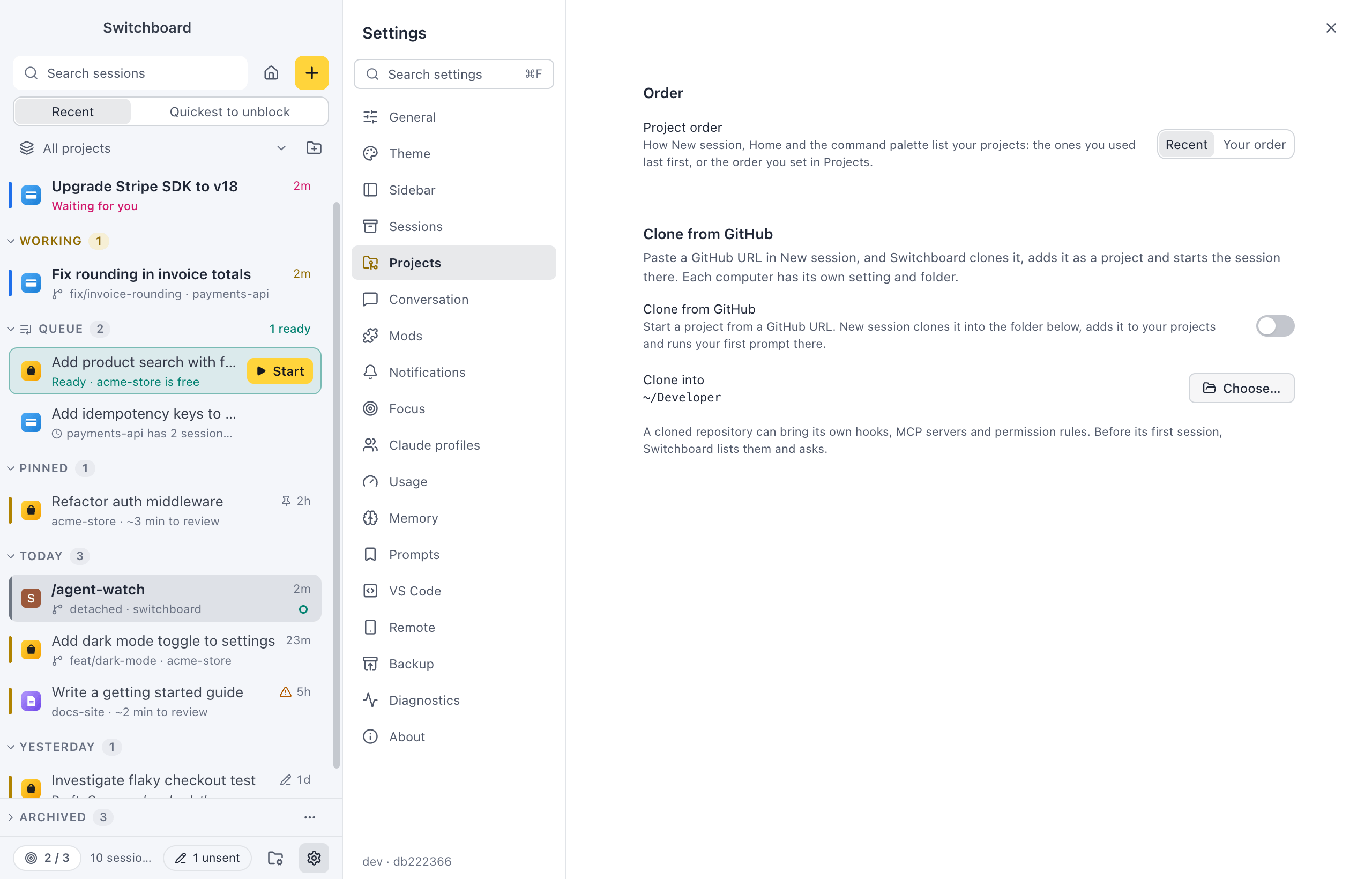
Project order sets how New session, Home and the command palette list your projects:
- Recent (the default): the ones you used last first.
- Your order: the order you set in the Projects view.
Clone from GitHub (off by default) starts a project from a GitHub URL: New session clones it, adds it to your projects and runs your first prompt there. Turning it on asks for the folder new projects go in, shown as Clone into, with Choose… to change it. Each computer has its own setting and folder. See Clone from GitHub.
Conversation
Section titled “Conversation”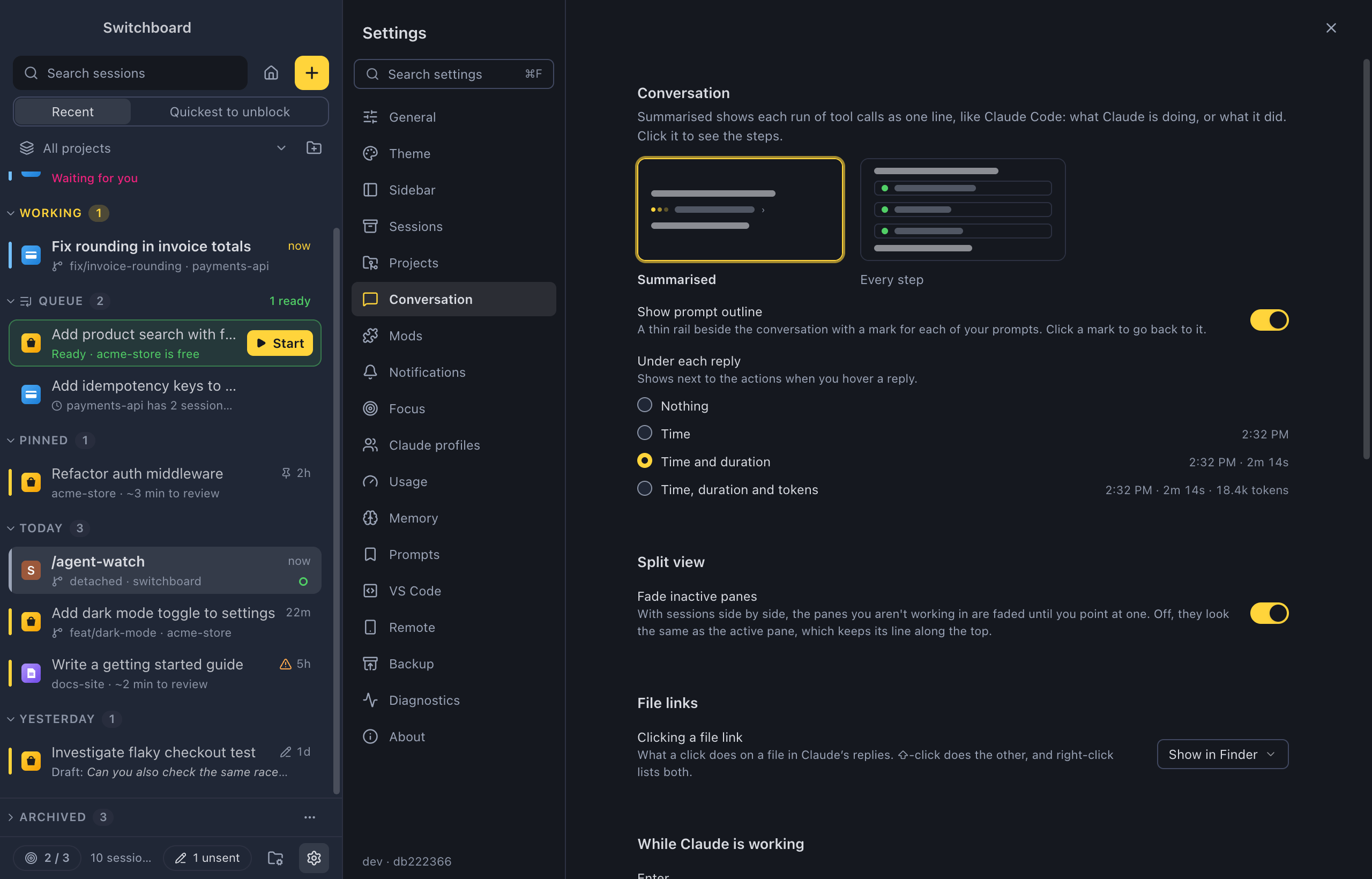
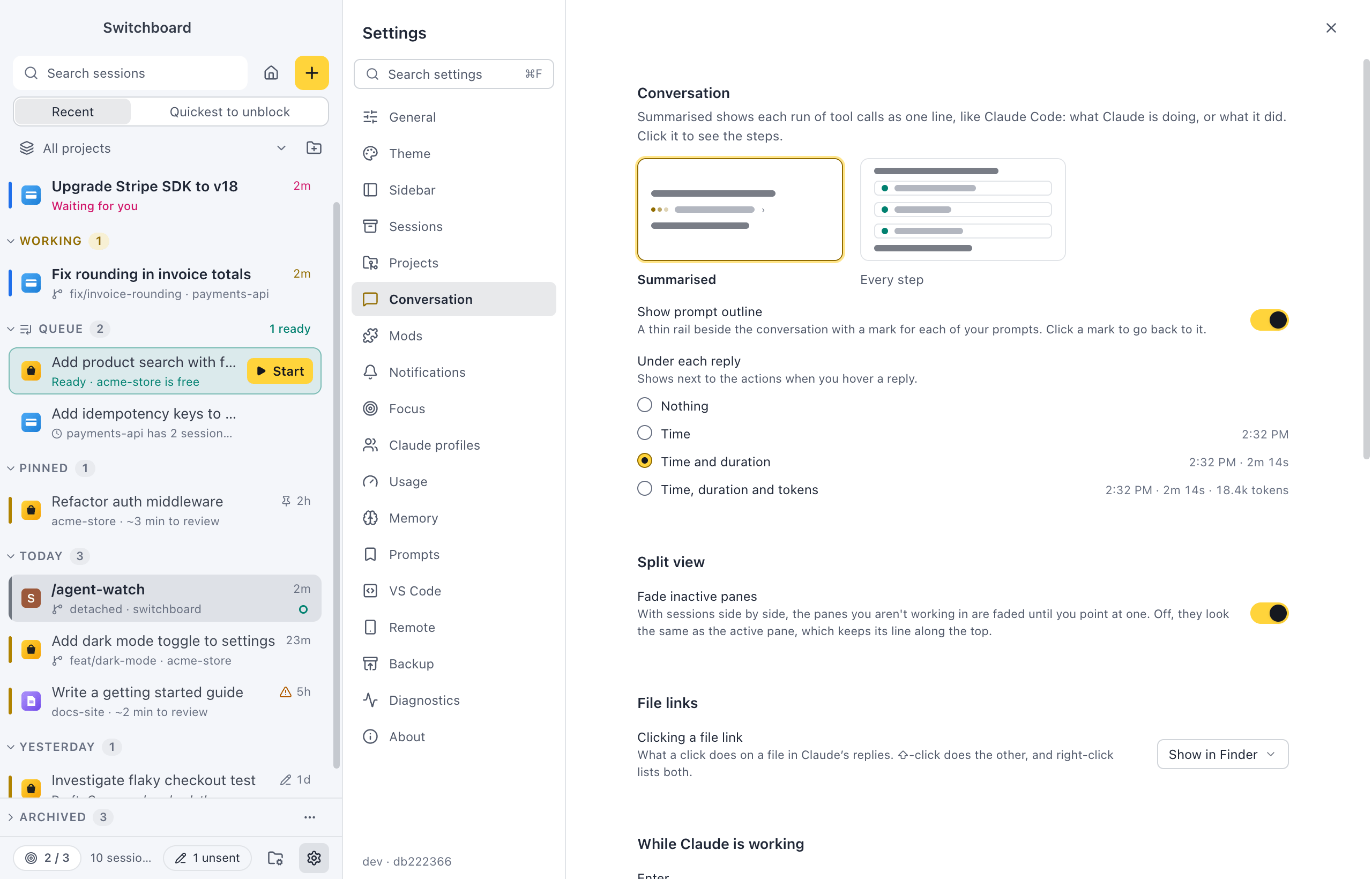
Tool activity sets how Claude’s tool calls show in the conversation:
- Summarised (the default): each run of tool calls is one line, like Claude Code: what Claude is doing, or what it did. Click it to see the steps.
- Every step: each tool call shows on its own.
See Conversation.
Show prompt outline (on by default) puts a thin rail beside the conversation with a mark for each of your prompts. Click a mark to go back to it. See Go back to a prompt.
Under each reply sets the faint line under the last reply of each turn. It shows next to the reply’s buttons when you hover the reply:
- Nothing: no line.
- Time: when the turn ended, such as
14:32. - Time and duration (the default):
14:32 · 2m 14s. - Time, duration and tokens:
14:32 · 2m 14s · 18.4k tokens.
See How long a turn took.
Split view has Fade inactive panes (on by default). With sessions side by side, the panes other than the active one are faded until you point at one. Turn it off to show them as clearly as the active pane, which keeps its line along the top. See Split view.
Clicking a file link sets what a click does on a file in Claude’s replies:
- Show in FinderFile Explorer (the default): the file is selected in its folder.
- Open in editor: the file opens in your default editor, at its line.
Shift, clickShift, click on a link does the other one, and its right-click menu lists both, with Copy path.
Usage limits has Resume after a usage limit resets:
- Ask each time (the default): a session a usage limit stopped offers Resume when it resets in its notice.
- Always: such a session resumes by itself, shortly after the limit resets.
See When you hit a limit.
Catch-up has Write catch-up summaries with Haiku: on (the default), a finished session shows a short briefing over the conversation, and Why? on a permission gets a plain explanation. Off, neither calls a model. See Catch-up and Why is Claude asking?.
Auto model turns Auto on or off in the model menus, and sets the models it can pick, which way it leans when in doubt, and whether it suggests a stronger model later. See Auto model.
Show mods turns Claude Code mods on or off in every session, without a restart: the bands, panes, statuses, toasts and views that plugins draw. Under it, each mod from your enabled plugins has a switch that shows or hides its UI here. See Claude Code mods.
Notifications
Section titled “Notifications”- Notifications (on by default): a notification when Claude needs you, finishes or stops with an error, and when a project action ends. The Dock badgeThe dot on the taskbar button shows either way. Send a test notification checks that they come through.
- Sounds (off by default): a sound for each moment, with notifications on or off. Pick the sound for Needs you, Finished, Stopped with an error and Project action ended (or None), with a button to play each, and the Volume for all of them.
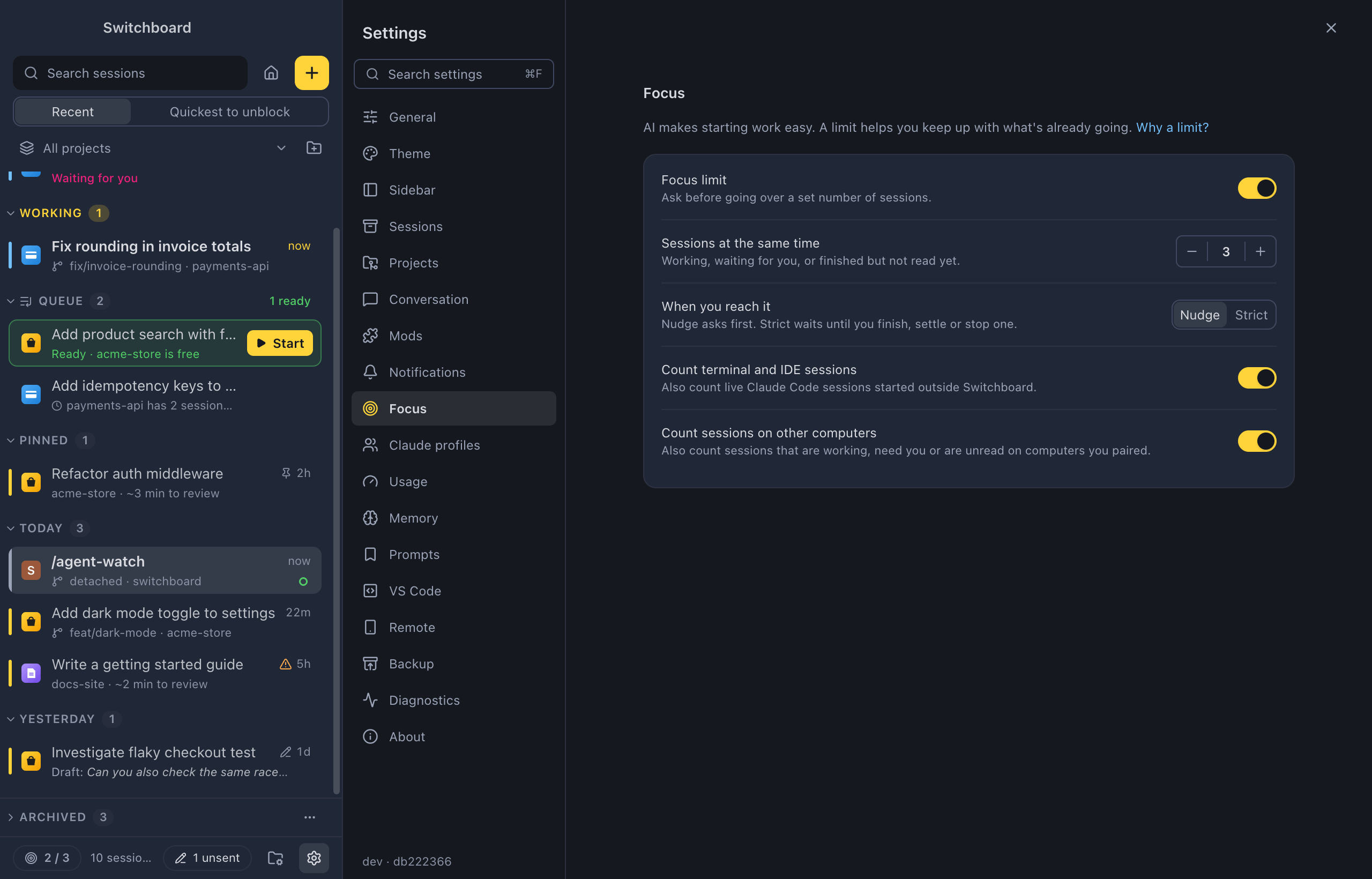
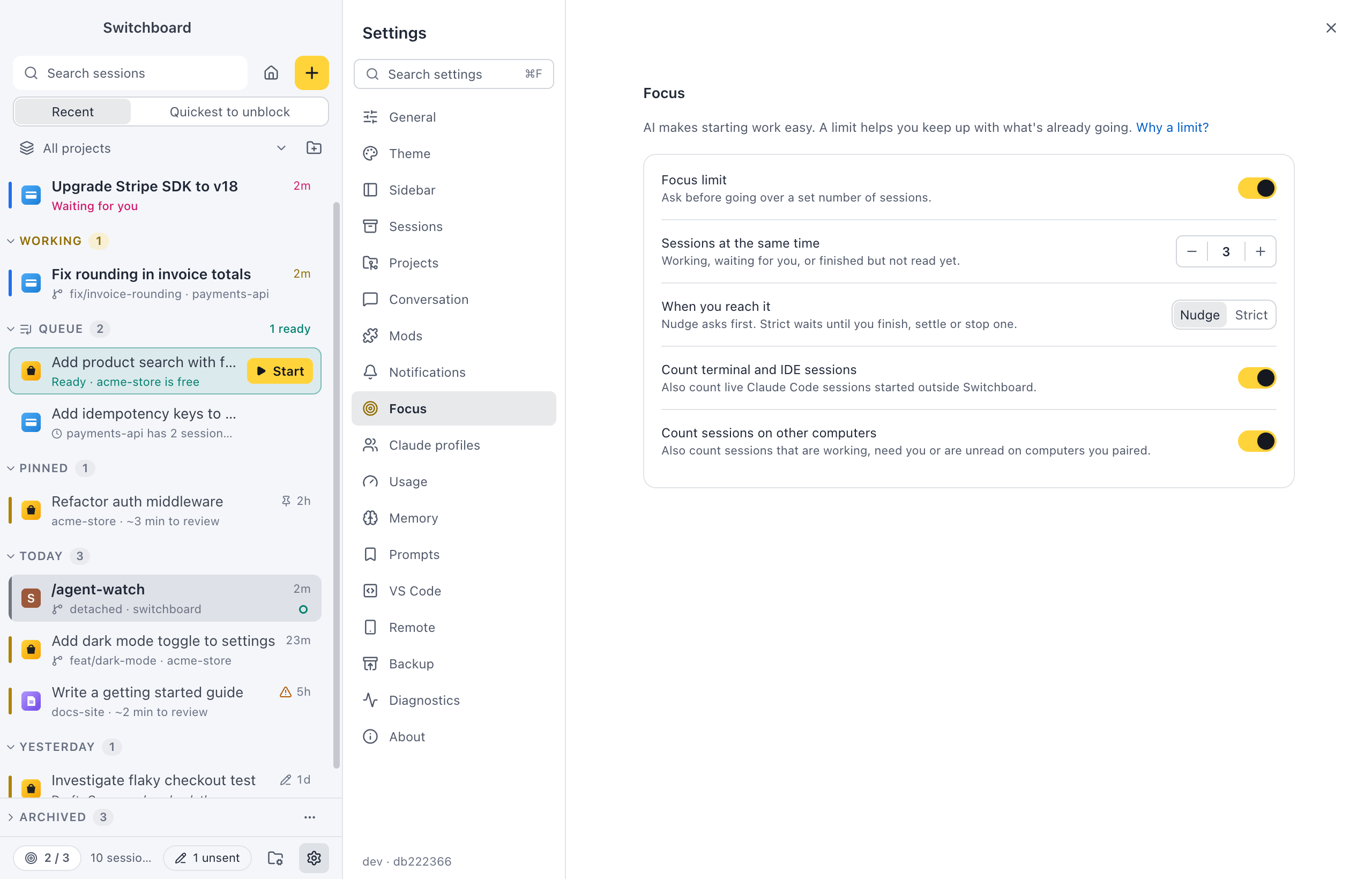
- Focus limit (off by default): ask before going over a set number of sessions. Why a limit? links to the article behind it.
With the limit on:
- Sessions at the same time: the limit, from 1 to 10 (3 to start with), set with − and +. A session counts while it is working, waiting for you, or finished but not read yet.
- When you reach it: Nudge (the default) asks first; Strict waits until you finish, settle or stop a session.
- Count terminal and IDE sessions (off by default): also count live Claude Code sessions started outside Switchboard.
- Count sessions on other computers (on by default): also count sessions that are working, need you or are unread on computers you paired.
The command palette has Focus limit: turn on, Focus limit: turn off and Focus limit: set limit…. See Focus limit.
Claude profiles
Section titled “Claude profiles”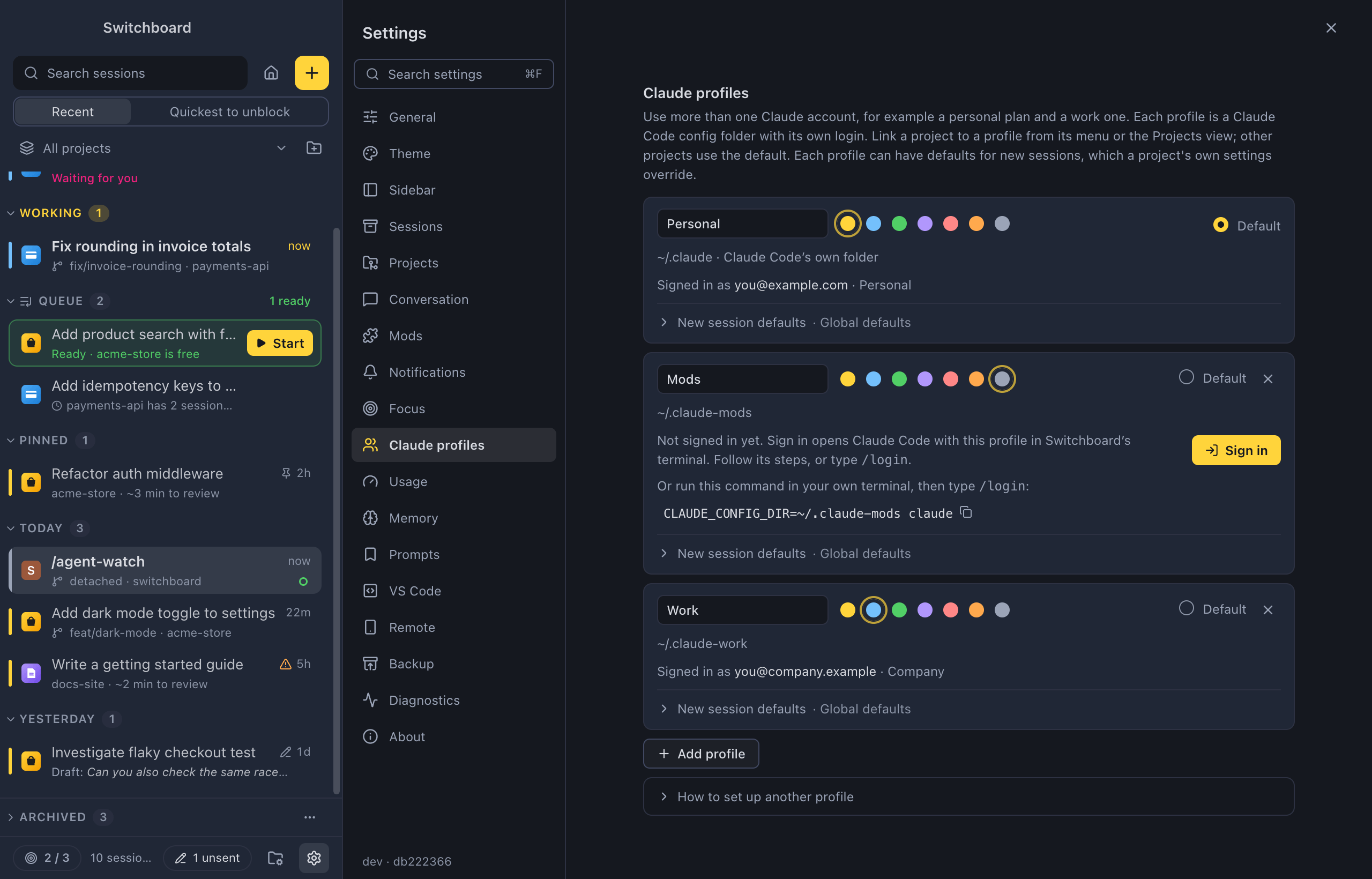
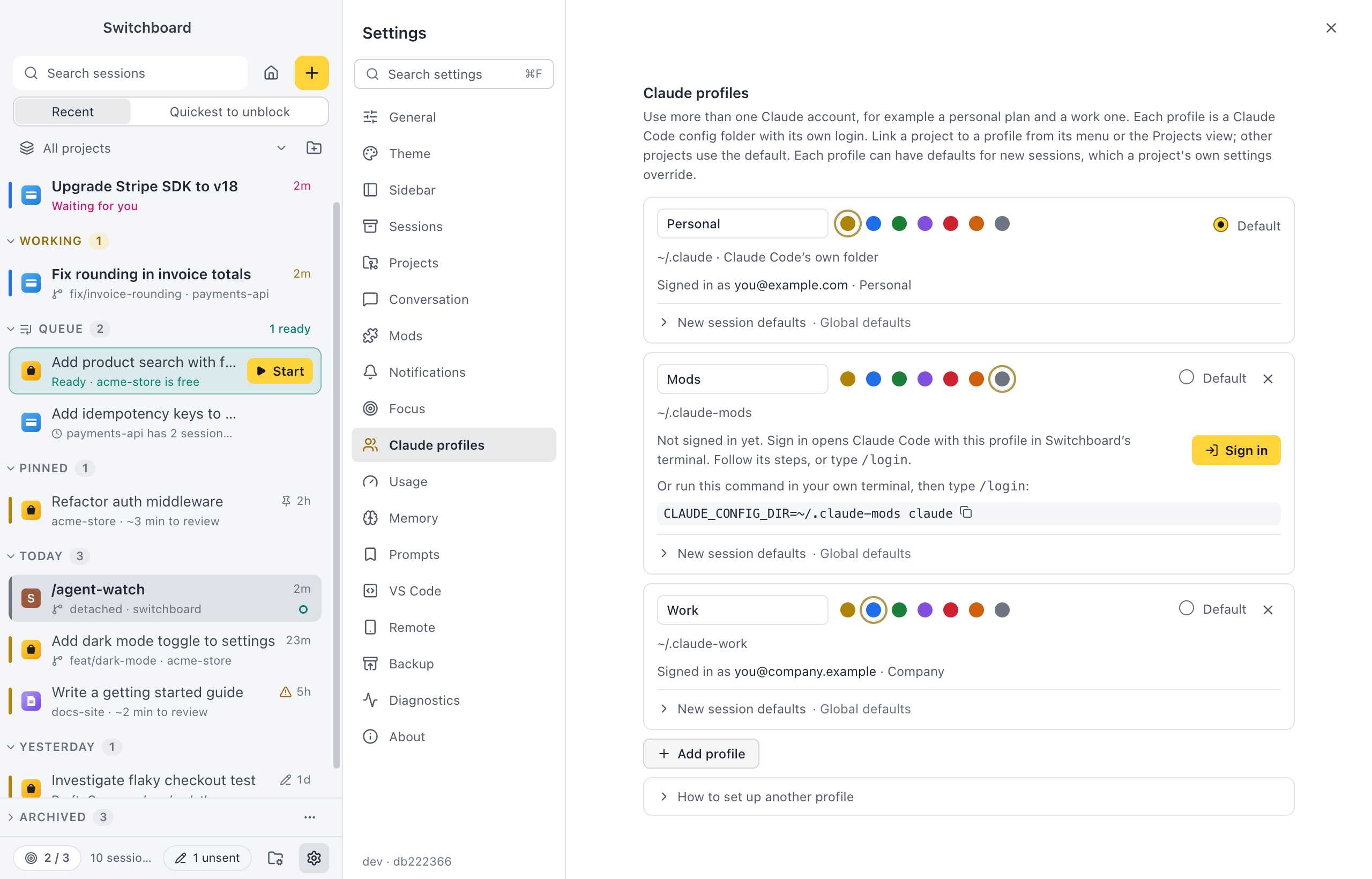
Use more than one Claude account, for example a personal plan and a work one. Each profile is a Claude Code config folder with its own login.
For each profile:
- Name and Colour (Yellow, Blue, Green, Purple, Red, Orange or Grey).
- Default: the profile that projects without a profile of their own use.
- Its config folder, and the account it is signed in with. A profile that isn’t signed in yet shows the command to run in a terminal, with a copy button. On Windows, see Sign in on Windows for the PowerShell form.
- × removes a profile from Switchboard. The folder, its login and its sessions stay on disk. The first profile, Claude Code’s own folder, can’t be removed.
Below the list:
- Add profile: a name, a colour and a Config folder (Choose… picks one). Then Add profile.
- How to set up another profile: the steps, from signing in to linking projects.
See Claude profiles.
How much of your plan’s 5-hour and weekly limits you have used.
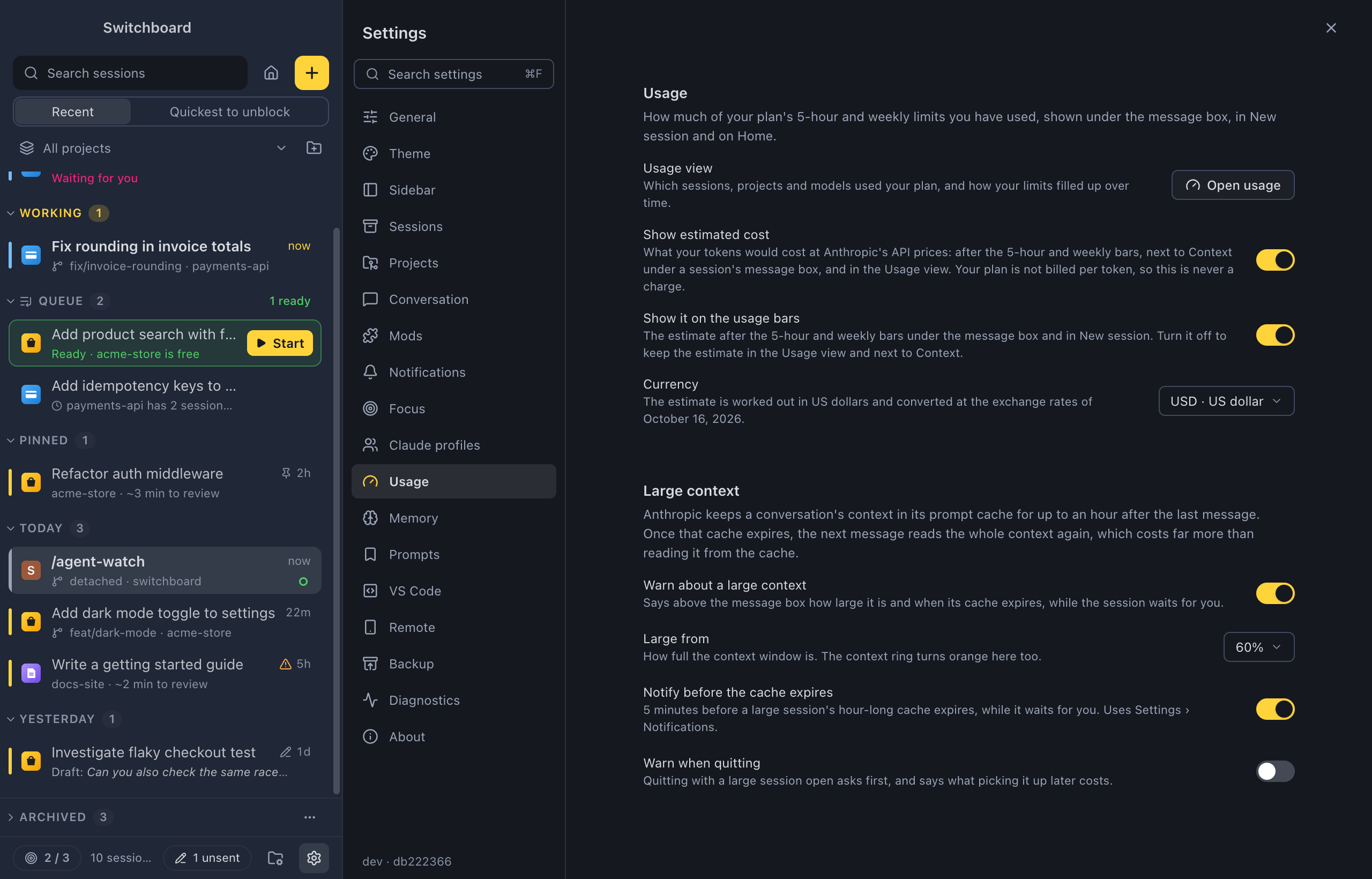
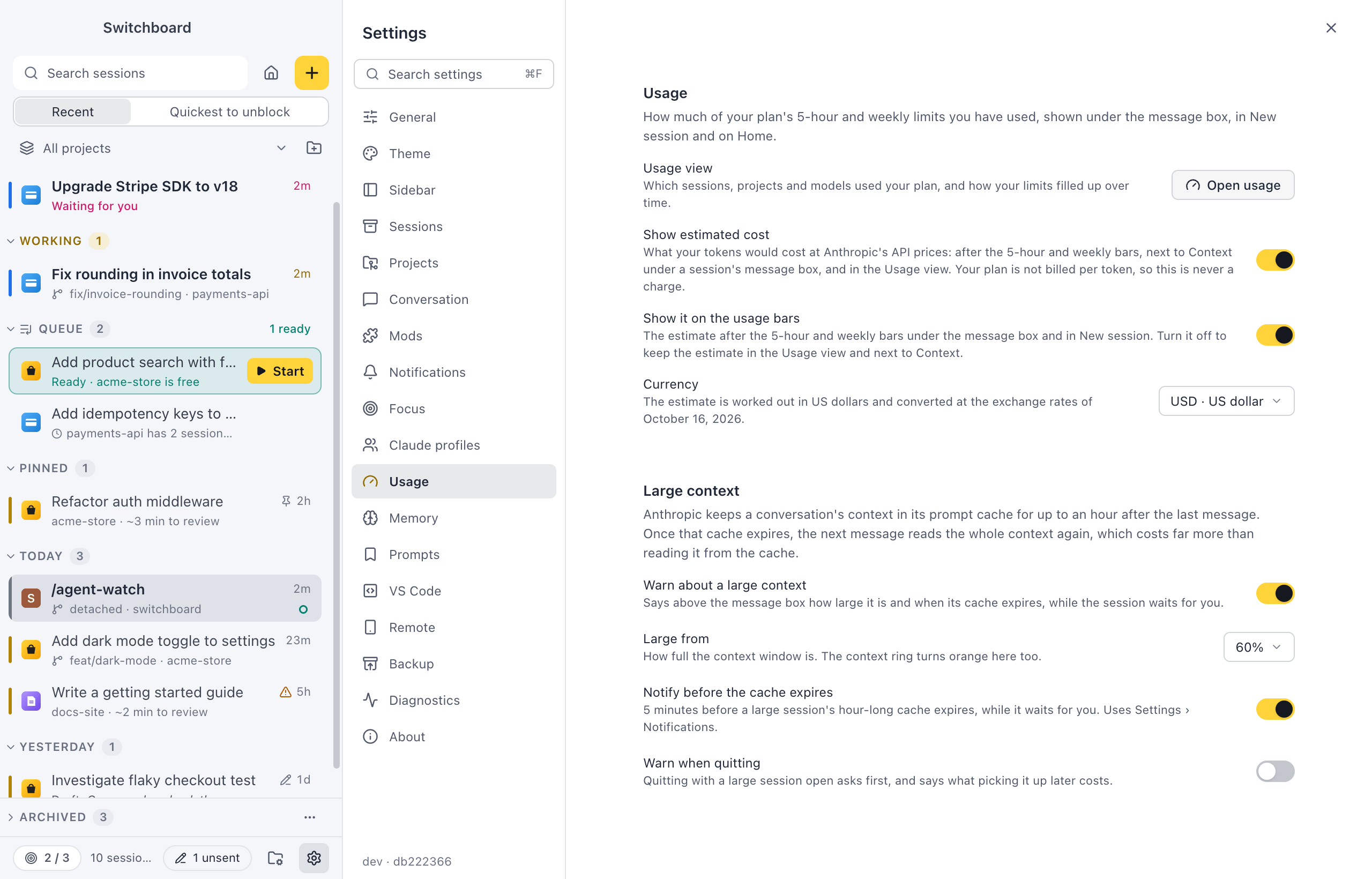
- Usage view: Open usage opens the Usage view, which shows what used your plan.
- Show estimated cost (on by default): what your tokens would cost at Anthropic’s API prices: after the 5-hour and weekly bars, such as 5h 38% ≈$4.10, next to Context under a session’s message box, and in the Usage view. Your plan is not billed per token, so this is never a charge. See Estimated cost.
- Show it on the usage bars (on by default): whether the estimate also shows after the 5-hour and weekly bars. Turn it off to keep the estimate in the Usage view and next to Context. It needs Show estimated cost.
- Currency: the currency the estimate is shown in, such as US dollar, Euro, British pound or Japanese yen. The estimate is worked out in US dollars and converted at fixed exchange rates; the line under it says which day they are from.
Large context
Section titled “Large context”When a session’s context is large, its next message after the prompt cache expires reads all of it again. See Large context.
- Warn about a large context (on by default): a note above the message box says how large the context is and when its cache expires, while the session waits for you.
- Large from (60% by default): how full the context window is before it counts as large. The context ring turns orange from here too.
- Notify before the cache expires (on by default): a notification 5 minutes before a large session’s hour-long cache expires. It follows your notification settings.
- Warn when quitting (off by default): quitting with a large session open asks first, and says what picking it up later would cost. Until you turn it on, the quit prompt says this once.
Memory
Section titled “Memory”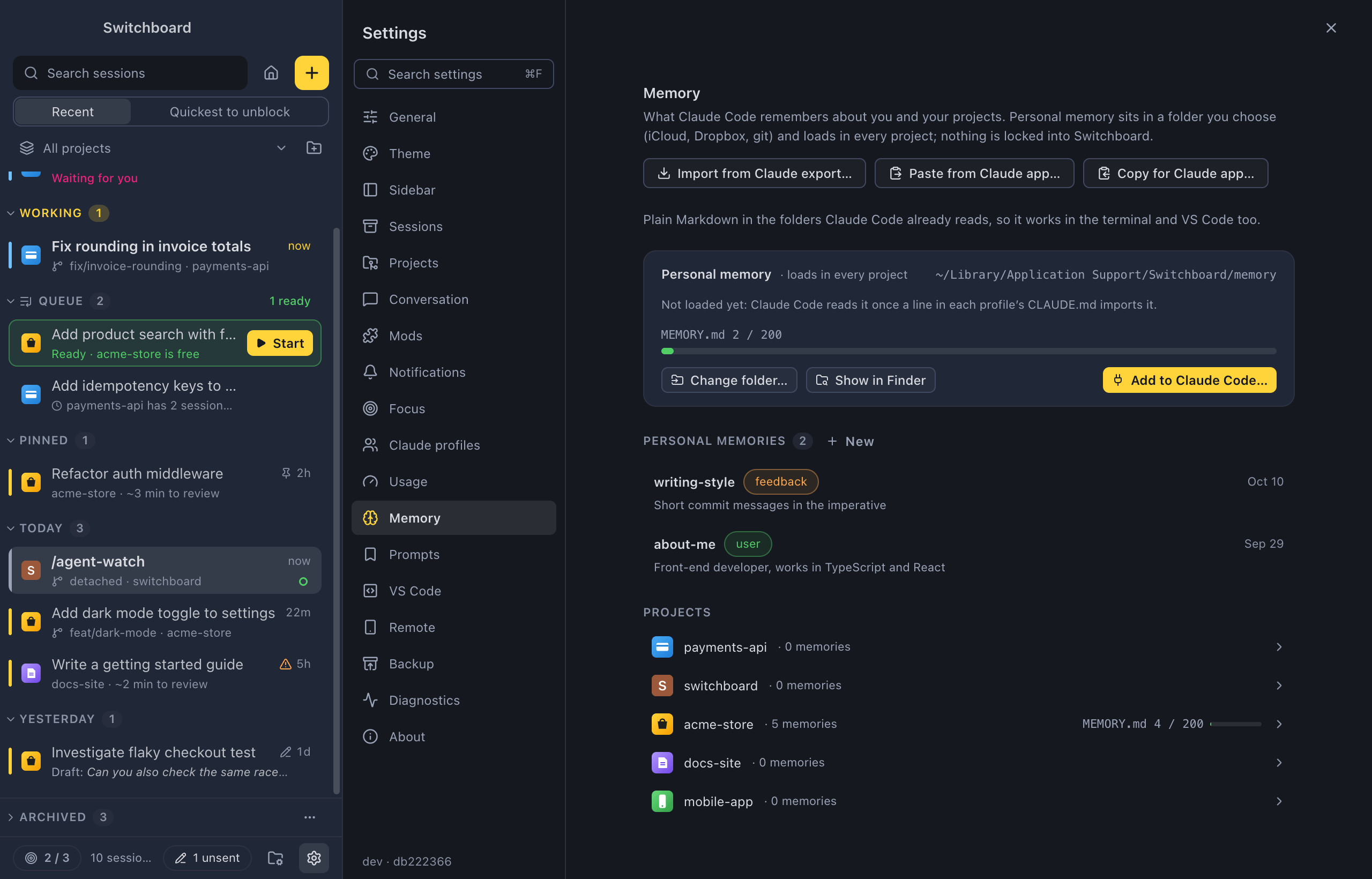
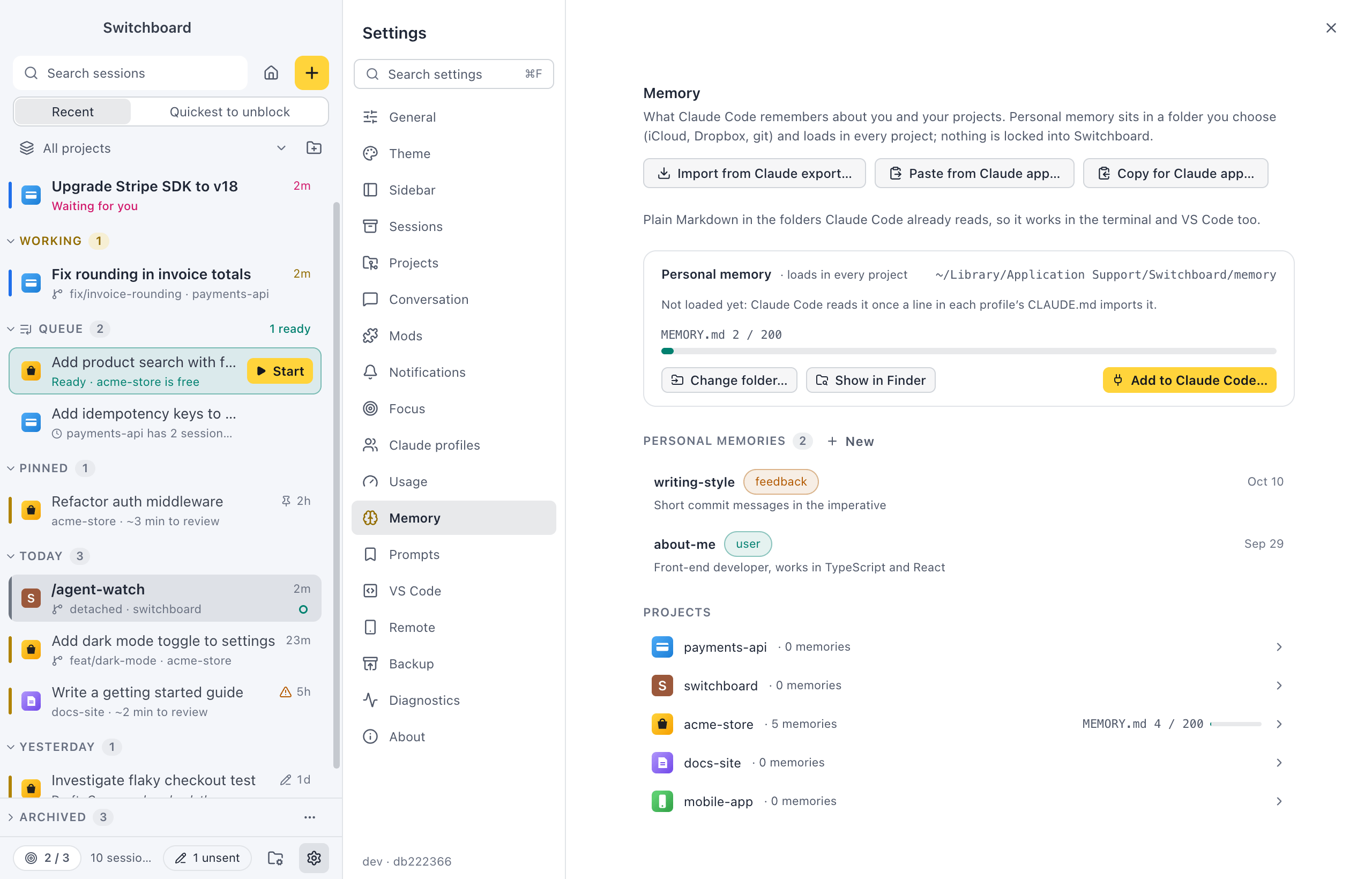
What Claude Code remembers about you and your projects. Everything stays plain Markdown in the folders Claude Code already reads. Also Memory settings… in the command palette.
- Import from Claude export…, Paste from Claude app… and Copy for Claude app…: bring the Claude app’s memory in, or copy yours out. See Import from the Claude app.
- Personal memory: the folder of memory that loads in every project, with a MEMORY.md meter. A notice says when the folder is synced. Change folder… picks another one, and Show in FinderFile Explorer opens it.
- Add to Claude Code… adds the one line to each profile’s
CLAUDE.mdthat loads your personal memory, after showing you the change. Once it’s there, Show the line shows it and Remove from Claude Code takes it out again. See Personal memory. - Personal memories: your personal memories, with New. Click one to edit it; Command, SControl, S saves. See Add and edit memory.
- Projects: every project with how many memories it has and its MEMORY.md meter. Click one to open its Memory tab.
See Claude Code memory.
Prompts
Section titled “Prompts”Your saved prompts: prompts with blanks you fill in when you use them. New prompt makes one. The list is grouped by where each prompt is kept: Every project, then per project just for you and shared with the project. Each row’s ⋯ menu has Edit…, Duplicate, where to use it, and Delete.
VS Code
Section titled “VS Code”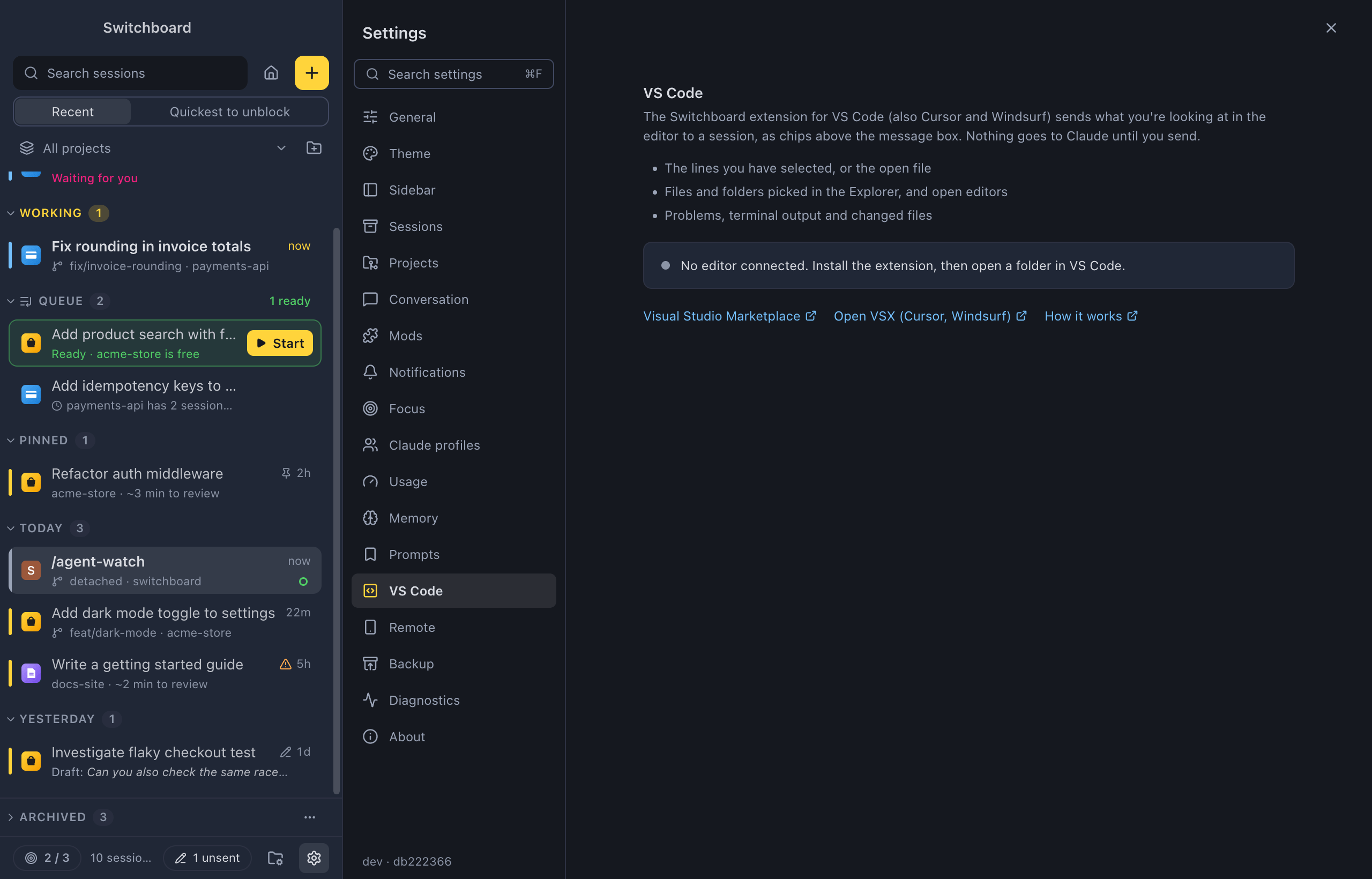
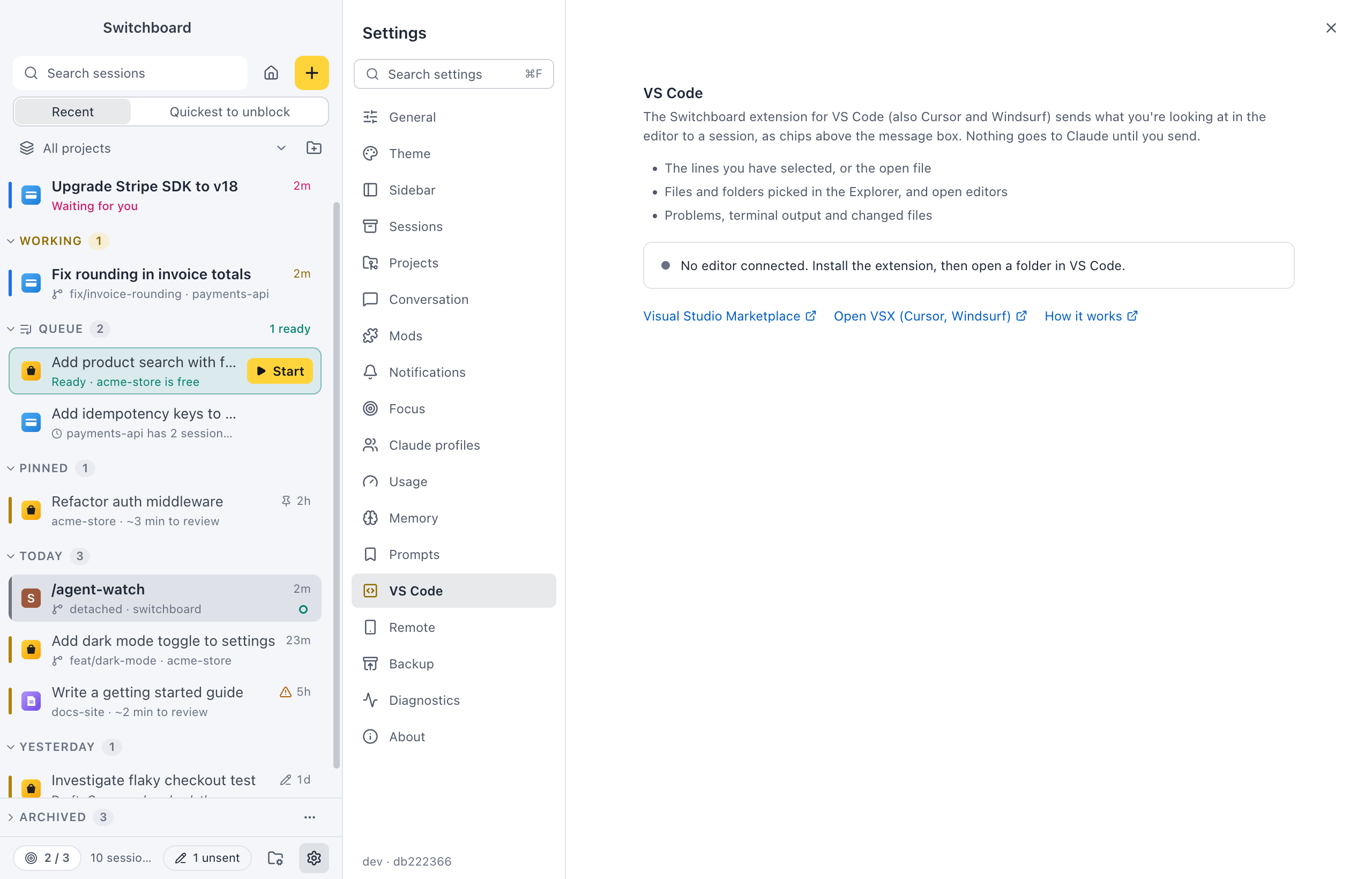
What the Switchboard extension for VS Code (also Cursor and Windsurf) sends to a session:
- The lines you have selected, or the open file.
- Files and folders picked in the Explorer, and open editors.
- Problems, terminal output and changed files.
A status line says whether an editor is connected right now (“Connected to 1 editor window”), or that no editor is connected yet. Links: Visual Studio Marketplace, Open VSX (Cursor, Windsurf) and How it works.
VS Code extension in the command palette opens this section. See VS Code companion.
Backup
Section titled “Backup”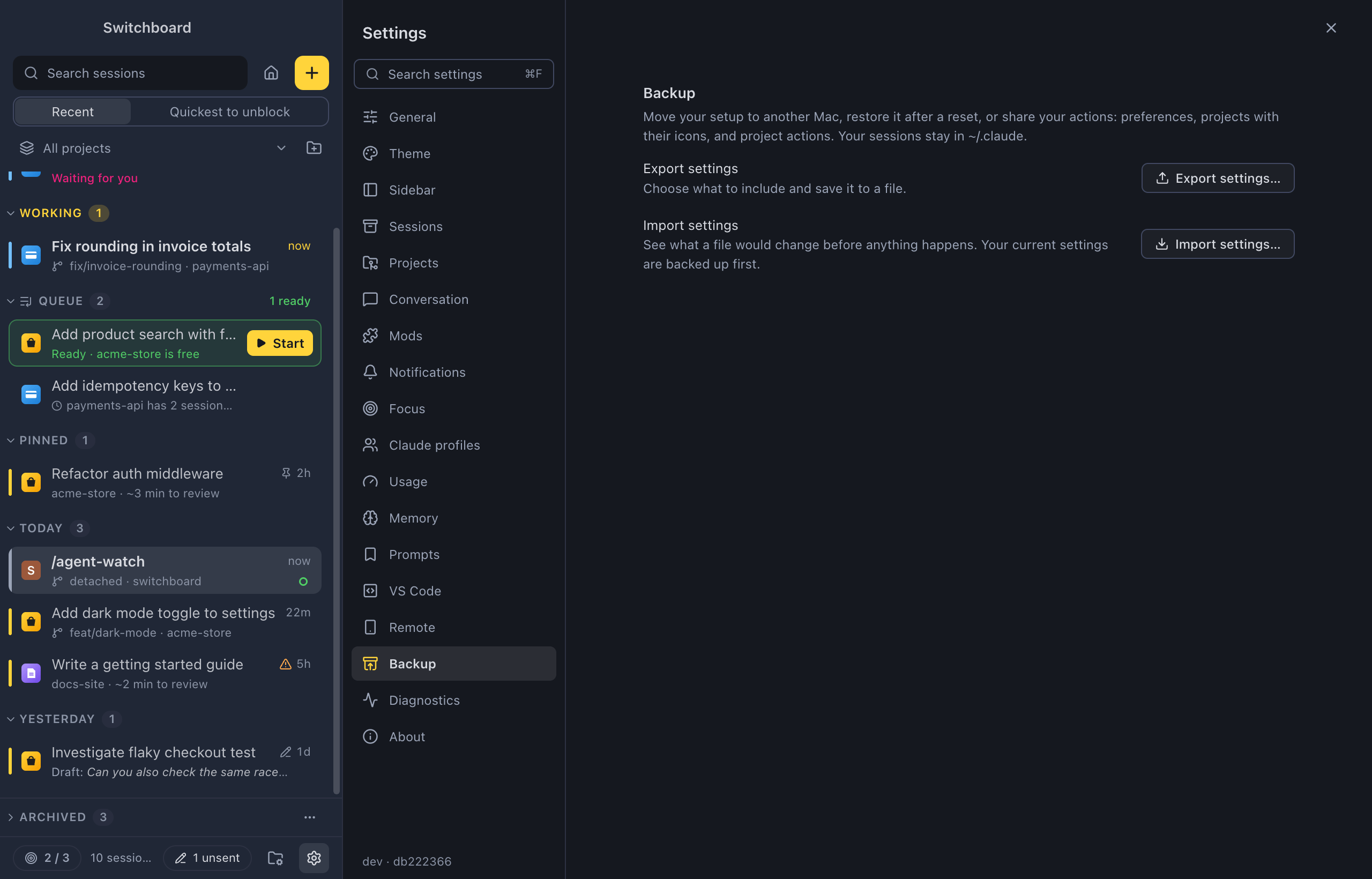
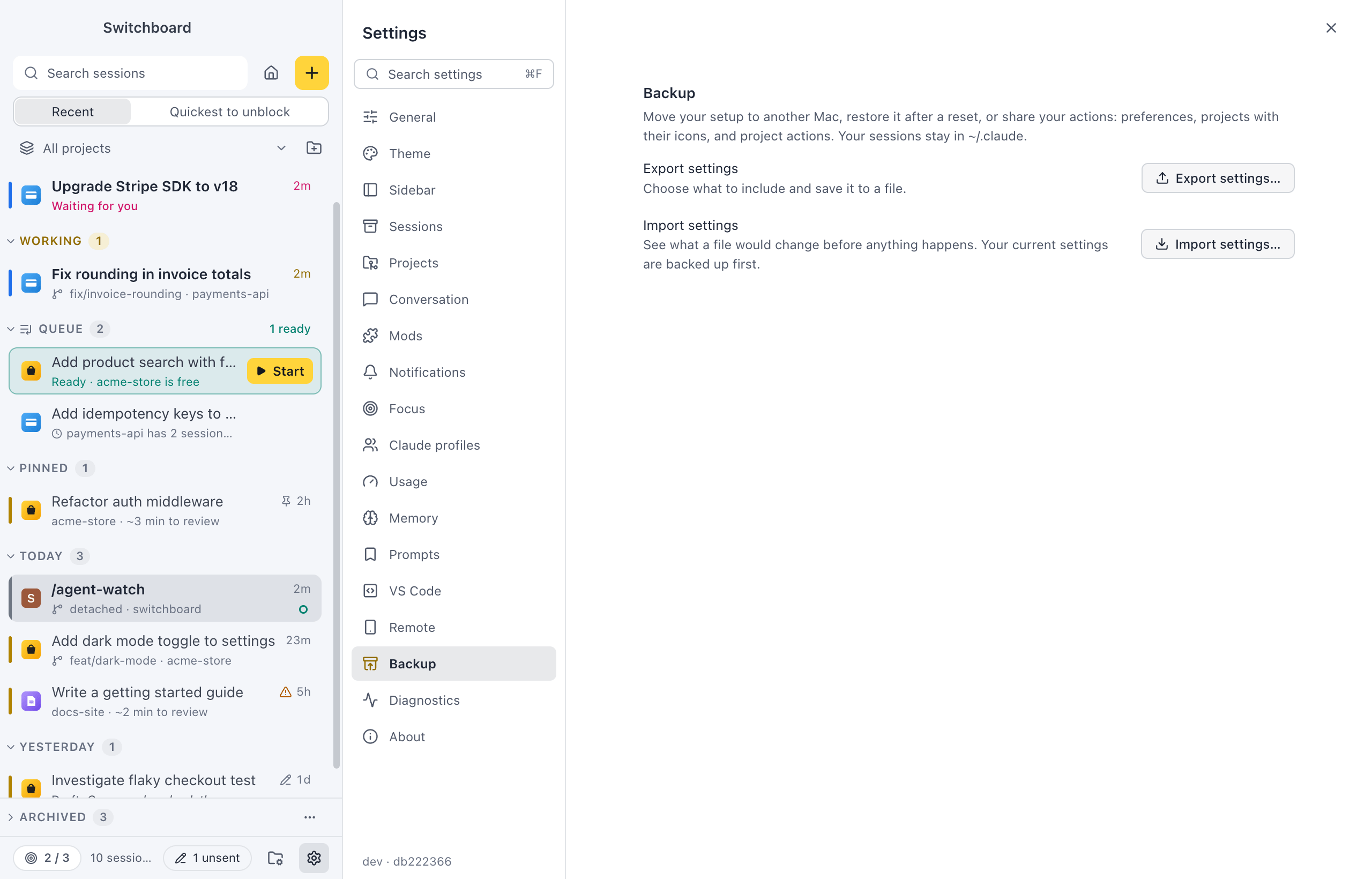
Move your setup to another computer (a Mac or a Windows PC, either way), restore it after a reset, or share your actions. Your sessions stay in Claude Code’s own folder (~/.claude).
- Export settings…: choose what to include and save it to a file.
- Import settings…: see what a file would change before anything happens. Your current settings are backed up first.
The command palette has Export settings… and Import settings…. See Back up and move your settings.
Diagnostics
Section titled “Diagnostics”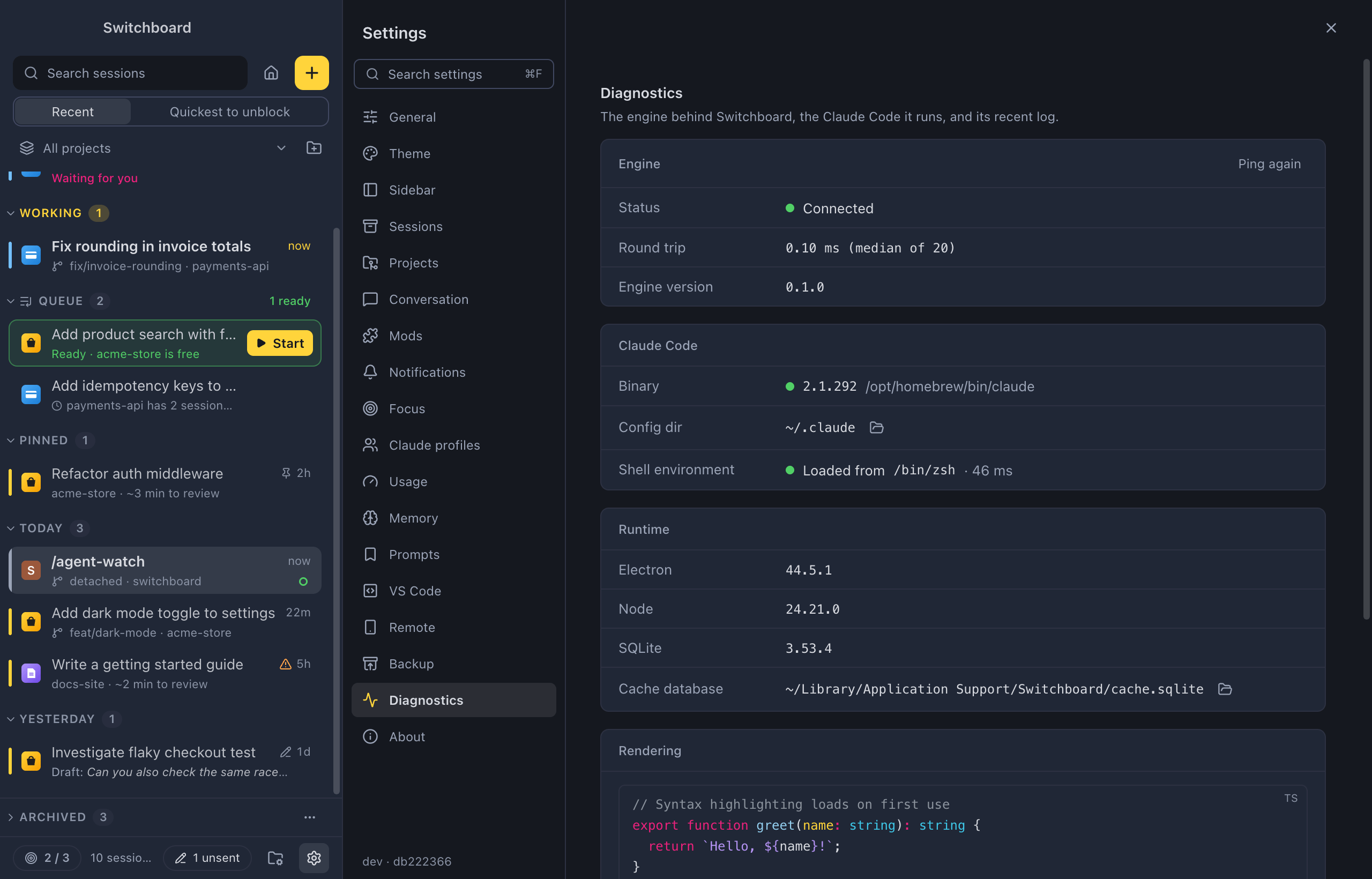
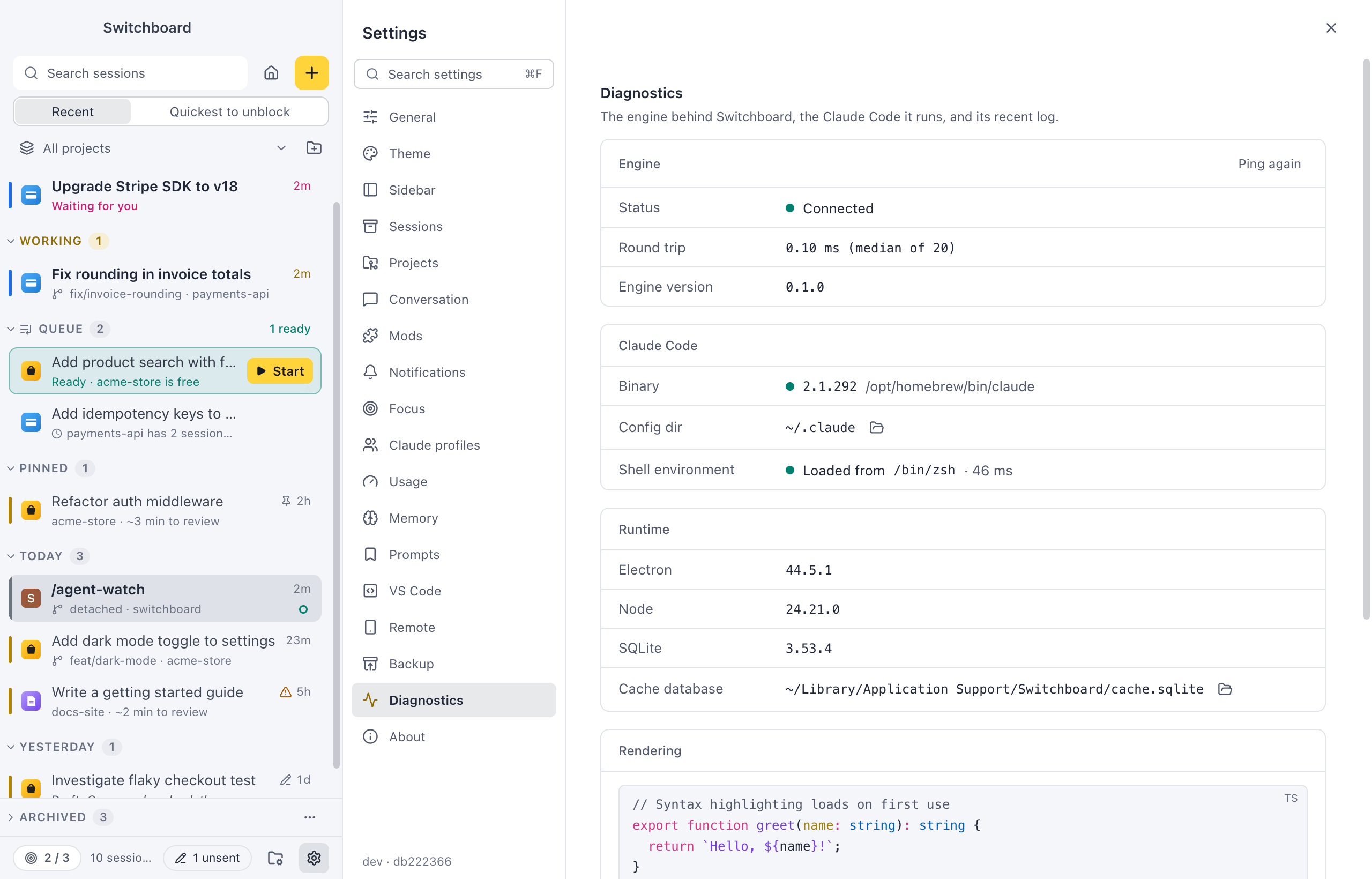
The engine behind Switchboard, the Claude Code it runs, and its recent log. Look here first when something doesn’t work.
- Engine: Status (Connected, and how often it reconnected), Round trip (with Ping again) and Engine version.
- Claude Code: Binary (the version and path of the
claudeit found, or that it wasn’t found on your PATH), Config dir (with a button to open it in FinderFile Explorer) and Shell environment. - Runtime: the Electron, Node and SQLite versions, and the Cache database (with a button to show it in FinderFile Explorer).
- Rendering: a code block and some Markdown in the theme in use.
- Engine log: the engine’s messages since this window connected.
- Mod logs: what mods wrote to their log in running sessions.
Engine diagnostics in the command palette opens this section. See Troubleshooting.
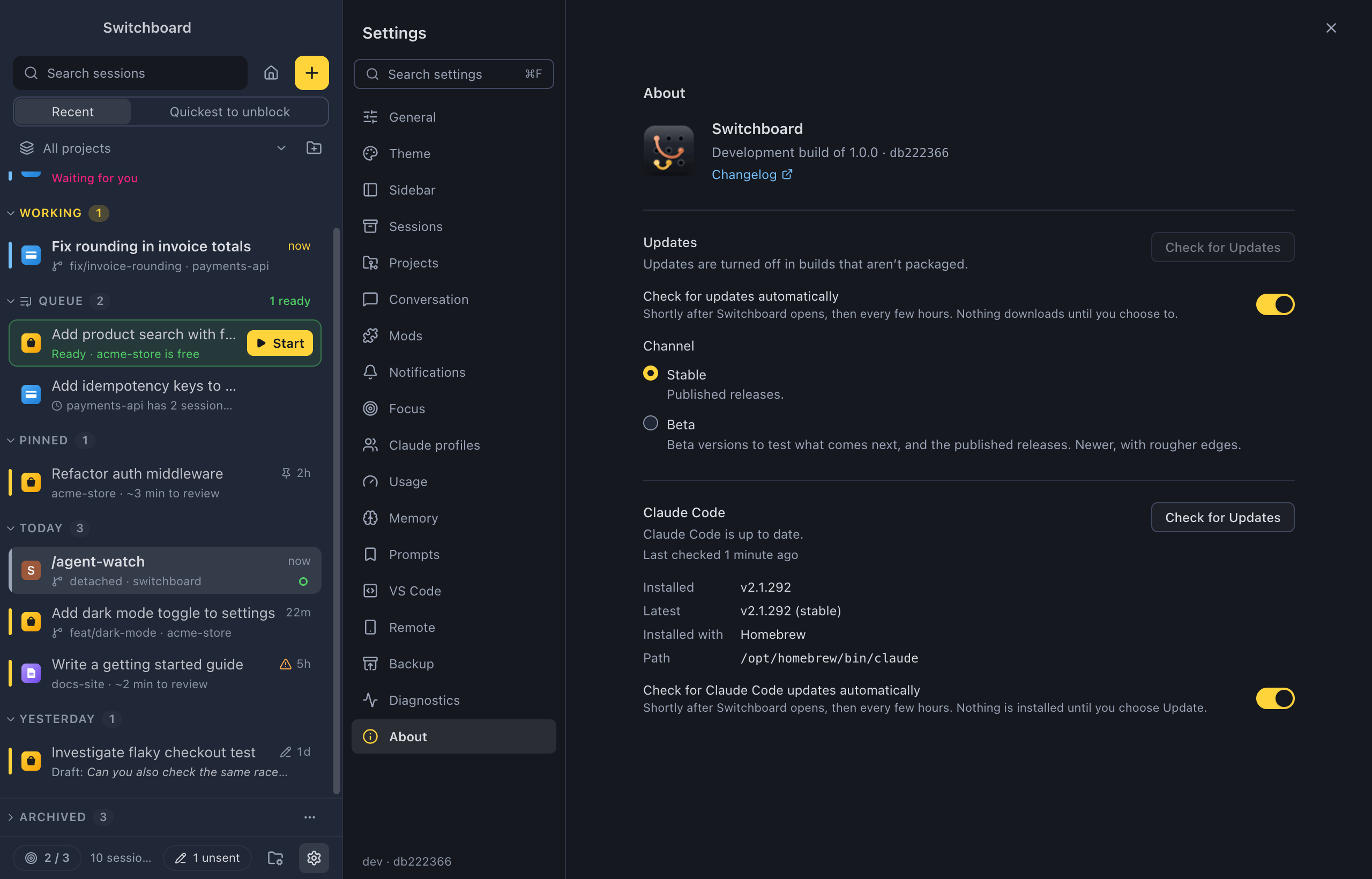
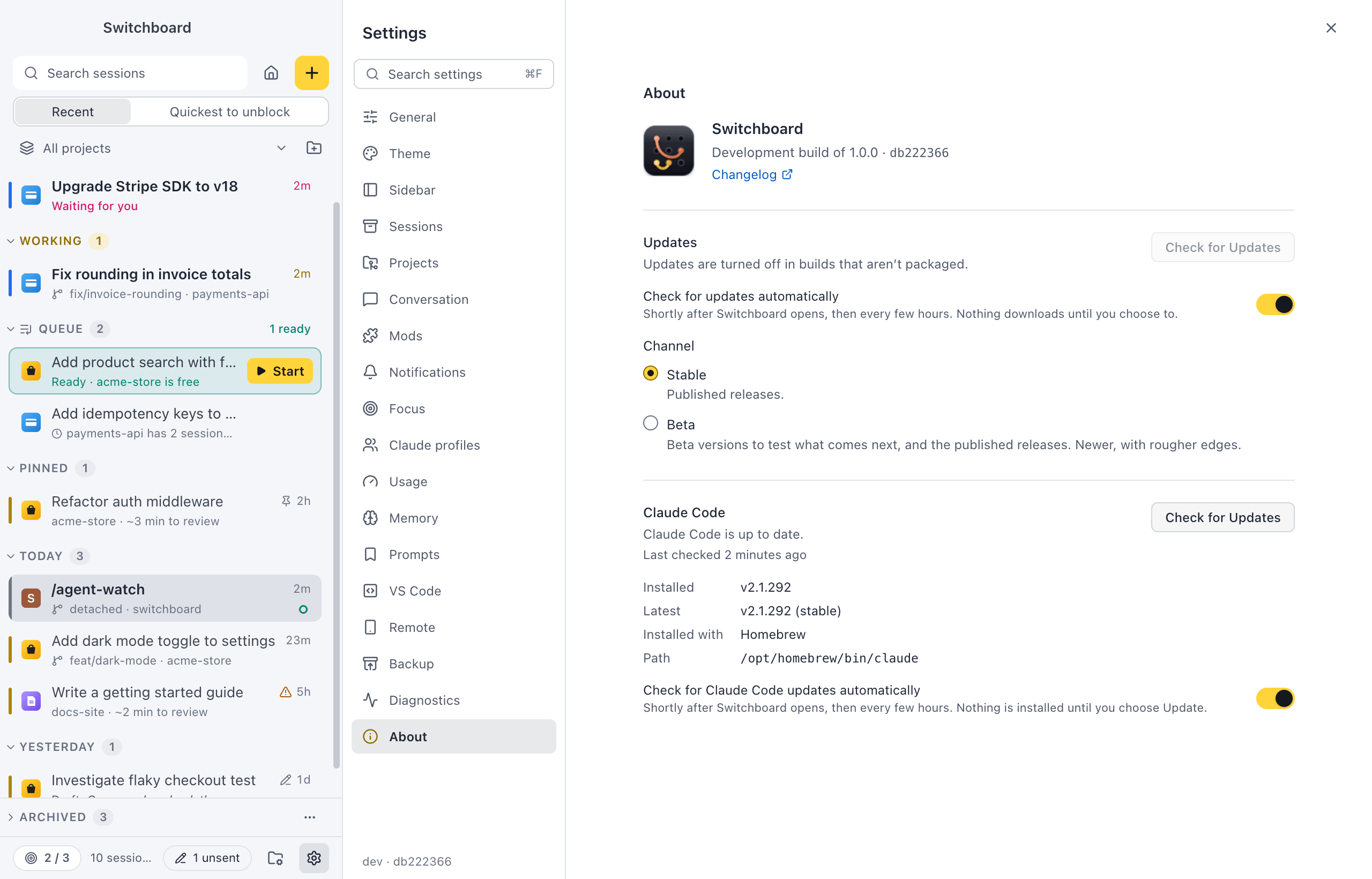
- The version you run, and the commit it was built from (handy for bug reports), with Release notes and Changelog links.
- Updates: whether Switchboard is up to date and when it last checked, with Check for Updates. When a new version is out: Download, then Restart to update, and what’s new in it.
- Check for updates automatically (on by default): shortly after Switchboard opens, then every few hours. Nothing downloads until you choose to.
- Channel: Stable (published releases, the default) or Beta (beta versions to test what comes next, and the published releases).
- Claude Code: the Claude Code Switchboard runs, whether it is up to date, Installed, Latest, Installed with and Path, with Check for Updates and, when a newer version is out, Update to v….
- Check for Claude Code updates automatically (on by default).
See Updates.
Related
Section titled “Related”- Back up and move your settingsExport your Switchboard setup to a file and import it on another computer or after a reset.
- Keyboard shortcutsEvery keyboard shortcut in Switchboard, grouped by where it works.
- Built-in themesPick light or dark mode and one of the themes that come with Switchboard.
- Troubleshooting and FAQWhat to check when something doesn't work, where your data lives, and answers to common questions.