
Upcoming
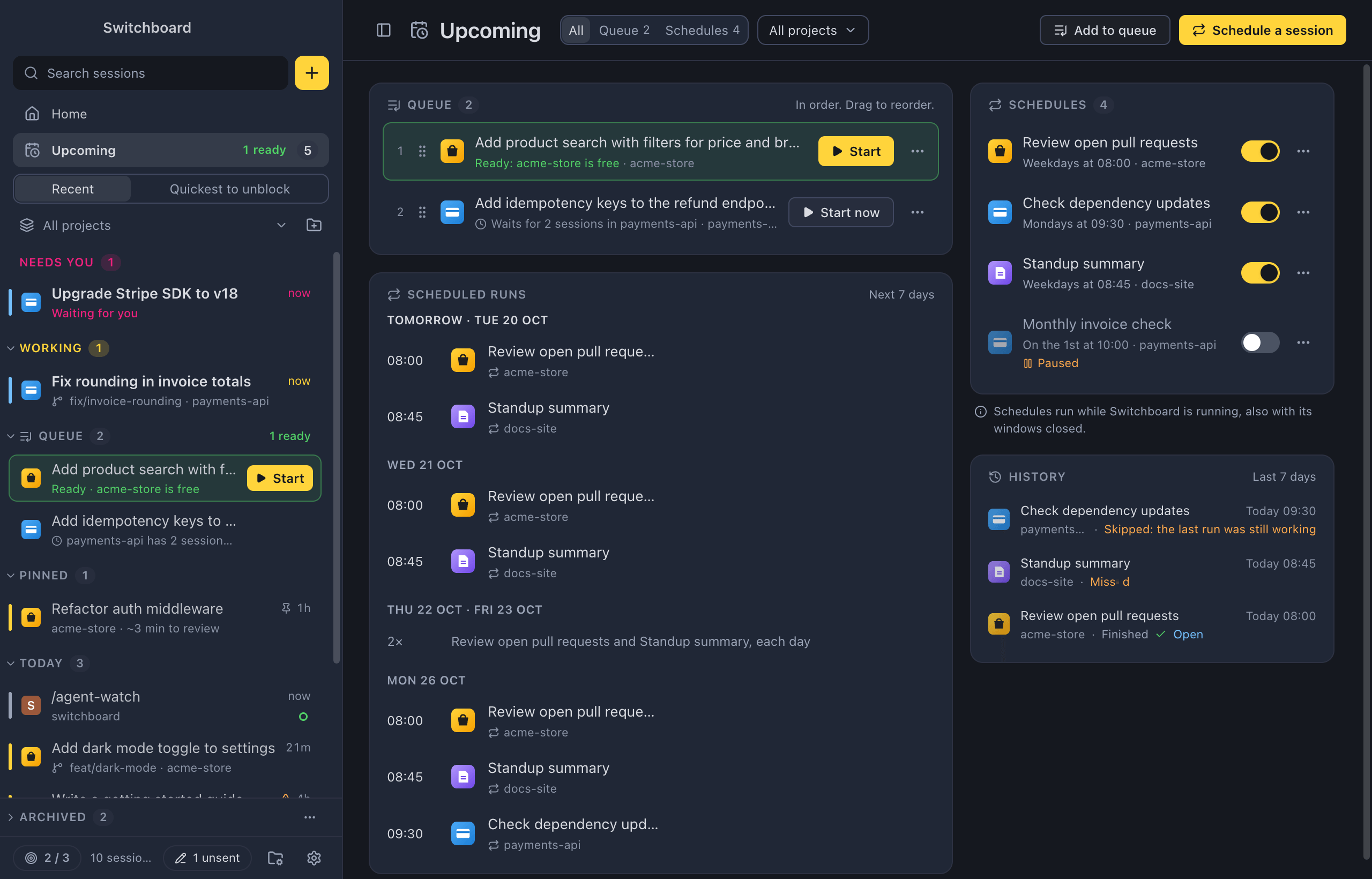
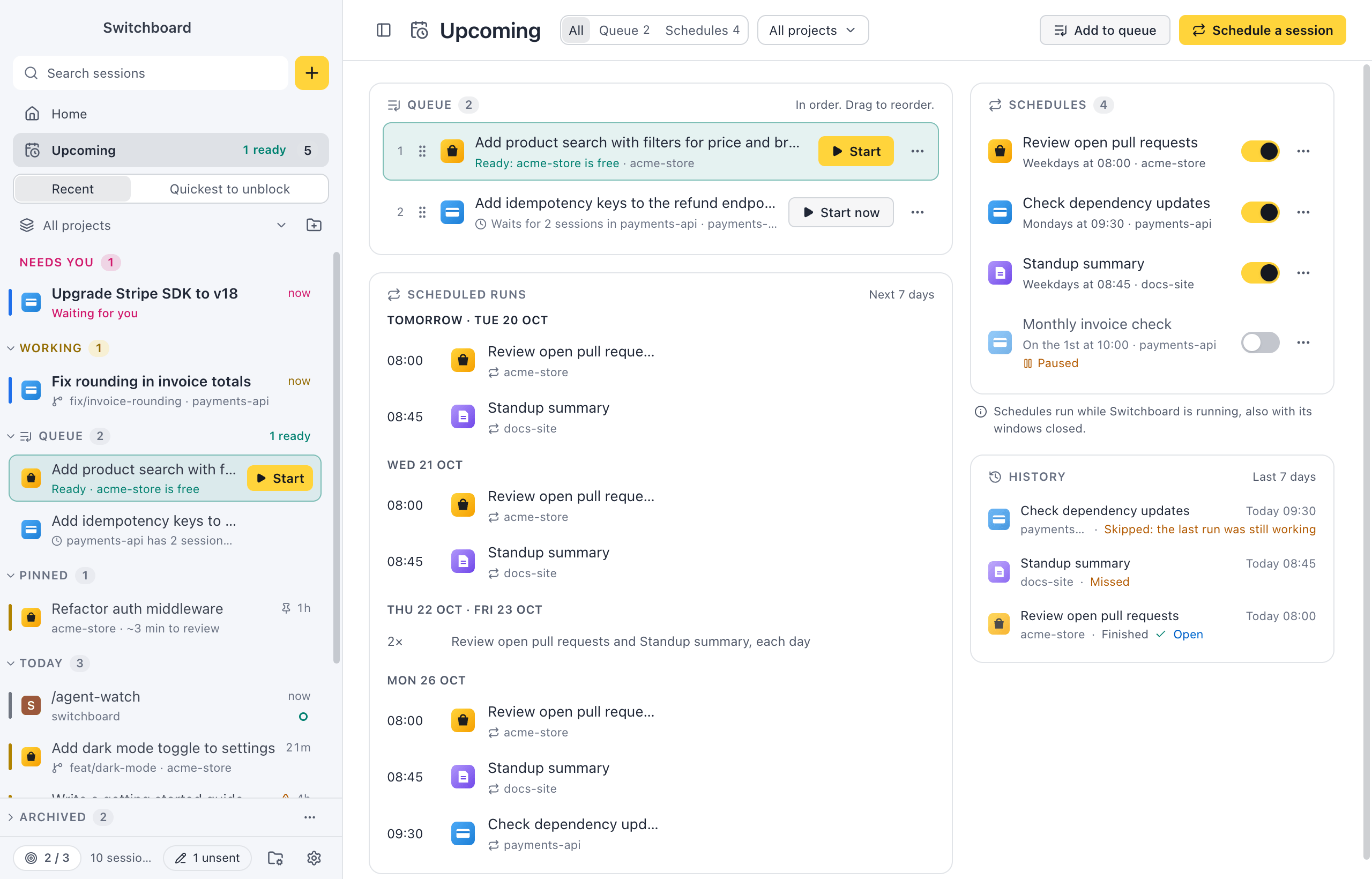
Upcoming shows what is going to run, across all your projects: everything in the queue, the scheduled runs of the next 7 days, and every schedule. History shows what ran in the last 7 days. Use it to see your day and week at a glance, to reorder the queue, or to skip a single run without pausing its schedule.
Open it
Section titled “Open it”- Click Upcoming under the search field in the sidebar. In the minimal sidebar, click the calendar icon under Home.
- Press Command, Shift, YControl, Shift, Y.
- In the command palette, choose Go to Upcoming. Queue… opens it on the queue, and Schedules… on the schedules.
- Click See all in Upcoming on the Queue or Schedules card on Home, or All projects in Upcoming under Schedules in a project’s Sessions tab.
- Click a notification that says a scheduled run is in the queue, was skipped or didn’t start. Upcoming opens with that schedule’s run in view.
The Upcoming row in the sidebar shows a count: your queued items plus your active schedules. Before the count it says what matters most:
- “1 ready”, in green, when a queued item is ready to start;
- otherwise the next scheduled run, such as “next 08:00”, or “next Tue 08:00” when it isn’t today;
- “nothing planned” when nothing is queued and you have no schedules.
Filter
Section titled “Filter”At the top:
- All, Queue and Schedules pick what shows. Queue shows only the queue, across the full width. Schedules shows the scheduled runs and the schedules side by side.
- All projects filters by project. Its menu lists each project that has something queued or scheduled, with the counts as “queued · schedules”.
Each window remembers its own filters.
Add to queue and Schedule a session open New session to write the prompt. With Schedule a session, Start’s main action is Schedule…, so ReturnEnter opens the schedule dialog instead of starting a session.
The Queue card lists your queued prompts in the order they start. Each row has its place, the project, the prompt’s first line and what it waits for, such as “Starts after “Fix transcript scroll jump”” or “Waits for “Slide transitions for scenes”“.
- Start now starts it right away. On a ready item the button is Start.
- ⋯ opens the same menu as in the sidebar: Edit in New session…, Wait for…, Start by itself, the move items and Remove.
- Drag a row by its grip, or press Option, Up Arrow or Option, Down ArrowAlt, Up Arrow or Alt, Down Arrow, to change the order.
See Queue for how queued items start.
Scheduled runs
Section titled “Scheduled runs”The Scheduled runs card lists every run still to come in the next 7 days, grouped by day: “Today · Mon 19 Oct”, “Tomorrow · Tue 20 Oct”, then the days after. Each run shows its time, the project and the schedule’s name. Paused schedules have no runs here.
When two or more days in a row have exactly the same runs as the day above them, they fold into one line, such as “Thu 22 Oct · Fri 23 Oct” with “2× Review open pull requests and Standup summary, each day”. Click it to see each day.
Skip a run
Section titled “Skip a run”Point at a run that is still to come, or move the focus to it, to show Run now, Skip this run and ⋯.
- Run now starts a run straight away. The run at its time still happens.
- Skip this run skips this one run. The schedule stays active and runs again at its next time. The row is dimmed and says Skipped by you, with Undo. A message in the corner says which run you skipped, such as “Skipped Tue 20 Oct 08:00 of Review open pull requests.”, with Undo too.
- ⋯ has Run now, Skip this run, Edit schedule… and Pause schedule (or Resume schedule).
The menu of a schedule on Home, in a project’s Sessions tab and here has Skip next run, which does the same for the schedule’s next run.
Schedules
Section titled “Schedules”The Schedules card lists every schedule, with its rule and project. The switch on each row pauses and resumes it: on means active. A paused schedule is dimmed and says Paused, or Folder not found when Switchboard paused it because its folder is gone. A schedule set to Once leaves the list once it has run; its run shows under History.
⋯ has the schedule’s menu: Run now, Skip next run, Edit…, Pause or Resume, and Delete, which has Undo.
Under the card, a line says when schedules run: while Switchboard is running, also with its windows closedwhile a Switchboard window is open.
History
Section titled “History”The History card, under the schedules, lists the runs of the last 7 days, newest first: each with when it ran (“Today 13:58”, “Yesterday 08:00”), the schedule and project, and how it went.
| It says | What happened |
|---|---|
| Finished, with Open | The run started a session. Open opens it. While the session is still going it says Working or Waiting for you. |
| Skipped: the last run was still working | The session of the run before was still busy. |
| Missed | Switchboard was closed at its time, and the schedule is set to Skip it. |
| In the queue | It went to the queue at the focus limit or a usage limit. |
| Skipped by you | You skipped it with Skip this run. |
| Didn’t start | It couldn’t start, with the reason, such as “Folder not found”. |
A schedule set to Once only shows here after its run, for 7 days. After that Switchboard removes it. The session it started keeps the repeat icon in the sidebar.
Nothing planned
Section titled “Nothing planned”With nothing queued and no schedules, Upcoming says Nothing planned, with Add to queue and Schedule a session.
Related
Section titled “Related”- QueueKeep prompts to start later, in the order you want them, and see when each one is ready.
- SchedulesStart a session from a prompt once, or at set times every day, on weekdays, on the days you pick or once a month.
- HomeOne view of what needs you, what is working, your queue, your schedules and your projects.
- SessionsA project's Sessions tab lists its sessions the way the sidebar does, with its queued prompts, schedules and archived sessions.
- Focus limitSet how many sessions you want going at the same time, and get asked before you start one more.