
Git
Take a session’s work from changed files to a pull request without leaving the session. A session in a git repository shows its branch in the header, and a git button that offers the next step for the branch: pull, commit, push, create a pull request, or fetch. Its menu has every step, plus switching branch and starting a worktree. Fetch, pull and push run in a terminal tab, so you see their output. A pull request is created in a dialog, without a browser.
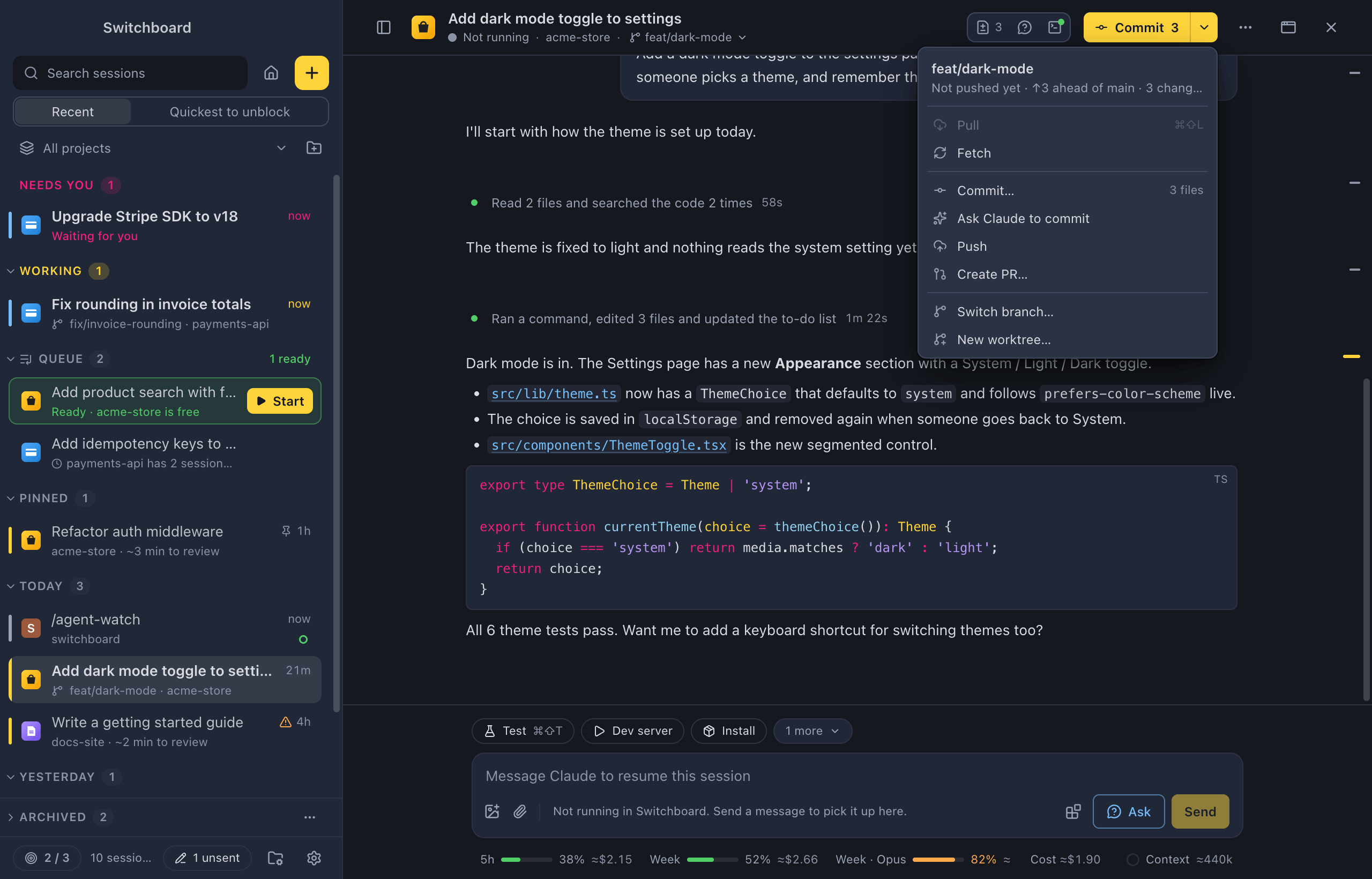
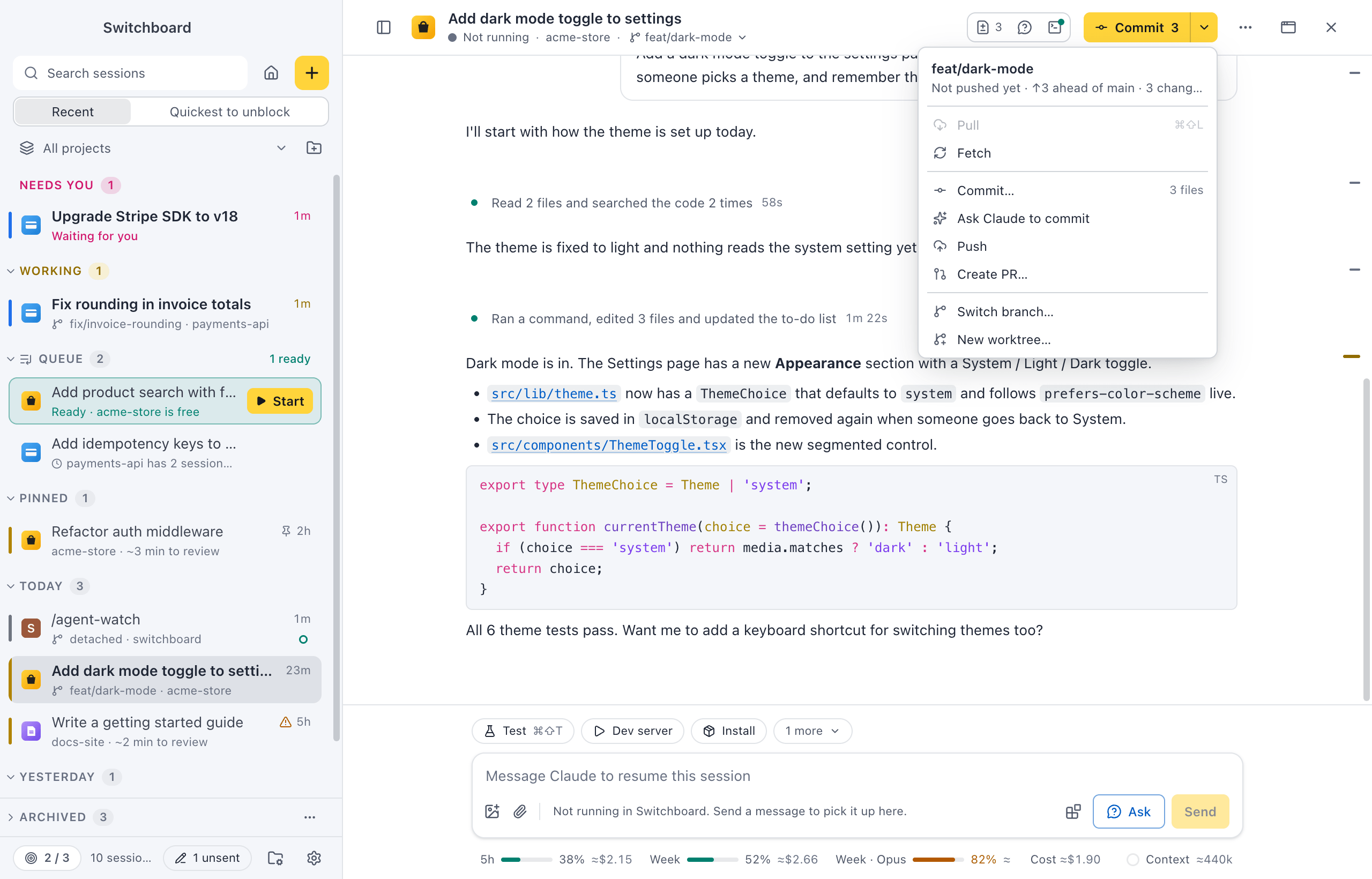
Where to find it
Section titled “Where to find it”- The branch is in the session header, under the title. Click it to switch branches, or, in a worktree, to finish the worktree.
- The git button is in the session header, on the right. Its ▾ opens the git menu.
- The command palette (Command, KControl, K) has Commit…, Create pull request… (or View pull request #123 once the branch has one), Fix failing checks with Claude when a check failed, Sync with remote, Switch branch… and, in a worktree, Finish worktree….
- Command, Shift, LControl, Shift, L pulls while the branch is behind its upstream.
The branch in the header
Section titled “The branch in the header”The header shows the branch the session’s folder has checked out, read live from git. It stays right when you or Claude switch branches in a terminal. A detached HEAD shows as detached.
Switch branch
Section titled “Switch branch”Click the branch in the header, choose Switch branch… in the git menu, or run Switch branch… in the command palette. The menu lists the local branches, the current one first. With more than eight, type in Filter branches to find one.
Switching uses git switch:
- Uncommitted changes that don’t conflict come along to the new branch.
- When they would be overwritten, git refuses and you stay where you are, with git’s message in the menu. Nothing is ever stashed or thrown away.
- It waits while Claude is working in this folder. Stop Claude, or wait for it to finish, to switch.
- When other sessions work in the same folder, Switchboard asks first, since they see the new branch too.
A session in a worktree has its own checkout, so it can’t switch branches. Its branch button opens the worktree menu instead.
Without a session, switch the project’s folder from its Branches tab. It lists the branches on the remote too.
The git button
Section titled “The git button”The button’s face runs the step the branch needs next, in the order a branch usually goes through:
| Face | When |
|---|---|
| Pull ↓2 | The branch is behind its upstream. |
| Commit 3 | There are changed files. Claude writes the commit. |
| Push ↑1 | There are commits to push, or a new branch with commits to publish. |
| Create PR | A branch other than the base branch, or a worktree, has commits ahead of the base branch. It opens Create pull request. |
| View PR #123 | The branch has an open pull request, and nothing to pull, commit or push. It opens the pull request on GitHub. An icon shows how its checks stand. |
| Fetch | Nothing else to do. Fetching shows whether the upstream moved on. |
The number is how many commits or files the step takes. When there is something to do, the button is yellow. Fetch and View PR are quiet buttons; View PR also says whether the pull request is Open or a Draft. Hover the button to see what it will do, or why it can’t.
Fetch, pull and push run git in a terminal tab. A branch without an upstream is pushed with git push -u, which sets it.
The git menu
Section titled “The git menu”The ▾ next to the button opens the menu. At the top it shows the branch and where it stands: how far it is behind and ahead, and how many files changed. Then:
- Pull (Command, Shift, LControl, Shift, L) and Fetch;
- Commit…, with your own message;
- Ask Claude to commit;
- Push and Create PR…, or, once the branch has an open pull request, View PR #123 (and Mark ready for review for a draft);
- Checks, the pull request’s checks, with Fix failing checks with Claude when one failed;
- Switch branch…, or Merge or remove worktree… in a worktree;
- New worktree…
When the branch is behind its upstream, the menu says to pull before you push. A step that can’t run is greyed out.
Commit
Section titled “Commit”There are two ways to commit:
- Ask Claude to commit (also the button’s face, Commit N) has Haiku write the message, then commits. Haiku reads only the changes: the files, the diff stat and the diff (lock files left out, about 10,000 tokens at most), and your recent commit messages for the style. It doesn’t read the conversation, so a commit costs a few thousand tokens however long the session is. The tokens count on the session’s profile, in Usage.
- Commit… opens a dialog for your own message. Click Commit or press Command, ReturnControl, Enter.
Both commit what is staged, or every change when nothing is staged. Git runs in a terminal tab, so you see the output of your commit hooks.
Stage files in the Changes panel. Commit… in the command palette opens the same dialog.
Create a pull request
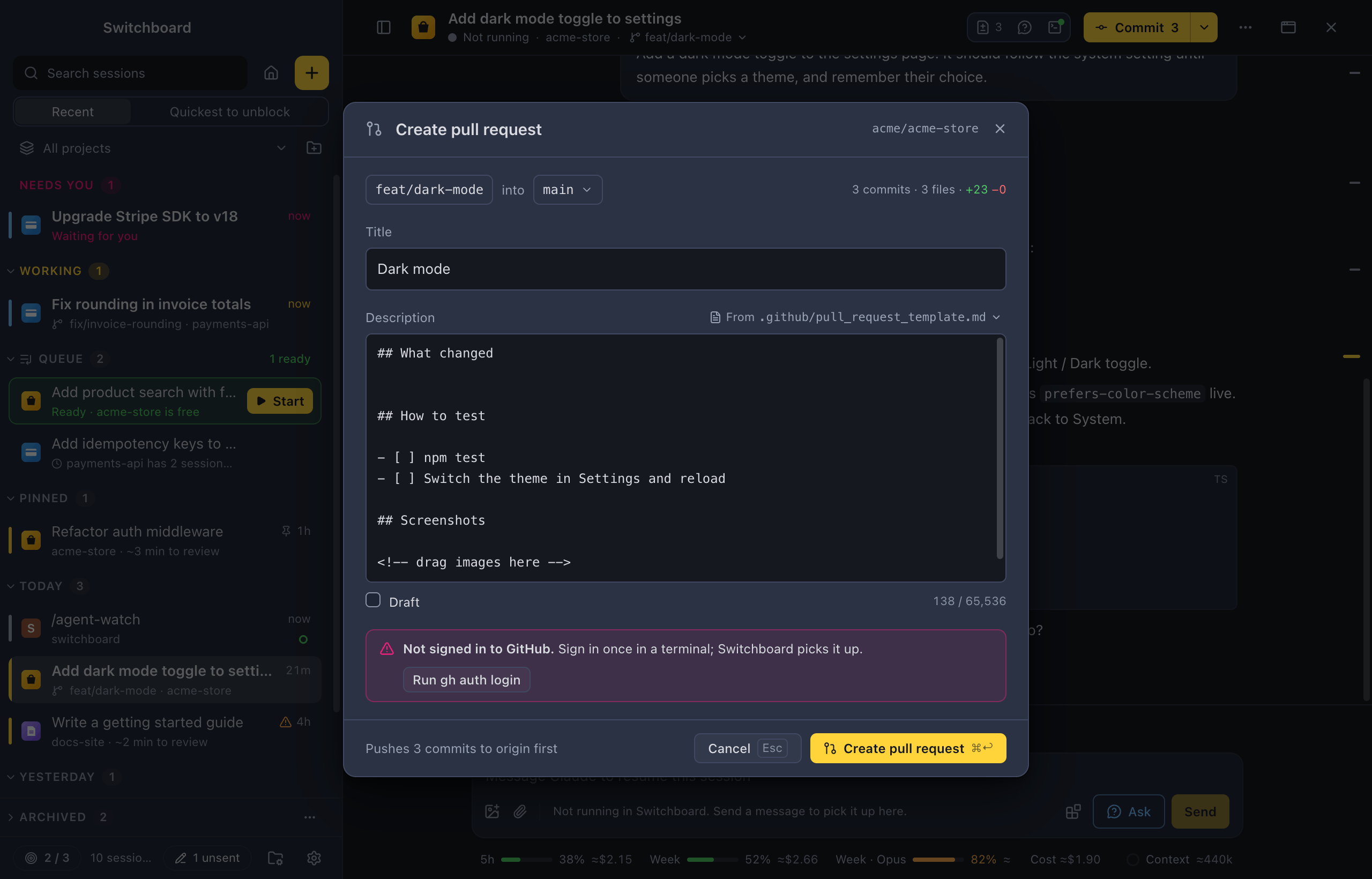
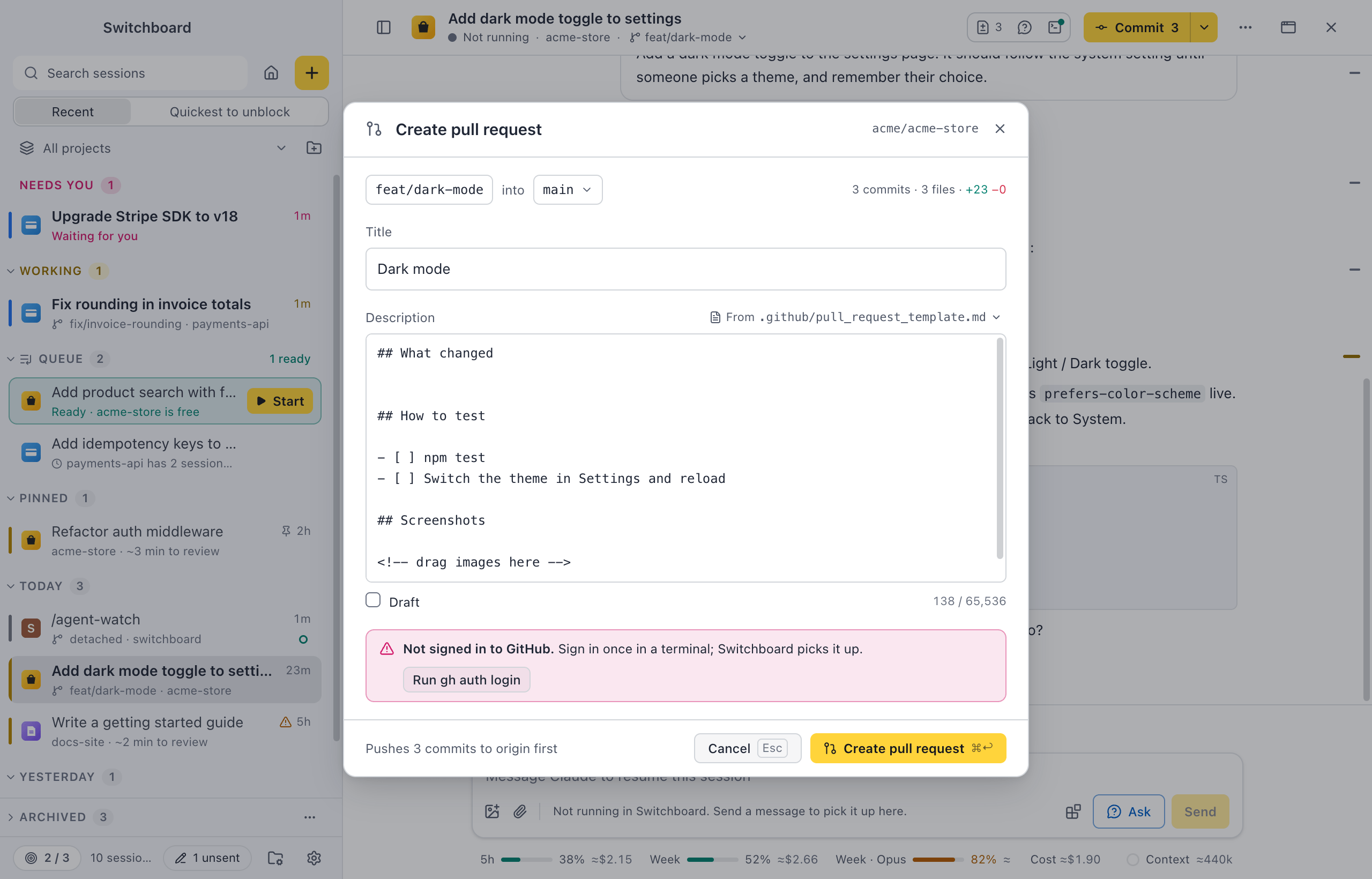
Section titled “Create a pull request”Create PR… opens the Create pull request dialog. You write the pull request in Switchboard, and it is created without a browser or a terminal.
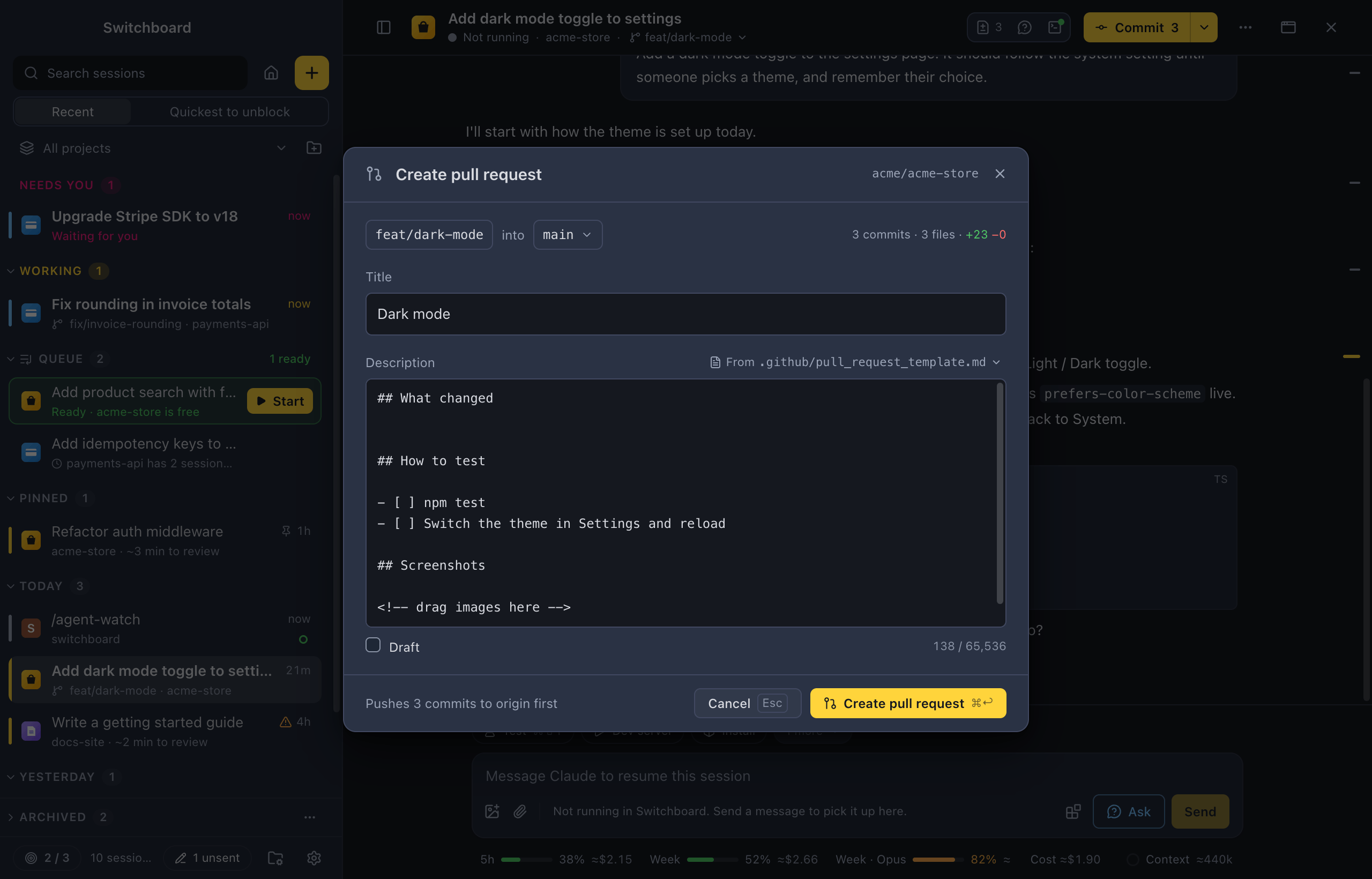
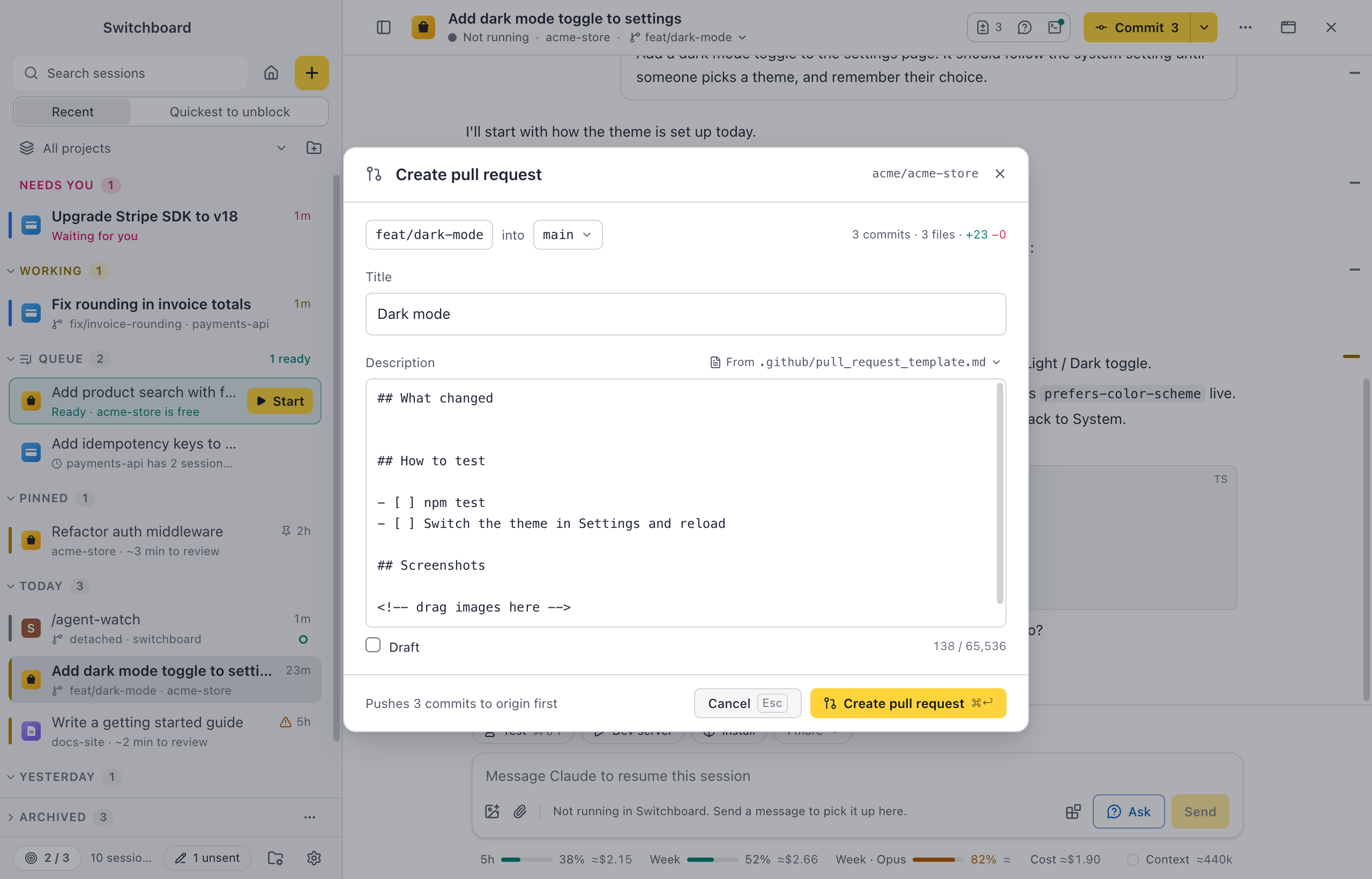
- Check the branches at the top: your branch, into the base branch. Click the base branch to pick another one; type in Filter branches to find it. The line on the right says how many commits, files and lines the pull request has.
- Write the Title. It starts as the commit’s message when the branch has one commit, otherwise as the branch name (
feat/sessions-archivebecomes Sessions archive). - Write the Description. It starts from the repository’s pull request template when it has one, otherwise from the list of commits. From on the right picks another start: each template, Commit list or Empty. When you have changed the text, Switchboard asks before it replaces it.
- Tick Draft to open it as a draft.
- Click Create pull request or press Command, ReturnControl, Enter.
Switchboard pushes the branch first, as the line at the bottom left says (Pushes 3 commits to origin first, or Already pushed). A branch without an upstream is published with git push -u. Then the GitHub CLI creates the pull request. The footer shows each step, and the fields wait until it is done. A message then says Pull request #123 created, with Open and Copy link, and the git button shows View PR #123.
Templates are found where GitHub looks for them: pull_request_template.md in .github/, the top folder or docs/, and every file in .github/PULL_REQUEST_TEMPLATE/.
GitHub takes a description of up to 65,536 characters. The counter under the description turns red past that, and Create pull request waits. Use commit titles only replaces the description with the list of commits, shortened to fit.
When it doesn’t work
Section titled “When it doesn’t work”Everything you typed stays in the dialog. Close it without creating, and it comes back the next time you open it for the same branch.
- GitHub CLI isn’t installed. How to install opens the GitHub CLI’s website. Open on GitHub instead pushes the branch and opens GitHub’s page for a new pull request, with your title.
- Not signed in to GitHub. Run gh auth login opens a terminal tab with the command typed in. Press ReturnEnter there, sign in, and open the dialog again.
- Push rejected. The remote has commits your branch doesn’t have, or a rule there turned the push down. Pull and try again pulls in a terminal tab, then opens the dialog again. Show output shows what git said.
- This branch already has a pull request. View PR #118 opens it.
Creating a pull request needs the GitHub CLI (gh), signed in to the account that can open pull requests on the repository. The Create PR project action still runs gh pr create --web in a terminal, if you prefer GitHub’s own page.
Checks
Section titled “Checks”Once the branch has an open pull request, Switchboard shows its checks: the GitHub Actions jobs, and the statuses of other services, that run on the pull request.
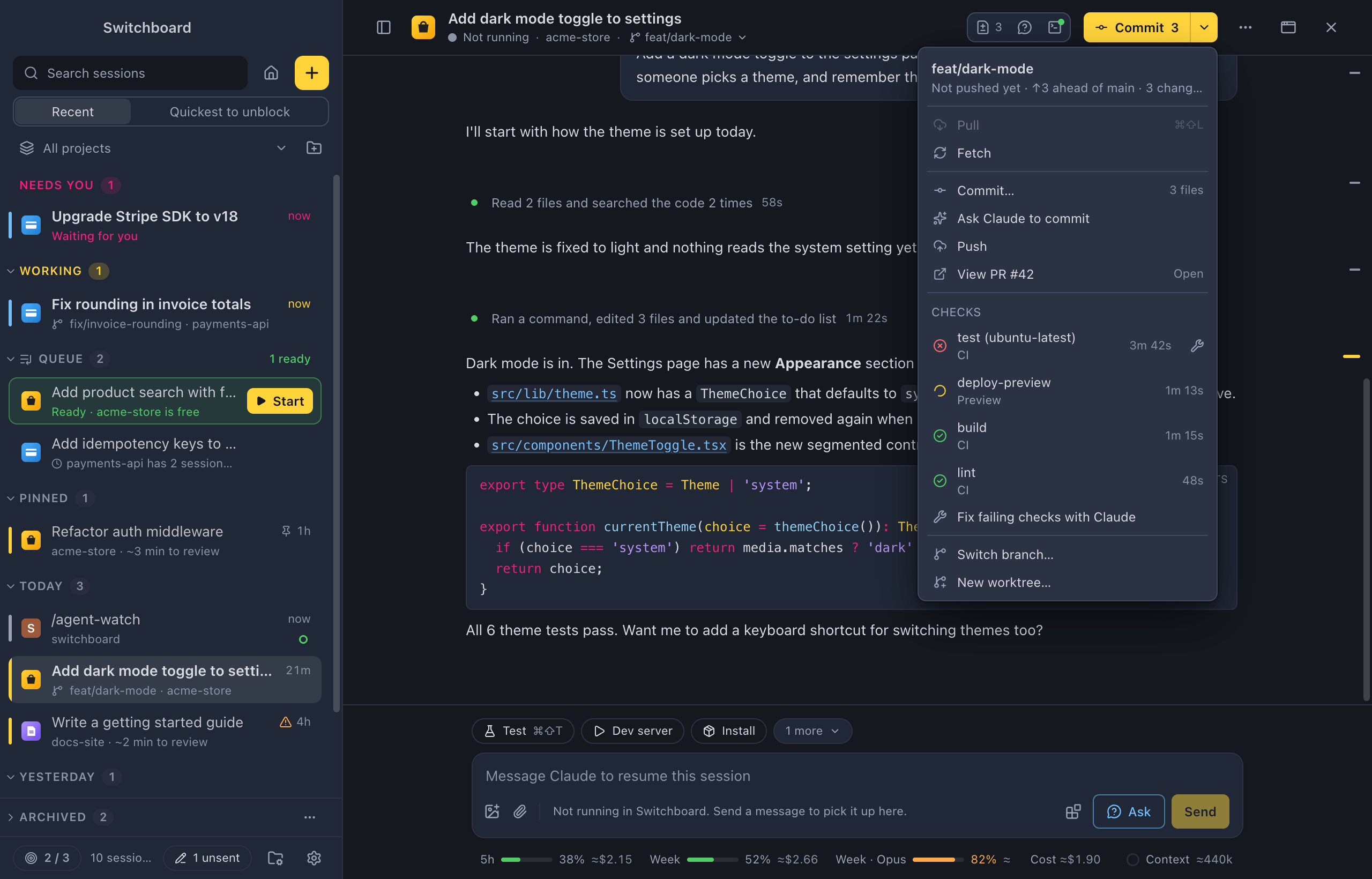
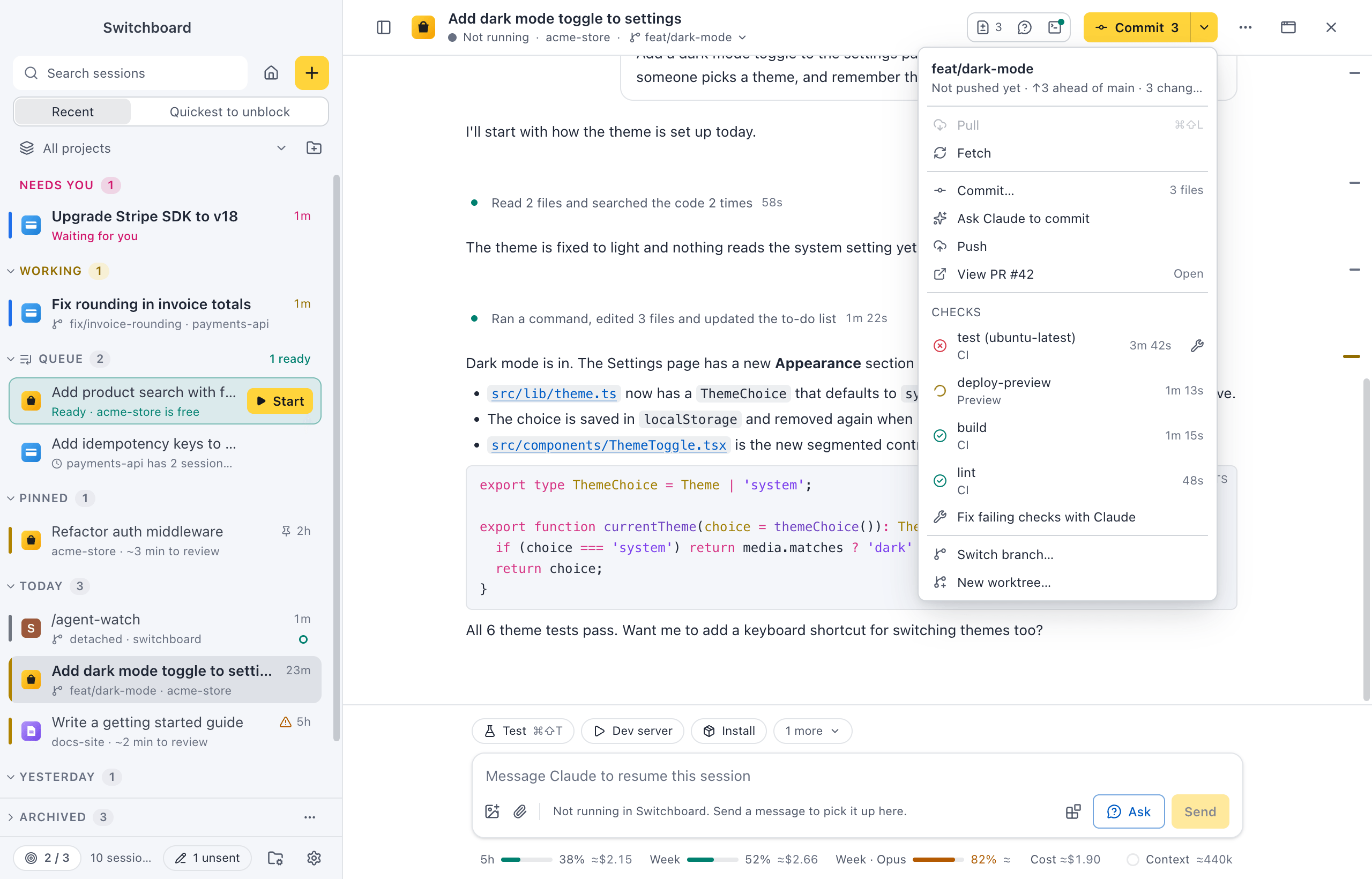
- View PR #123 on the git button gets an icon: a green check when all checks passed, a red cross when one failed, a spinning circle while they run. Hover it to see how many, such as 1 of 5 checks failed or 2 checks running.
- The git menu has a Checks group: each check with its workflow and how long it ran, failed ones first. Click a check to open it on GitHub. With more than eight checks, N more on GitHub opens the pull request’s checks.
- While checks run, Switchboard reads them again every 30 seconds, and every 5 minutes while none of its windows is in front. After a push, it looks for the new checks while GitHub starts them.
- When the checks finish while you are in another session or app, a notification says Checks failed on PR #123 or Checks passed on PR #123. Click it to open the session. With sounds on, failed checks play the sound for Stopped with an error, and passed ones the sound for Project action ended.
Fix failing checks with Claude
Section titled “Fix failing checks with Claude”Fix failing checks with Claude, under the checks in the git menu, hands the failed checks to Claude. A failed check’s row has its own Fix with Claude button, for that check only. The command palette has Fix failing checks with Claude too.
Switchboard reads the end of each failed job’s log on GitHub: its last 150 lines, without colours and timestamps. It puts a prompt in the session’s message box that names the checks, with each log as a chip under it, so the box stays short and Claude gets the whole log. A check that isn’t a GitHub Actions job, such as a deployment, is named with its description and link.
Nothing is sent yet: add to the prompt if you like, then send it. While Claude is working, it waits in Up next like any message you send then.
Without the GitHub CLI
Section titled “Without the GitHub CLI”Checks are read with the GitHub CLI (gh). When it isn’t installed or isn’t signed in, the button has no icon, and the Checks group says why: GitHub CLI isn’t installed. or Not signed in to GitHub. A repository that isn’t on GitHub shows no checks.
Sync with remote
Section titled “Sync with remote”Sync with remote in the command palette does the one step that brings the branch in line with its remote: it pulls when the upstream is ahead, otherwise pushes what hasn’t been pushed (or publishes a branch with commits), otherwise fetches.
While Claude works
Section titled “While Claude works”Pull, Commit… and Ask Claude to commit wait while Claude is working in the folder, so git doesn’t change files under it. Stop Claude (Escape) or wait for it to finish.
New worktree
Section titled “New worktree”New worktree… in the git menu opens New session on this project with a new worktree chosen, so the next session works on its own branch and folder.
Finish a worktree
Section titled “Finish a worktree”In a session that runs in a worktree, the branch in the header opens the worktree menu. Merge or remove worktree… in the git menu, and Finish worktree… in the command palette, open it too. It shows the worktree’s branch, how many commits it has ahead of and behind the base branch, and two choices.
Merge into the base branch
Section titled “Merge into the base branch”Merge into <base>… merges the worktree’s branch into the base branch in the main checkout, in a terminal tab, so you can see the result. The worktree stays; remove it afterwards. It is only offered when:
- the worktree has no uncommitted changes (a merge only takes commits);
- it has commits to merge;
- the main checkout is on the base branch;
- the main checkout has no uncommitted changes.
It also waits while a session is working in the main checkout.
Remove the worktree
Section titled “Remove the worktree”Remove worktree… deletes the worktree’s folder and stops this session in Switchboard. The conversation stays in your history.
Also delete the branch is on by default. When the branch has commits that aren’t in the base branch and aren’t pushed, the confirmation warns that deleting the branch loses them. Untick it to keep the branch.
A worktree with uncommitted changes can’t be removed: commit or revert them first.
Settings
Section titled “Settings”Git has no settings in Switchboard. It uses your own git configuration, credentials and environment (your login shell’s on a Mac, the one Windows gives apps on a PC), so ssh keys and credential helpers work as in your terminal.
On Windows, Switchboard needs Git for Windows. It runs git with core.longpaths on, so files whose full path is longer than 260 characters, common in deep worktree folders, still show in Changes. Create PR runs git and gh directly, without a shell, so it works the same with Windows PowerShell 5.1 and PowerShell 7. A project’s default branch for new sessions is on its Settings tab.
Related
Section titled “Related”- ChangesThe Changes panel shows a session's git diff, and lets you stage, unstage and revert files.
- WorktreesStart a session in an isolated copy of the repository on a branch of its own, like claude --worktree.
- BranchesSee every branch of a project, here and on the remote, switch between them, and delete the ones you no longer need.
- WorktreesSee every worktree of a project, which ones can go, and remove several at once after one confirmation.